
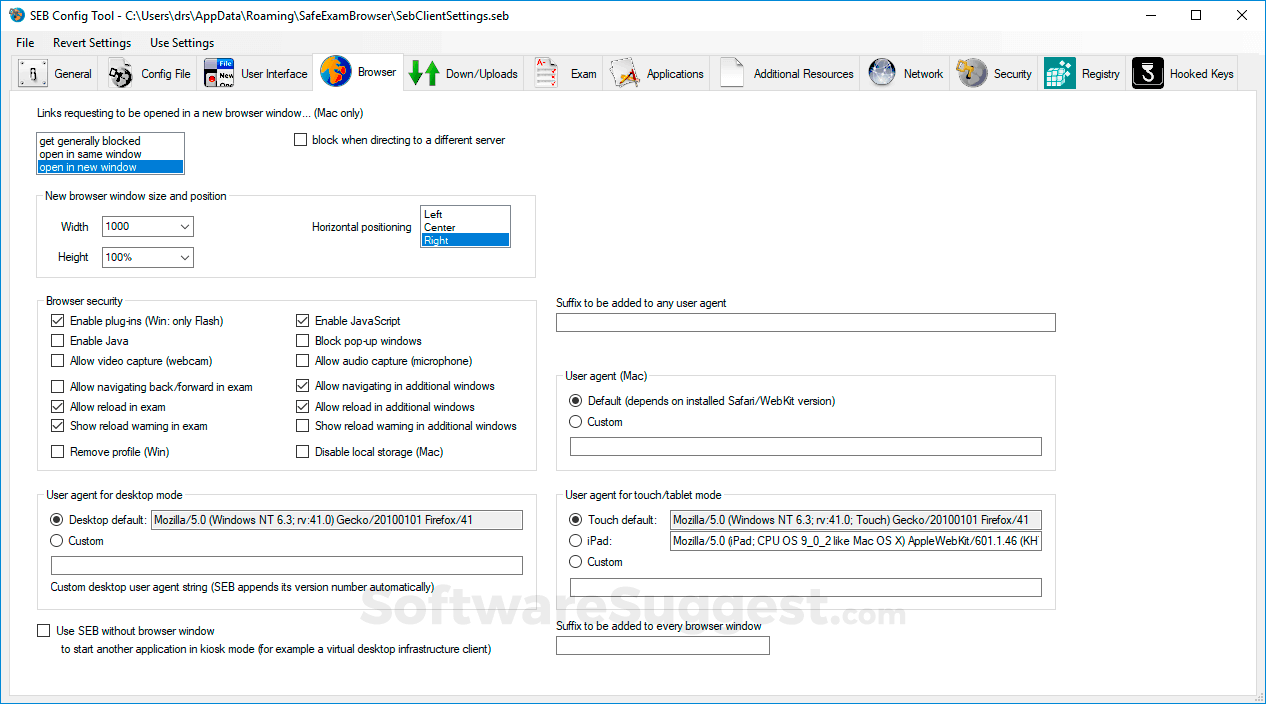
Understanding Safe Exam Browser (SEB) – A Guide to Downloading And Installing Seb on Various Devices
Are you preparing for online exams or university entrance tests? Are you wondering how to download and install the Safe Exam Browser (SEB) on your device? Look no further! In this comprehensive guide, we will walk you through the process of downloading and installing SEB on various devices, including PC, Mac, Chromebook, smartphone, tablet, iPad, and Android.
What is Safe Exam Browser (SEB)?
Safe Exam Browser (SEB) is a program designed to ensure that online exams are conducted securely and fairly. It allows students to access only the exam platform during the test period, preventing any external distractions or cheating. SEB is available for various operating systems, including Windows, macOS, iOS, and Android.
Downloading And Installing Seb on PC
To download and install SEB on your PC running Windows 8.X or successive versions, follow these steps:
- Visit the official SEB website and click on the “Download” button.
- Select the version of SEB compatible with your operating system (Windows).
- Click on the download link to initiate the download process.
- Once the download is complete, open the file (.Exe) and follow the installation instructions.
- Agree to the license terms and conditions and click on the “Install” button.
- Wait for the installation process to complete.
Downloading And Installing Seb on Mac
To download and install SEB on your Mac, follow these steps:
- Visit the official SEB website and click on the “Download” button.
- Select the version of SEB compatible with your operating system (macOS).
- Click on the download link to initiate the download process.
- Once the download is complete, open the file (.Dmg) and follow the installation instructions.
- Drag the SEB icon to the Applications folder.
Downloading And Installing Seb on Chromebook
Unfortunately, it is not possible to download and install SEB on a Chromebook at this time. SEB is not compatible with Linux-based operating systems, including Chrome OS.
Downloading And Installing Seb on Smartphone And Tablet
You can download and install the SEB app directly from the App Store on your iPhone or iPad. To do so:
- Open the App Store and search for “SEB”.
- Tap on the SEB icon to open it.
- Tap on the “Get” button to initiate the download process.
- Wait for the installation process to complete.
Downloading And Installing Seb on Android
Unfortunately, SEB is not available for Android devices at this time. The developers have not released a version compatible with Android operating systems.
Conclusion
In conclusion, downloading and installing Safe Exam Browser (SEB) on various devices is a straightforward process. By following the steps outlined in this guide, you can ensure that your online exams are conducted securely and fairly.
Frequently Asked Questions (FAQs)
- Q: What is Safe Exam Browser (SEB)?
A: SEB is a program designed to ensure that online exams are conducted securely and fairly. - Q: Which Operating Systems is Seb Compatible With?
A: SEB is compatible with Windows 8.X or successive versions, macOS, iOS, and Android. - Q: Can I Download And Install Seb on my Chromebook?
A: Unfortunately, no. SEB is not compatible with Linux-based operating systems, including Chrome OS. - Q: How do I Download And Install Seb on my Smartphone or Tablet?
A: You can download and install the SEB app directly from the App Store on your iPhone or iPad. - Q: Is Seb Available For Android Devices?
A: Unfortunately, no. The developers have not released a version compatible with Android operating systems.
Important
Remember to configure SEB according to the instructions provided by your university or exam administrator before using it for online exams.


