
How to Copy Files From PC to Ipad: A Step-by-step Guide
Are you tired of searching for a way to transfer files from your PC to your iPad without using iTunes’ automatic synchronization feature? Look no further! In this article, we will guide you through the process of copying files from your PC to your iPad using various methods.
Why Synchronize Files Manually?
While iTunes offers an easy way to synchronize files between your PC and iPad, there are situations where you might want to transfer specific files manually. Perhaps you have a large collection of files that you don’t want to sync with your iPad, or maybe you need to transfer files quickly without using iTunes.
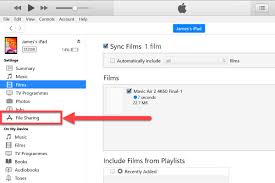
Method 1: Using Itunes
The first method we’ll explore is using iTunes to synchronize files between your PC and iPad. Here’s how:
Step 1: Download And Install Itunes
If you haven’t already, download and install the latest version of iTunes on your PC.
Step 2: Connect Your Ipad to Your PC
Connect your iPad to your PC using a USB cable. If this is the first time connecting your iPad to your PC, authorize the connection by following the prompts on both devices.
Step 3: Select The File Type to Synchronize
In iTunes, select the file type you want to synchronize (e.G., Music, Videos, or Books) from the top menu bar. If you don’t want to sync all files of a particular type, uncheck the box next to “Sync [file type] with iPad.”
Step 4: Choose Specific Files
Select specific files you want to transfer by dragging and dropping them onto the iPad icon in iTunes.
Step 5: Sync Your Files
Click the “Synchronize” button to sync your selected files to your iPad.
Method 2: Using Airdrop
If you have a Mac, you can use AirDrop to transfer files from your PC to your iPad. Here’s how:
Step 1: Ensure Airdrop is Enabled on Both Devices
Ensure AirDrop is enabled on both your Mac and iPad by going to System Preferences > Sharing (on your Mac) or Settings > General (on your iPad).
Step 2: Select The File to Transfer
Select the file you want to transfer from your Mac.
Right-click on the selected file and select “Share” > “AirDrop.” Choose your iPad from the list of nearby devices.
Method 3: Using Icloud Drive
If you have a PC or Mac associated with an Apple ID, you can use iCloud Drive to transfer files between your devices. Here’s how:
Step 1: Set Up Icloud Drive on Your PC
Install the iCloud client on your PC and sign in with your Apple ID.
Step 2: Select The File to Transfer
Select the file you want to transfer from your PC.
Step 3: Choose The Icloud Folder
Choose a folder within iCloud Drive where you want to save the file.
Method 4: Using Documents by Readdle
Documents by Readdle is a free file manager app for iOS that allows you to transfer files between your devices wirelessly. Here’s how:
Step 1: Download And Install Documents by Readdle
Download and install Documents by Readdle on your iPad.
Step 2: Access The Cloud Transfer Feature
Open the app and select “Cloud Transfer” from the bottom menu bar.
Step 3: Scan a QR Code
Scan a QR code displayed on your PC using the app’s camera feature to initiate the transfer process.
Conclusion
Transferring files between your PC and iPad doesn’t have to be complicated. By following these methods, you can copy specific files without using iTunes’ automatic synchronization feature. Whether you use AirDrop, iCloud Drive, or Documents by Readdle, transferring files is easier than ever!
Faqs
- Q: Can I Transfer Files Between my PC And Ipad Wirelessly?
A: Yes, you can use AirDrop (on Mac) or Documents by Readdle to transfer files wirelessly. - Q: How do I Set up Icloud Drive on my Pc?
A: Install the iCloud client on your PC and sign in with your Apple ID to access iCloud Drive. - Q: Can I Copy Specific Files From Itunes Without Synchronizing Everything?
A: Yes, you can choose specific files to transfer using iTunes by selecting them individually or creating a playlist. - Q: How do I Use Airdrop to Share Files Between my Mac And Ipad?
A: Ensure AirDrop is enabled on both devices, select the file to transfer, and follow the prompts to share it via AirDrop. - Q: What Are The System Requirements For Using Airdrop?
A: AirDrop requires a Mac (2008 MacBook Pro or later) and an iPad (4th generation or later). - Q: Can I Use Documents by Readdle on my Pc?
A: No, Documents by Readdle is only available for iOS devices. - Q: How do I Access my Icloud Drive Files on my Ipad?
A: Open the iCloud Drive app, select a folder to access, and find your transferred file within that folder.
Remember to follow each method carefully to ensure smooth transfer of files between your PC and iPad!


