
Qualifying Remote Desktop: A Step-by-step Guide
Are you looking for ways to access your computer remotely? Do you want to be able to control your computer from another location, without having to physically sit in front of it? If so, qualifying remote desktop is the solution for you.
In this article, we will walk you through the process of qualifying remote desktop on Windows and Mac operating systems. We will also provide you with alternative solutions if you are not able to qualify remote desktop using the built-in functionality.
Understanding Remote Desktop
Remote desktop allows you to access your computer from another location, using a remote connection. This can be useful in a variety of situations, such as:
- Being able to work from home or on-the-go
- Accessing your computer while traveling
- Providing technical support to friends and family
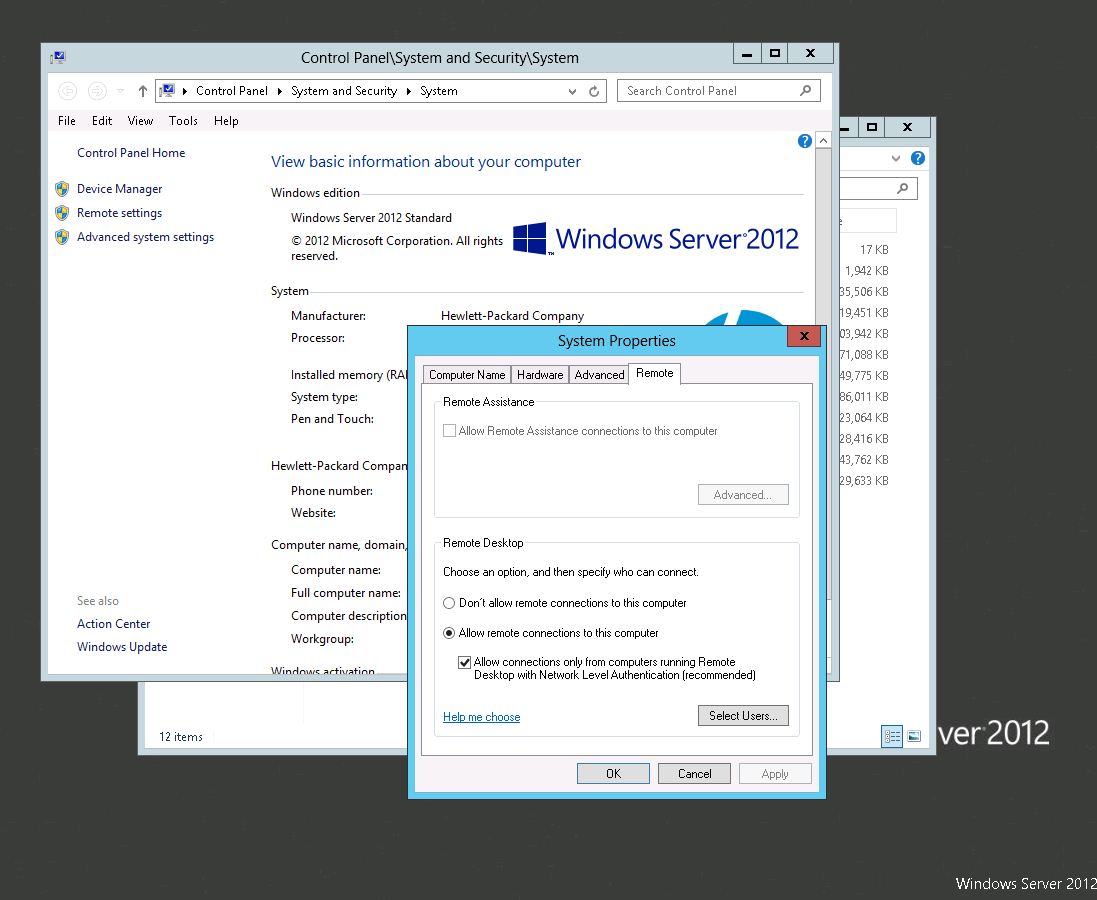
Qualifying Remote Desktop on Windows
To qualify remote desktop on Windows, you will need to follow these steps:
- Configure Dns Dynamic: First, you will need to configure a dynamic DNS (DDNS) service to associate an address with your computer. This will allow you to access your computer from the internet.
- Open Ports in Router: Next, you will need to open ports in your router to allow remote desktop traffic to pass through.
- Qualify Remote Desktop: Once you have configured DDNS and opened ports in your router, you can qualify remote desktop on Windows.
How to Configure Dns Dynamic
To configure a dynamic DNS service, you can use No-IP. This is a free platform that allows you to create an address for your computer, which can be used to access it remotely.
Here are the steps to follow:
- Create an account with No-IP.
- Download and install DUC (Dynamic Update Client).
- Configure DUC on your computer using the No-IP website.
Qualifying Remote Desktop on Windows 10
To qualify remote desktop on Windows 10, you will need to follow these steps:
- Open Settings > System > Remote Desktop.
- Select Allow remote desktop connections and select users who can access your computer.
- Note the name of your computer under “Like connecting to this PC”.
Qualifying Remote Desktop on Windows 7
To qualify remote desktop on Windows 7, you will need to follow these steps:
- Open File Explorer > This PC > Properties.
- Select Settings for remote connections and select users who can access your computer.
Alternative Solutions
If you are not able to qualify remote desktop using the built-in functionality, there are alternative solutions available.
Some popular alternatives include:
- TeamViewer
- LogMeIn
- Join.Me
These services allow you to remotely access another computer without having to configure DDNS and open ports in your router.
Conclusion
Qualifying remote desktop is a useful feature that allows you to access your computer from another location. By following the steps outlined in this article, you can qualify remote desktop on Windows and Mac operating systems.
If you have any further questions or need additional assistance, please do not hesitate to contact us.
Faqs
- What is Remote Desktop?
Remote desktop is a feature that allows you to access your computer from another location. - How do I Qualify Remote Desktop on Windows?
To qualify remote desktop on Windows, you will need to configure DNS dynamic and open ports in your router. - What Are The Alternatives to Qualifying Remote Desktop?
Some popular alternatives include TeamViewer, LogMeIn, and Join.Me. - How do I Access my Computer Remotely?
You can access your computer remotely by using a remote connection service such as No-IP or by using an alternative solution such as TeamViewer. - What Are The Benefits of Qualifying Remote Desktop?
The benefits of qualifying remote desktop include being able to work from home or on-the-go, accessing your computer while traveling, and providing technical support to friends and family. - How do I Configure Dns Dynamic?
To configure DNS dynamic, you will need to create an account with No-IP and download and install DUC (Dynamic Update Client). - What Are The System Requirements For Qualifying Remote Desktop?
The system requirements for qualifying remote desktop include a Windows or Mac operating system and a stable internet connection. - How do I Troubleshoot Issues With Qualifying Remote Desktop?
If you encounter any issues with qualifying remote desktop, please contact us and we will be happy to assist you.
H2: Qualifying Remote Desktop on Mac
Qualifying remote desktop on Mac is a bit different from qualifying it on Windows. Here are the steps to follow:
- Open System Preferences > Sharing.
- Select Remote Management.
- Note the address under “Share with others”.
To access your Mac remotely, you will need to use a remote connection service such as No-IP or an alternative solution such as TeamViewer.
H2: Alternative Solutions
If you are not able to qualify remote desktop using the built-in functionality, there are alternative solutions available. Some popular alternatives include:
- TeamViewer
- LogMeIn
- Join.Me
These services allow you to remotely access another computer without having to configure DDNS and open ports in your router.
H3: Conclusion
Qualifying remote desktop is a useful feature that allows you to access your computer from another location. By following the steps outlined in this article, you can qualify remote desktop on Windows and Mac operating systems.
If you have any further questions or need additional assistance, please do not hesitate to contact us.
H4: Faqs
- What is Remote Desktop?
Remote desktop is a feature that allows you to access your computer from another location. - How do I Qualify Remote Desktop on Windows?
To qualify remote desktop on Windows, you will need to configure DNS dynamic and open ports in your router. - What Are The Alternatives to Qualifying Remote Desktop?
Some popular alternatives include TeamViewer, LogMeIn, and Join.Me. - How do I Access my Computer Remotely?
You can access your computer remotely by using a remote connection service such as No-IP or by using an alternative solution such as TeamViewer.
H2: System Requirements
The system requirements for qualifying remote desktop include:
- A Windows or Mac operating system
- A stable internet connection
H3: Troubleshooting Issues
If you encounter any issues with qualifying remote desktop, please contact us and we will be happy to assist you.


