
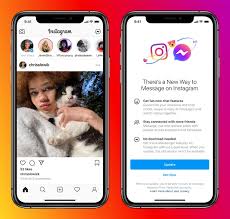
How to Update Instagram: A Step-by-step Guide
Are you tired of dealing with bugs and glitches on your favorite social media app? Do you want to know how to update Instagram and get the latest features? Look no further! In this article, we’ll guide you through the process of updating Instagram on various devices, including Android, HUAWEI, iPhone, PC, and tablet.
Why Update Instagram?
Updating Instagram is essential for several reasons:
- It fixes bugs and glitches that can cause problems with your account or app performance.
- It adds new features and improvements to enhance your user experience.
- It ensures you have the latest security patches to protect your account from potential threats.
How to Update Instagram on Android
Updating Instagram on an Android device is a straightforward process:
- Open the Google Play Store app on your device.
- Search for “Instagram” in the search bar.
- Tap on the Instagram icon to go to its page.
- If an update is available, you’ll see a “Update” button next to the app’s icon. Tap this button to begin the download process.
- Wait for the update to complete.
How to Update Instagram on Huawei
If you have a HUAWEI device and want to update Instagram:
- Go to the HUAWEI AppGallery.
- Search for “Instagram” in the search bar.
- Tap on the app’s icon to go to its page.
- If an update is available, tap the “Update” button next to the app’s icon.
How to Update Instagram on Iphone
Updating Instagram on an iPhone:
- Open the App Store app on your device.
- Search for “Instagram” in the search bar.
- Tap on the Instagram icon to go to its page.
- If an update is available, tap the “Update” button next to the app’s icon.
How to Update Instagram on PC
To update Instagram on a Windows PC:
- Open the Microsoft Store app.
- Search for “Instagram” in the search bar.
- Tap on the app’s icon to go to its page.
- If an update is available, tap the “Update” button next to the app’s icon.
How to Update Instagram on Tablet
Updating Instagram on a tablet:
- Open the App Store or Google Play Store (depending on your device).
- Search for “Instagram” in the search bar.
- Tap on the app’s icon to go to its page.
- If an update is available, tap the “Update” button next to the app’s icon.
Frequently Asked Questions
- Q: Why can’t I find the update button?
A: Make sure you have a stable internet connection and check for any pending updates in your device settings. - Q: Will updating Instagram delete my account information?
A: No, updating Instagram will not delete your account information. However, if you encounter issues during the update process, it’s best to contact Instagram support for assistance. - Q: Can I update Instagram manually?
A: Yes, you can download and install updates manually from the app store or Microsoft Store.
Conclusion
Updating Instagram is an essential step in ensuring a smooth user experience. By following these steps, you’ll be able to update your Instagram app on various devices, including Android, HUAWEI, iPhone, PC, and tablet.


