
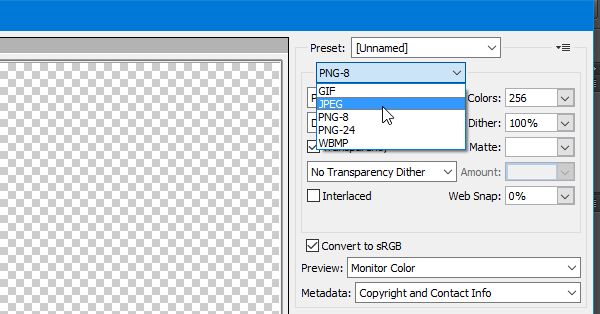
How to Convert Png Images to Jpg: A Step-by-step Guide
Are you tired of dealing with incompatible image formats? Do you want to convert your PNG images to JPG without compromising their quality? Look no further! In this article, we’ll show you how to convert PNG images to JPG using various software and online services.
Why Convert Png Images to Jpg?
PNG (Portable Network Graphics) is a popular format for web graphics, logos, and other images that require transparency. However, JPG (Joint Photographic Experts Group) is more suitable for photographs, as it offers better compression and smaller file sizes. By converting your PNG images to JPG, you can:
- Reduce the file size of your images
- Improve image quality
- Enhance compatibility with different devices and browsers
Software Solutions For Converting Png Images to Jpg
If you prefer to use software on your computer, here are some excellent options:
Windows: Xnconvert
XnConvert is a free, powerful, and easy-to-use software that can convert various image formats, including PNG to JPG. To get started:
- Download and install XnConvert from the official website.
- Open the program and click on “Add” to select the PNG images you want to convert.
- Choose the destination folder and format (JPG) for your converted images.
- Click on “Convert” to start the process.
Other Programs For Windows
If XnConvert doesn’t meet your needs, here are some alternative software options:
- Paint: A pre-installed application in Windows that can convert image formats, including PNG to JPG.
- IrfanView: A versatile program that can view, edit, and convert images, including batch conversions.
Mac Solutions For Converting Png Images to Jpg
If you’re using a Mac, here are some excellent options:
Built-in Solution: Preview
Preview is a built-in application on Macs that allows you to export images in various formats, including JPG. To do this:
- Open Preview and select the PNG image you want to convert.
- Go to “File” > “Export As” and choose the JPG format.
- Adjust the settings as needed and click on “Export.”
Other Programs For Mac
If you prefer to use software specifically designed for converting images, here are some options:
- XnConvert: Also available for Mac, this free program offers a wide range of conversion options.
- Image Converter: A simple and easy-to-use app that can convert various image formats.
Online Solutions For Converting Png Images to Jpg
If you don’t want to download software or prefer an online solution, here are some excellent options:
Cloudconvert
CloudConvert is a user-friendly online service that allows you to convert images from one format to another. To use CloudConvert:
- Go to the website and click on “Select Files.”
- Choose the PNG images you want to convert.
- Select the destination folder and format (JPG) for your converted images.
- Click on “Convert” to start the process.
Other Online Services
If CloudConvert doesn’t meet your needs, here are some alternative online services:
- PNG to JPG: A simple website that can convert single PNG images to JPG.
- Zamzar: An online service that allows you to convert multiple files at once, including image formats.
- FileZigZag: A free online service that can convert various file types, including images.
Mobile Solutions For Converting Png Images to Jpg
If you need to convert images on-the-go, here are some excellent mobile app options:
Android: Converter of Images
Converter of Images is a simple and easy-to-use app that allows you to convert image formats, including PNG to JPG. To use this app:
- Download and install the app from the Google Play Store.
- Select the PNG images you want to convert.
- Choose the destination folder and format (JPG) for your converted images.
- Click on “Convert” to start the process.
Ios/ipados: Converter of Images
This app is available in the App Store and offers a similar conversion process to its Android counterpart.
Conclusion
Converting PNG images to JPG can be easily done using software, online services, or mobile apps. By following the steps outlined in this article, you can quickly and efficiently convert your images without compromising their quality. Remember to choose the best option for your needs, whether it’s XnConvert, CloudConvert, or one of the many other solutions available.
Frequently Asked Questions
-
What is The Difference Between Png And Jpg?
PNG (Portable Network Graphics) is a format that supports transparency and is ideal for web graphics, logos, and images with transparent backgrounds. JPG (Joint Photographic Experts Group) is a format that offers better compression and smaller file sizes, making it suitable for photographs. -
Can I Convert Multiple Png Images to Jpg at Once?
Yes, most software and online services allow you to convert multiple image files at once, saving you time and effort. -
How do I Ensure The Quality of my Converted Images?
To maintain image quality, make sure not to over-compress your images during conversion. You can also adjust settings, such as resolution or color depth, to suit your needs. -
Are There Any Limitations on File Size When Converting Png to Jpg?
Yes, most online services have limits on file size for free users. However, you can upgrade to a paid plan or use software to convert larger files. -
Can I Convert Images in Other Formats Besides Png And Jpg?
Yes, many software and online services allow you to convert various image formats, including GIF, BMP, TIFF, and more. -
Are These Solutions Compatible With my Device’s Operating System?
The solutions outlined in this article are generally compatible with Windows, Mac, Android, and iOS/iPadOS devices. -
Can I Use These Solutions For Commercial Purposes?
Check the terms of service for each software or online service to determine if they allow commercial use. -
Are There Any Risks Associated With Using These Solutions?
The risk of data loss or corruption is minimal when using reputable software and online services. However, always backup your files before converting them. -
Can I Convert Images in Batch Mode?
Yes, many software and online services allow you to convert multiple image files at once, saving you time and effort. -
Are These Solutions Free?
Some software and online services are free, while others may require a paid subscription or one-time payment for specific features or larger file sizes.


