
How to Type on a File Pdf: A Step-by-step Guide
Are you struggling to edit a file in PDF format? Don’t worry, we’ve got you covered! In this article, we’ll show you how to type on a file PDF using various tools and software.
Why Can’t I Edit a File Pdf?
Before we dive into the solutions, let’s understand why editing a file PDF can be challenging. A PDF (Portable Document Format) is a file format that preserves the layout and formatting of a document, making it difficult to edit its contents directly.
Solution 1: Libreoffice
One popular solution for editing a file PDF is LibreOffice, a free and open-source office suite. You can download LibreOffice on your Windows, macOS, or Linux device and use it to edit PDF files.
Here’s how:
- Download LibreOffice from the official website.
- Install the software by following the installation prompts.
- Open LibreOffice and select “File” > “Open” to load the PDF file you want to edit.
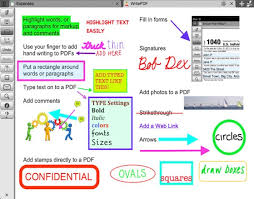
- Use the text editor tool to add new text, modify existing text, or add personalization elements like arrows, underlining, and images.
Solution 2: Adobe Acrobat Reader DC
Another solution for editing a file PDF is Adobe Acrobat Reader DC. This software is available for Windows and macOS devices and offers advanced editing features.
Here’s how:
- Download Adobe Acrobat Reader DC from the official website.
- Install the software by following the installation prompts.
- Open Adobe Acrobat Reader DC and select “File” > “Open” to load the PDF file you want to edit.
- Use the text editor tool to add new text, modify existing text, or add personalization elements like arrows, underlining, and images.
Solution 3: Trailer (macOS)
If you’re using a macOS device, you can use the built-in Trailer application to edit PDF files.
Here’s how:
- Open Trailer and select “File” > “Open” to load the PDF file you want to edit.
- Use the text editor tool to add new text, modify existing text, or add personalization elements like arrows, underlining, and images.
Solution 4: Online Services
If you don’t have access to a computer or prefer to use online services, there are several options available:
- Dochub: A free online service that allows you to edit PDF files without altering the original text.
- Pdfzorro: Another online service that offers advanced editing features and allows you to add signatures, grades, and other elements.
- Pdfescape: An online service that offers a range of editing tools and allows you to modify existing text and add new content.
Solution 5: Mobile Apps
If you want to edit PDF files on your mobile device, there are several apps available:
- Xodo Pdf (Android/iOS/iPadOS): A free app that allows you to edit PDF files, add signatures, and insert images.
- Editor Pdf Predefinito (iOS/iPadOS): A built-in app on iOS devices that allows you to edit PDF files and add personalization elements.
Conclusion
Editing a file PDF can be challenging, but with the right tools and software, it’s definitely possible. Whether you use LibreOffice, Adobe Acrobat Reader DC, Trailer, or online services like DocHub, PDFzorro, or PDFescape, we’ve got you covered. Remember to always save your edited PDF files in their original format to preserve the layout and formatting.
Frequently Asked Questions (FAQs)
- Can I Edit a File Pdf on my Mobile Device?
Yes, there are several apps available that allow you to edit PDF files on your mobile device. - Which Software is Best For Editing Pdf Files?
LibreOffice and Adobe Acrobat Reader DC are popular choices, but it ultimately depends on your specific needs and preferences. - Can I Use Online Services to Edit Pdf Files?
Yes, there are several online services available that allow you to edit PDF files without altering the original text. - How do I Save my Edited Pdf File?
Make sure to save your edited PDF file in its original format to preserve the layout and formatting. - Can I Convert a Pdf File to Another Format?
Yes, many software programs and online services allow you to convert PDF files to other formats like Word documents or images.
I hope this article has helped you understand how to type on a file PDF using various tools and software. If you have any further questions or concerns, please don’t hesitate to reach out!


