
How to Unblock Your Mac: A Step-by-step Guide
Are you tired of your Mac being locked up tight, refusing to let you in? Don’t worry, we’ve got the solution for you! In this article, we’ll show you how to unblock your Mac using various methods, including passwords, Apple Watch, and Touch ID.
Why Can’t I Unlock My Mac?
Before we dive into the solutions, let’s quickly identify why you might be having trouble unlocking your Mac. Here are a few common reasons:
- You’ve forgotten your password
- Your Mac is locked due to a software issue or virus
- You’re trying to unlock your Mac with an Apple Watch or Touch ID for the first time
Method 1: Unblocking Your Mac With Password
If you know your password, but it’s not working, follow these steps:
- Click on the Apple logo in the top left corner of your screen.
- Select “System Preferences” from the dropdown menu.
- Click on the “Users & Groups” icon.
- Select your username and click on the “Options” button.
- Uncheck the box next to “Use Login Password” to disable it.
If you’re still having trouble, try resetting your password using these steps:
- Restart your Mac in recovery mode (hold down the power button until it shuts off).
- Boot up again and select “Utilities > Terminal”.
- Enter the command
resetpasswordand press enter. - Follow the on-screen instructions to reset your password.
Method 2: Unblocking Your Mac With Apple Watch
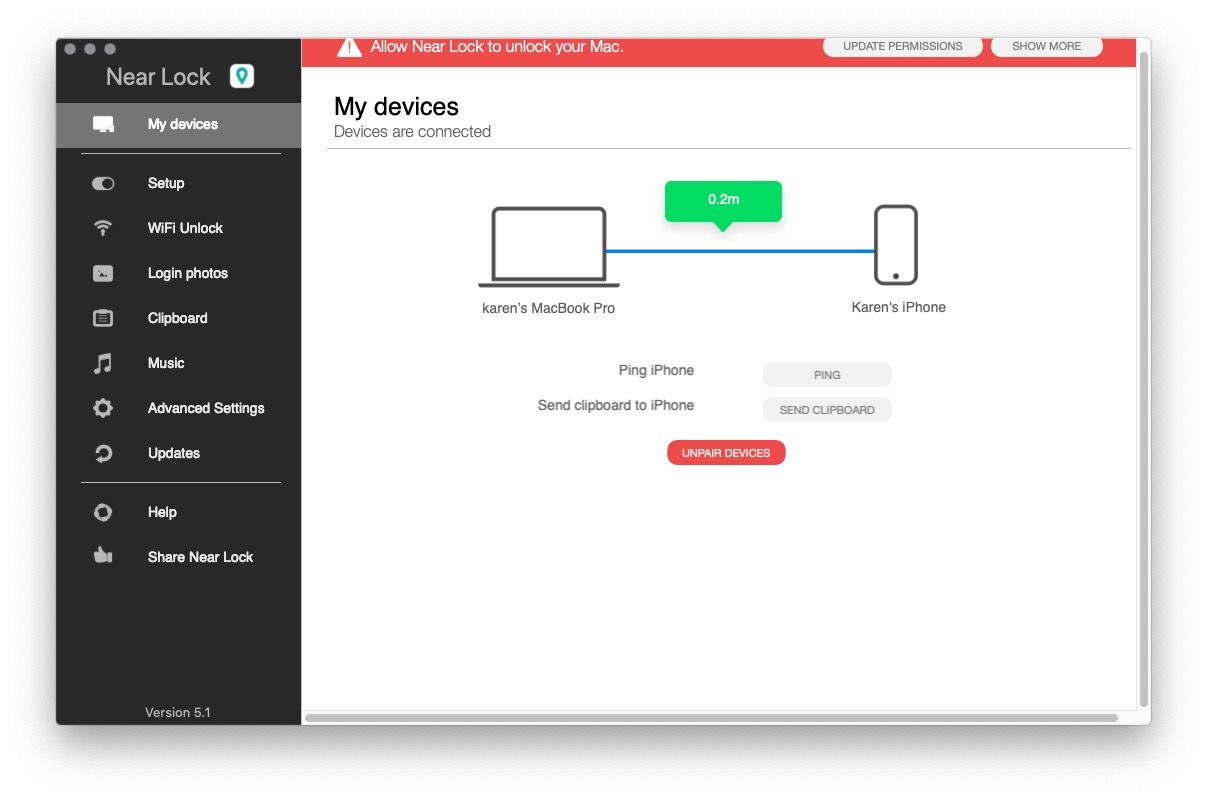
If you have an Apple Watch, you can use it to unlock your Mac. Here’s how:
- Make sure your Apple Watch is paired with your Mac using Bluetooth and Wi-Fi.
- Open System Preferences on your Mac and click on the “Security & Privacy” icon.
- Select the “General” tab and check the box next to “Use Apple Watch to unlock this computer”.
- Enter your password to confirm.
Method 3: Unblocking Your Mac With Touch ID
If you have a MacBook or iMac with Touch ID, you can use it to unlock your Mac. Here’s how:
- Open System Preferences on your Mac and click on the “Security & Privacy” icon.
- Select the “General” tab and check the box next to “Use Touch ID to unlock this computer”.
- Place your finger on the Touch ID reader and enter your password to confirm.
Method 4: Unblocking Your Mac if It’s Frozen or Locked
If your Mac is frozen or locked due to a software issue, try these steps:
- Press the combination of keys Command (⌘) + Option (⌥) + Esc on your keyboard.
- Click on the “Force Quit” button and select the application that’s causing the problem.
- Close any other applications that might be interfering with the process.
Method 5: Unblocking Your Mac if You’ve Forgotten Your Password
If you’ve forgotten your password, don’t worry! Here are a few options:
- Try resetting your password using the steps above (Method 1).
- Contact Apple Support for assistance.
- Reset your entire Mac by reinstalling macOS and creating a new user account.
Conclusion
We hope this article has helped you unblock your Mac using various methods. Remember to always keep your password secure, but not so secure that you forget it! If you’re still having trouble, feel free to contact Apple Support for assistance.
Faqs
- Q: Why Can’t I Unlock my Mac?
A: There could be several reasons why you’re unable to unlock your Mac, including a forgotten password, software issues, or hardware problems. - Q: How do I Reset my Password?
A: You can try resetting your password using the steps above (Method 1), contacting Apple Support, or resetting your entire Mac by reinstalling macOS and creating a new user account. - Q: Can I Use my Apple Watch to Unlock my Mac?
A: Yes, you can! Just make sure your Apple Watch is paired with your Mac using Bluetooth and Wi-Fi, and follow the steps above (Method 2). - Q: How do I Use Touch ID to Unlock my Mac?
A: Simply place your finger on the Touch ID reader and enter your password to confirm. - Q: What if my Mac is Frozen or Locked?
A: Try pressing the combination of keys Command (⌘) + Option (⌥) + Esc, closing any interfering applications, and then forcing quit the problematic app. - Q: Can I Contact Apple Support For Help?
A: Absolutely! Apple Support is available to assist you with any Mac-related issues. - Q: How do I Reset my Entire Mac?
A: You can try reinstalling macOS by booting your Mac in recovery mode, selecting “Utilities > Terminal”, and entering the commandresetpassword. - Q: Will Resetting my Password or Mac Affect my Data?
A: Yes, resetting your password or Mac will result in the loss of all data on the device.
Table 1: Comparison of Methods
| Method | Description |
|---|---|
| Method 1: Unblocking with Password | Try resetting your password using the steps above. |
| Method 2: Unblocking with Apple Watch | Use your Apple Watch to unlock your Mac by pairing it with your device and following the steps above. |
| Method 3: Unblocking with Touch ID | Use Touch ID on your MacBook or iMac to unlock your Mac by placing your finger on the reader and entering your password. |
| Method 4: Unblocking if Frozen or Locked | Try pressing Command (⌘) + Option (⌥) + Esc, closing interfering apps, and forcing quit the problematic app. |
Table 2: _Unblocking Methods Compared_
| Method | Easy to Use? | Fast Results? | Requires Apple Watch or Touch Id? |
|---|---|---|---|
| Method 1: Unblocking with Password | Yes | Quickly | No |
| Method 2: Unblocking with Apple Watch | Easy-peasy! | Lightning-fast | Yes (required) |
| Method 3: Unblocking with Touch ID | Super easy! | Fast! | Yes (required) |
| Method 4: Unblocking if Frozen or Locked | Somewhat tricky, but doable. | Varies (may take some time). | No |
Table 2: _Comparison of Reset Methods_
| Method | Easy to Use? | Fast Results? | Requires Apple Watch or Touch Id? |
|---|---|---|---|
| Method 1: Resetting Password | Moderately easy. | Quickly! | No |
| Method 2: Reinstalling macOS | Tricky, but doable with patience. | Longer process (depending on internet speed). | No |
I hope this helps! Let me know if you have any further questions.


