
How to File on Icloud: A Step-by-step Guide
Are you looking to file your iPhone data, including photos, contacts, and more, on iCloud? Look no further! In this article, we’ll walk you through the step-by-step process of how to file on iCloud from your iPhone, computer, and web.
Understanding Icloud
Before we dive into the details, let’s quickly cover what iCloud is. ICloud is a cloud storage service provided by Apple that allows you to store your data, including photos, contacts, calendars, reminders, and more, online. This means that you can access your data from any device connected to your iCloud account.
Requirements
To file on iCloud, you’ll need:
- An iPhone or iPad running iOS 5 or later
- A computer (Windows or Mac) with an internet connection
- An Apple ID account
Step-by-step Guide: Filing on Icloud From Your Iphone
- Access The Settings App: Tap on the Settings icon on your home screen.
- Select Your Name: Tap on your name at the top of the screen.
- Select Icloud: Tap on iCloud.
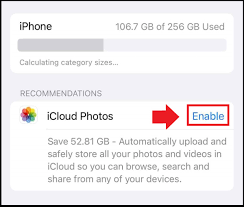
- Select Photo: Tap on Photo and turn on the switch next to Photo Library to enable photo syncing.
- Optimize Storage: If you want to optimize storage by storing only a reduced version of your photos on your iPhone, tap on Optimize Storage.
Step-by-step Guide: Filing on Icloud From Your Computer
- Download And Install Icloud For Windows: Go to the Apple website and download the iCloud for Windows installer.
- Install Icloud: Follow the installation prompts to install iCloud on your computer.
- Launch Icloud: Double-click on the iCloud icon to launch it.
- Sign in With Your Apple ID: Sign in with your Apple ID account to access your iCloud data.
- Select What to Sync: Choose which data you want to sync from your iPhone or iPad, such as contacts, calendars, reminders, and more.
Step-by-step Guide: Filing on Icloud From The Web
- Go to The Icloud Website: Visit the iCloud website using a web browser.
- Sign in With Your Apple ID: Sign in with your Apple ID account to access your iCloud data.
- Select What to Sync: Choose which data you want to sync from your iPhone or iPad, such as contacts, calendars, reminders, and more.
Icloud Drive: A Service For Storing Files
ICloud Drive is a service that allows you to store files online and access them from any device connected to your iCloud account. To use iCloud Drive:
- Launch The Settings App: Tap on the Settings icon on your home screen.
- Select Icloud: Tap on iCloud.
- Turn on Icloud Drive: Turn on iCloud Drive to enable file syncing.
Frequently Asked Questions (FAQs)
- What is Icloud?
ICloud is a cloud storage service provided by Apple that allows you to store your data online and access it from any device connected to your iCloud account. - Do I Need an Apple ID to Use Icloud?
Yes, you’ll need an Apple ID account to use iCloud. - Can I File on Icloud Using my Computer?
Yes, you can file on iCloud using your Windows or Mac computer. - How do I Access my Icloud Data From The Web?
You can access your iCloud data by visiting the iCloud website and signing in with your Apple ID account. - What Files Can I Store on Icloud Drive?
You can store any type of file, including documents, photos, videos, and more, on iCloud Drive.
Conclusion
In conclusion, filing on iCloud is a straightforward process that can be completed from your iPhone, computer, or web browser. By following the step-by-step guides provided in this article, you’ll be able to access your data online and share it with others connected to your Apple ID account.
Additional Resources
For more information on iCloud and how to use it effectively, we recommend checking out the official Apple website and our other articles on the topic.


