
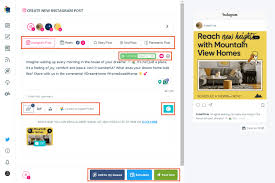
How to Program Posts on Instagram: A Step-by-step Guide
Are you tired of manually posting content on Instagram? Do you want to save time and increase your online presence? Look no further! In this article, we’ll show you how to program posts on Instagram using various tools and methods.
Why Program Posts on Instagram?
Programming posts on Instagram allows you to plan and schedule your content in advance, saving you time and effort. This is especially useful for businesses and influencers who need to maintain a consistent online presence. By programming posts, you can:
- Increase engagement and reach a wider audience
- Save time and reduce stress associated with manual posting
- Improve consistency and quality of content
Method 1: Using Instagram’s Built-in Features
Instagram offers a built-in feature called “Program this post” that allows you to schedule your posts in advance. Here’s how to use it:
- Open the Instagram app on your smartphone or tablet.
- Tap the “+” icon at the top-right corner of the screen to create a new post.
- Select the type of content you want to post (photo, video, or story).
- Choose the date and time you want the post to go live.
- Tap “Program this post” to schedule the post.
Method 2: Using Third-party Apps
There are several third-party apps available that allow you to program posts on Instagram. Here’s how to use one of them:
- Download and install the Planoly app on your smartphone or tablet.
- Create a new account and link it to your Instagram profile.
- Tap the “+” icon at the top-right corner of the screen to create a new post.
- Select the type of content you want to post (photo, video, or story).
- Choose the date and time you want the post to go live.
- Tap “Save” to schedule the post.
Method 3: Using Meta Business Suite
Meta Business Suite is a free service offered by Facebook that allows you to manage your Instagram profile and schedule posts in advance. Here’s how to use it:
- Open the Meta Business Suite app on your smartphone or tablet.
- Tap the “+” icon at the top-right corner of the screen to create a new post.
- Select the type of content you want to post (photo, video, or story).
- Choose the date and time you want the post to go live.
- Tap “Save” to schedule the post.
Tips And Tricks
Here are some additional tips and tricks to help you program posts on Instagram effectively:
- Use high-quality images and videos that are visually appealing.
- Keep your content consistent with your brand’s tone and style.
- Experiment with different formats, such as stories and IGTV.
- Engage with your audience by responding to comments and messages.
- Monitor your analytics to see what works best for your account.
Conclusion
Programming posts on Instagram is a simple yet effective way to save time and increase your online presence. By using the built-in features or third-party apps, you can schedule your content in advance and reach a wider audience. Remember to keep your content consistent with your brand’s tone and style, and engage with your audience by responding to comments and messages.
Faqs
- Can I Program Posts on Instagram Using my Smartphone?
Yes, you can use the Instagram app or third-party apps like Planoly to program posts on your smartphone. - How do I Access Meta Business Suite?
You can access Meta Business Suite by opening the app on your smartphone or tablet and logging in with your Facebook credentials. - Can I Schedule Multiple Posts at Once?
Yes, you can schedule multiple posts at once using Meta Business Suite or third-party apps like Planoly. - How do I Edit a Scheduled Post?
You can edit a scheduled post by accessing the Instrument of planning section in Meta Business Suite or through your third-party app. - Can I Delete a Scheduled Post?
Yes, you can delete a scheduled post by accessing the Instrument of planning section in Meta Business Suite or through your third-party app. - How do I Know if my Scheduled Post Was Successful?
You can check your analytics to see if your scheduled post was successful and reached a wider audience. - Can I Use Multiple Social Media Platforms With Meta Business Suite?
Yes, you can use Meta Business Suite to manage multiple social media platforms, including Instagram, Facebook, and others. - How do I Access my Scheduled Posts in Meta Business Suite?
You can access your scheduled posts by accessing the Instrument of planning section in Meta Business Suite.


