
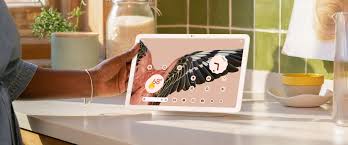
Unlocking The Power of Google Home: A Step-by-step Guide
Are you ready to take your smart home experience to the next level? Look no further than Google Home, a revolutionary voice-controlled assistant that can control various devices in your home, including your TV! In this article, we’ll show you how to set up Google Home and use it to command your TV with ease.
What is Google Home?
Google Home is an intelligent speaker developed by Google that allows you to control various smart devices in your home using just your voice. With Google Home, you can ask questions, play music, get news updates, and even control your TV, all from the comfort of your couch!
Setting Up Your Chromecast With Google Home
Before we dive into how to use Google Home to command your TV, it’s essential to set up your Chromecast device. Chromecast is a small streaming device produced by Google that allows you to cast content from your smartphone or tablet to your TV wirelessly.
Here’s how to configure your Chromecast with Google Home:
- Purchase And Set Up Your Chromecast: You can buy a Chromecast device online or in-store for around 39 euros. Once you have it, plug it into the HDMI port on your TV, insert the power cord, and follow the on-screen instructions to set it up.
- Configure Your Chromecast With Google Home: Launch the Google Home app on your smartphone or tablet, tap the “Add” button, select “Configure device,” and then choose “Configure new devices.” Follow the prompts to connect your Chromecast device to your Google Home account.
Using Google Home to Command Your TV
Now that you have your Chromecast set up with Google Home, it’s time to learn how to use it to control your TV. Here are some basic commands you can use:
- “OK Google, Reproduce [name Contained] in Tv”: This command will initiate the playback of a specific movie or TV show on your TV.
- “OK Google, Discontinue”: Use this command to pause or stop playing content on your TV.
- “OK Google, Contact in Pause”: Resume playing content on your TV from where you left off.
To give you a better understanding, let’s consider an example:
Commanding Netflix Content
If you have previously connected your Netflix account to Google Home and want to continue watching “Stranger Things,” simply say: “OK Google, Reproduce Stranger Things on Netflix.” Your Chromecast will start playing the next episode in the series.
Using Google Home With Multiple Devices
If you have multiple devices (e.G., A TV with integrated Chromecast or another Chromecast device) connected to your Google Home account, you can specify which device you want to use by adding its name to the command. For example:
- “OK Google, Reproduce [name Contained] on [device Name]”
Personalizing Device Names
Want to personalize the names of devices associated with your Google Home account? No problem! Simply open the Google Home app, tap the three horizontal lines in the top left corner, select “Settings,” and then choose the device you want to rename. Add a new name for the device by tapping on the pencil icon next to its current name.
Using Google Home to Turn Your TV On or Off
To turn your TV on or off using Google Home, simply say: “OK Google, Light The Tv” or “Hey Google, Light [device Name]”. To turn it off, use the command “OK Google, Turn Off The Tv” or “Hey Google, Turn Off [device Name].”
Conclusion
Google Home is a game-changing smart home device that allows you to control various devices in your home using just your voice. With this guide, we’ve shown you how to set up your Chromecast with Google Home and use it to command your TV. Whether you want to play movies, pause or stop content, or turn your TV on or off, Google Home has got you covered.
Frequently Asked Questions (FAQs)
- What is The Cost of a Chromecast Device?
A: The price of a new Chromecast device starts at around 39 euros. - Can I Use Google Home With Multiple Devices?
A: Yes, you can connect multiple devices to your Google Home account and control them using specific commands. - How do I Personalize The Name of my Devices in Google Home?
A: Simply open the Google Home app, tap on the three horizontal lines in the top left corner, select “Settings,” choose the device you want to rename, and add a new name by tapping on the pencil icon next to its current name. - What Services Can I Use With Google Home to Command my Tv?
A: Currently, the available services for commanding your TV using voice commands in Italy include Netflix, but this might change as more services become compatible. - Can I Use Google Home With Devices That Have Integrated Chromecast or Other Smart Devices?
A: Yes, you can connect multiple devices to your Google Home account and control them using specific commands.


