
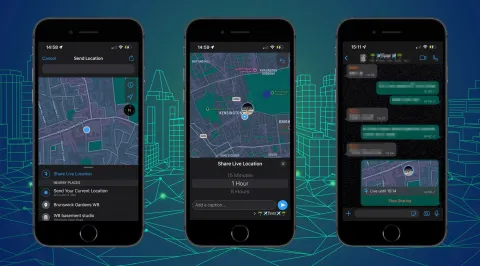
How to Share Your Location With Ease: A Comprehensive Guide
Are you tired of struggling to share your location with friends or family? Do you find yourself getting frustrated with the complexity of sharing your position on different devices? Look no further! In this guide, we will walk you through the step-by-step process of sharing your location using popular apps like WhatsApp, Google Maps, and Where.
Sharing Your Location With Whatsapp
WhatsApp is one of the most widely used messaging apps in the world. It’s easy to share your location on WhatsApp using either a smartphone or a computer. Here’s how:
From Smartphone
- Enable Gps: Make sure that GPS is enabled on your device. On Android, go to Settings > Location > Geolocalizzazione (or use the search function). On iPhone, go to Settings > Privacy and Safety > Location Services.
- Grant Authorization: Grant WhatsApp authorization to access your location by searching for “Authorisations” in the settings menu.
- Initiate a New Conversation: Open WhatsApp and initiate a new conversation with the person you want to share your location with.
- Share Your Position: Tap on the pencil icon in the bottom right corner, then select “Position” from the menu.
From Computer
- Enable Location Services: On Windows PC, go to Settings > Privacy and Safety > Permissions for apps > Position. On Mac, go to System Preferences > Security and Privacy > Location Services.
- Open Whatsapp Web or Desktop: Open WhatsApp Web or Desktop on your computer.
- Copy The Link: Copy the link to your position by going to Google Maps or another mapping service and sharing it with your friend.
Sharing Your Location With Google Maps
Google Maps is a powerful app that allows you to share your location easily. Here’s how:
From Smartphone
- Enable Gps: Make sure that GPS is enabled on your device.
- Open Google Maps: Open the Google Maps app and tap on your profile picture in the top right corner.
- Share Your Position: Tap on “Sharing” and then select “New Sharing”.
From Computer
- Enable Location Services: On Windows PC, go to Settings > Privacy and Safety > Permissions for apps > Position. On Mac, go to System Preferences > Security and Privacy > Location Services.
- Open Google Maps: Open the Google Maps website on your computer.
- Copy The Link: Copy the link to your position by going to “Share” in the left-hand menu.
Sharing Your Location With Iphone
If you have an iPhone, you can use the Where app to share your location easily. Here’s how:
- Enable Gps: Make sure that GPS is enabled on your device.
- Open The Where App: Open the Where app and tap on the radar icon in the bottom right corner.
- Share Your Position: Tap on “Share” and then select the contact you want to share with.
Conclusion
Sharing your location has never been easier! With these step-by-step guides, you can now share your position using popular apps like WhatsApp, Google Maps, and Where. Whether you’re sharing your location with friends or family, these tips will ensure that you’re able to do so quickly and easily.
Frequently Asked Questions
- Q: Why is my Gps Not Enabled?
A: Check if GPS is enabled on your device by going to Settings > Location. - Q: How do I Grant Authorization For Whatsapp to Access my Location?
A: Search for “Authorisations” in the settings menu and select WhatsApp. - Q: Can I Share my Location With Someone Who Doesn’t Have Whatsapp or Google Maps?
A: Yes, you can copy the link to your position and share it with anyone using any messaging app. - Q: How do I Disable Location Services on my Device?
A: Go to Settings > Privacy and Safety > Permissions for apps > Position and select “Disable”. - Q: Can I Share my Location With Multiple People at Once?
A: Yes, you can copy the link to your position and send it to multiple contacts using any messaging app. - Q: How do I Enable Location Services on my Windows PC or Mac?
A: Go to Settings > Privacy and Safety > Permissions for apps > Position (Windows) or System Preferences > Security and Privacy > Location Services (Mac). - Q: Can I Use The Where App to Share my Location With Someone Who Doesn’t Have an Iphone?
A: No, the Where app is only available on iOS devices. - Q: How do I Stop Sharing my Location With a Contact?
A: Go to Settings > Privacy and Safety > Permissions for apps > Position and select “Disable” or contact your friend to request them to stop sharing their location with you.


