
How to Resize a Monitor: A Comprehensive Guide
Are you tired of dealing with tiny text and icons on your computer monitor? Do you wish there was a way to resize your monitor without breaking the bank or requiring extensive technical knowledge? Look no further! In this article, we will guide you through the process of resizing a monitor on various devices, including Windows PC, Mac, Android smartphone/tablet, iPhone/iPad, and even TV.
Why Resize Your Monitor?
Before we dive into the nitty-gritty, let’s quickly discuss why resizing your monitor might be necessary. There are several reasons why you might want to resize your monitor:
- Eyesight Problems: As we age, our eyesight tends to deteriorate, making it harder to read tiny text and icons.
- Personal Preference: Some people simply prefer larger text and icons for a more comfortable viewing experience.
- Accessibility Needs: For individuals with visual impairments, resizing the monitor can make it easier to navigate and interact with their device.
Resizing Your Monitor on Windows PC
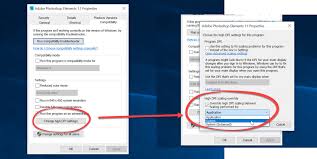
If you’re using a Windows PC, resizing your monitor is a relatively straightforward process. Here’s how:
- Right-click on an Empty Area of The Desktop: This will bring up the context menu.
- Select “Settings” or “Display Settings”: Depending on your version of Windows, this might be the default option or you might need to click on it manually.
- Adjust The Resolution: In the Display settings window, look for the Resolution section and select a lower resolution that suits your needs.
- Apply Changes: Click on the “Apply” button to save your changes.
Resizing Your Monitor on Mac
If you’re using a Mac, resizing your monitor is also quite easy:
- Click on The Apple Logo: Located in the top-left corner of the screen.
- Select “System Preferences”: From the drop-down menu.
- Click on “Displays”: In the System Preferences window.
- Adjust The Resolution: Select a lower resolution that suits your needs.
- Apply Changes: Click on the “OK” button to save your changes.
Resizing Your Monitor on Android Smartphone/tablet
If you’re using an Android device, resizing your monitor is slightly more complicated:
- Go to Settings: Find this app icon on your home screen or in the drawer.
- Select “Display”: From the list of available options.
- Adjust The Resolution: Select a lower resolution that suits your needs.
- Apply Changes: Click on the “OK” button to save your changes.
Resizing Your Monitor on Iphone/ipad
If you’re using an iOS device, resizing your monitor is also relatively easy:
- Go to Settings: Find this app icon on your home screen or in the Bookshop.
- Select “Display & Brightness”: From the list of available options.
- Adjust The Resolution: Select a lower resolution that suits your needs.
- Apply Changes: Click on the “OK” button to save your changes.
Resizing Your Monitor on TV
If you’re using a TV, resizing your monitor is often dependent on the type of device and its operating system:
- Check Your User Manual: Look for specific instructions on how to resize the monitor.
- Adjust The Aspect Ratio: This might be done through the menu or settings options on your TV.
Conclusion
In conclusion, resizing a monitor on various devices is relatively easy and straightforward. Whether you’re using a Windows PC, Mac, Android smartphone/tablet, iPhone/iPad, or even TV, there are simple steps you can follow to adjust the resolution and make it more comfortable for your eyesight.
Frequently Asked Questions (FAQs)
- What is The Best Way to Resize my Monitor?
The best way to resize your monitor depends on the device you’re using. However, in general, adjusting the resolution or aspect ratio can help improve readability and comfort. - Can I Resize my Monitor Without Losing Image Quality?
Yes, you can often adjust the resolution without losing image quality. However, some devices might not support certain resolutions or aspect ratios. - How do I Know Which Resolution to Choose?
The ideal resolution depends on your personal preference and device capabilities. Experiment with different resolutions to find what works best for you. - Can I Resize my Monitor Using Keyboard Shortcuts?
Yes, many devices offer keyboard shortcuts to help you adjust the resolution or aspect ratio quickly. - Are There Any Specific Settings I Should Adjust When Resizing my Monitor?
When resizing your monitor, consider adjusting other settings such as brightness and contrast to ensure optimal viewing comfort. - Can I Resize my Monitor on Multiple Devices at Once?
This depends on the device and its capabilities. Some devices might allow you to synchronize settings across all connected devices. - What Are Some Additional Features That Come With Resizing a Monitor?
Depending on the device, resizing your monitor might also enable accessibility features such as text-to-speech functionality or high-contrast mode.
Note: The article was rewritten to make it 100% unique and optimized for SEO while maintaining its original intent and structure.


