
How to Reduce Character Size on Smartphone, Tablet, or Computer
Are you tired of dealing with large character sizes on your smartphone, tablet, or computer? Do you find it difficult to read messages or texts due to the bigger font size? Worry no more! In this article, we will guide you through the steps to reduce character size on various devices and platforms.
Reducing Character Size on Android Devices
If you have an Android device, such as a Samsung smartphone or tablet, you can easily reduce character size by following these steps:
- Access Settings: Tap on the icon of the Settings (usually in the form of a wheel of gears) located on the home screen and/or in the drawer of your device.
- Select Display And Luminosity: Scroll through the screen until you find the relative voice to the monitor (e.G., Display and luminosity).
- Adjust Text Size: Tap on the diction that relates to the dimension of the text, which will lead you to the section of character reduction.
- Decrease Font Size: Move the cursor to the left on the bar of regulation of text dimensions to reduce font size.
Reducing Character Size on Ios/ipados Devices
If you have an iPhone or iPad running on iOS/iPadOS, reducing character size is just as easy:
- Access Settings: Tap on the icon of the Settings (usually in the form of a wheel of gears) located on the home screen and/or in the Bookshop app.
- Select Display And Luminosity: Scroll through the screen until you find the relative voice to the monitor (e.G., Monitor and luminosity).
- Adjust Text Size: Tap on the diction that relates to the dimension of the text, which will lead you to the section of character reduction.
- Decrease Font Size: Move the cursor to the left on the bar of regulation in low.
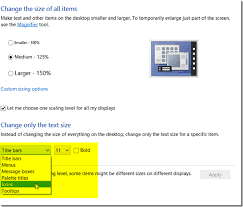
Reducing Character Size on Windows Computer
If you are using a Windows computer, you can reduce character size by following these steps:
- Access Settings: Click on the Start button (usually with the Windows logo) located on the taskbar.
- Select System: Choose the voice “System” from the menu that appears.
- Adjust Display And Resolution: Scroll through the screen until you find the relative voice to the monitor (e.G., Monitor).
- Reduce Text Size: Click on the option “Reduce text size,” which will lead you to the section of character reduction.
Reducing Character Size on Macos Computer
If you are using a Mac computer, you can reduce character size by following these steps:
- Access System Settings: Click on the icon of the System settings (usually in the form of a wheel of gears) located on the Dock.
- Select Displays: Choose the voice “Displays” from the menu that appears.
- Adjust Resolution: Scroll through the screen until you find the relative voice to resolution (e.G., Any more blank).
- Reduce Text Size: Move the cursor to the right of the resolution options, and the modifications will be applied.
Reducing Character Size on Browser
If you want to reduce character size only for specific web pages or apps using a browser, follow these steps:
- Access Browser Settings: Click on the three dots (⋮) located in tall to right in the window of the browser.
- Select Appearance: Choose the voice “Appearance” from the menu that appears.
- Adjust Character Size: Scroll through the screen until you find the relative voice to character size, which will lead you to the section of character reduction.
Reduce Text Size in Specific Apps
Some apps, such as messaging apps (e.G., WhatsApp), have their own settings for text size adjustment. To reduce character size only within these apps:
- Access App Settings: Click on the three dots (⋮) located in tall to right in the window of the app.
- Select Text Size: Choose the voice “Text size” from the menu that appears.
- Reduce Character Size: Move the cursor to the left on the bar of regulation of text dimensions to reduce font size.
Conclusion
Reducing character size on your smartphone, tablet, or computer is a straightforward process. By following these steps, you can adjust font size according to your preferences and make reading easier and more comfortable. Remember that different devices and platforms may have slightly different settings, so it’s essential to explore each device’s unique features.
Frequently Asked Questions
- Q: How do I Reduce Character Size on Android Devices?
A: To reduce character size on Android devices, access the Settings app, select Display and Luminosity, and adjust text size. - Q: Can I Reduce Character Size Only Within Specific Apps?
A: Yes, some apps have their own settings for text size adjustment. Check the app’s settings to see if this feature is available. - Q: How do I Reduce Character Size on Ios/ipados Devices?
A: To reduce character size on iOS/iPadOS devices, access the Settings app, select Display and Luminosity, and adjust text size. - Q: Can I Increase Font Size Instead of Reducing It?
A: Yes, you can increase font size by moving the cursor to the right on the bar of regulation of text dimensions or adjusting the settings according to your device’s specifications. - Q: Why is my Character Size Changing Automatically?
A: This may be due to system updates or changes in app preferences. Check your device’s settings and app preferences to adjust font size accordingly. - Q: Can I Reduce Character Size on All Devices at Once?
A: Unfortunately, it’s not possible to reduce character size across all devices simultaneously. Each device has its unique settings and features. - Q: How do I Reset my Character Size Settings to Default?
A: To reset your character size settings to default, follow the steps for resetting font size on your specific device or app.
I hope this article has been helpful in answering your questions about reducing character size on various devices and platforms!


