
Mastering Adobe Illustrator: A Comprehensive Guide
Are you ready to unleash your creativity and take your digital art to the next level? Look no further than Adobe Illustrator, a powerful program that has been the industry standard for graphic design and illustration for decades. In this article, we’ll guide you through the process of using Adobe Illustrator like a pro, from basic tutorials to advanced techniques.
Getting Started With Adobe Illustrator
Before you begin, make sure you have the latest version of Adobe Illustrator installed on your computer. If you’re new to the program, take some time to familiarize yourself with the interface and menu options. Don’t worry if it seems overwhelming at first – we’ll walk you through each step.
Colouring on Adobe Illustrator
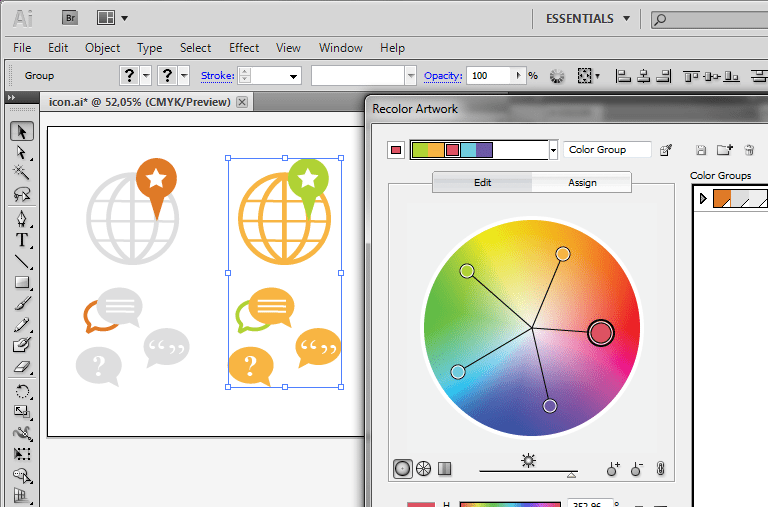
One of the most exciting features of Adobe Illustrator is its incredible colour palette. With a vast range of colours to choose from, you can create stunning illustrations that pop off the screen. To get started, follow these simple steps:
- Create a New Document: Click on the “Create New” button in the top-left corner of the screen.
- Choose Your Colour Scheme: Select a colour palette that suits your style, or create your own custom colours.
- Colour Your Illustration: Use the brush tools to fill in your illustration with vibrant colours.
Tips And Tricks For Colouring on Adobe Illustrator
Here are some expert tips to take your colouring skills to the next level:
- Experiment With Different Brushes: Try out various brush styles, from subtle watercolour effects to bold geometric patterns.
- Play With Layer Blending Modes: Combine multiple layers to create stunning visual effects that add depth and interest to your illustrations.
- Use The Gradient Tool: Create smooth, seamless gradients that add a touch of elegance to your designs.
How to Colour a Cartoonist on Adobe Illustrator
Colouring a cartoon character is easier than you think! Here’s a step-by-step guide:
- Create a New Document: Start with a fresh canvas.
- Draw Your Cartoon Character: Use the pencil tool to sketch out your character.
- Fill in Colours: Choose from a vast range of colours to bring your character to life.
How to Colour The Background on Adobe Illustrator
Adding a pop of colour to your background can elevate your illustration to new heights. Here’s how:
- Create a New Layer: Add a new layer for your background.
- Draw a Rectangle: Use the shape tool to create a rectangular shape that matches your illustration’s size and proportions.
- Fill in Colours: Choose from a range of colours to fill in your background.
Colouring on Adobe Illustrator Mobile
Want to take your creativity on-the-go? Adobe Illustrator mobile is the perfect solution! With this app, you can create stunning illustrations right from your iPad or iPhone.
- Download And Install Adobe Illustrator Mobile: Get the latest version from the App Store.
- Create a New Document: Start with a fresh canvas.
- Choose Your Colour Scheme: Select a colour palette that suits your style.
- Colour Your Illustration: Use the brush tools to fill in your illustration with vibrant colours.
Tips And Tricks For Colouring on Adobe Illustrator Mobile
Here are some expert tips to take your colouring skills to the next level:
- Experiment With Different Brushes: Try out various brush styles, from subtle watercolour effects to bold geometric patterns.
- Play With Layer Blending Modes: Combine multiple layers to create stunning visual effects that add depth and interest to your illustrations.
- Use The Gradient Tool: Create smooth, seamless gradients that add a touch of elegance to your designs.
Conclusion
Mastering Adobe Illustrator takes time and practice, but with these tutorials, you’ll be well on your way to creating stunning digital art. Remember to experiment with different brushes, play with layer blending modes, and use the gradient tool to take your colouring skills to new heights. Happy creating!
Frequently Asked Questions (FAQs)
- What is Adobe Illustrator?
Adobe Illustrator is a powerful graphic design program that has been the industry standard for decades. - How do I Get Started With Adobe Illustrator?
Start by downloading and installing the latest version of Adobe Illustrator on your computer or iPad/iPhone. - Can I Colour my Illustration on Adobe Illustrator Mobile?
Yes! Adobe Illustrator mobile is a powerful app that allows you to create stunning illustrations right from your iPad or iPhone. - What Are Some Expert Tips For Colouring on Adobe Illustrator?
Experiment with different brushes, play with layer blending modes, and use the gradient tool to take your colouring skills to new heights.


