
How to Reactivate a Disabled Apple ID
Are you receiving a message that your Apple ID has been disabled for security reasons when trying to access the App Store or other Apple services? Don’t worry, it’s not a problem with your account – just follow these simple steps to reactivate your Apple ID.
Why Your Apple ID Might Be Disabled
Your Apple ID might be disabled if you’ve entered an incorrect password multiple times or if there are suspicious activities on your account. This is done as a security measure to protect your personal data and prevent unauthorized access.
How to Reactivate Your Apple ID
To reactivate your Apple ID, follow these steps:
- Visit The Apple Website: Go to the official Apple website and click on the “Forgot Password” option.
- Enter Your Email Address: Type in the email address associated with your Apple ID.
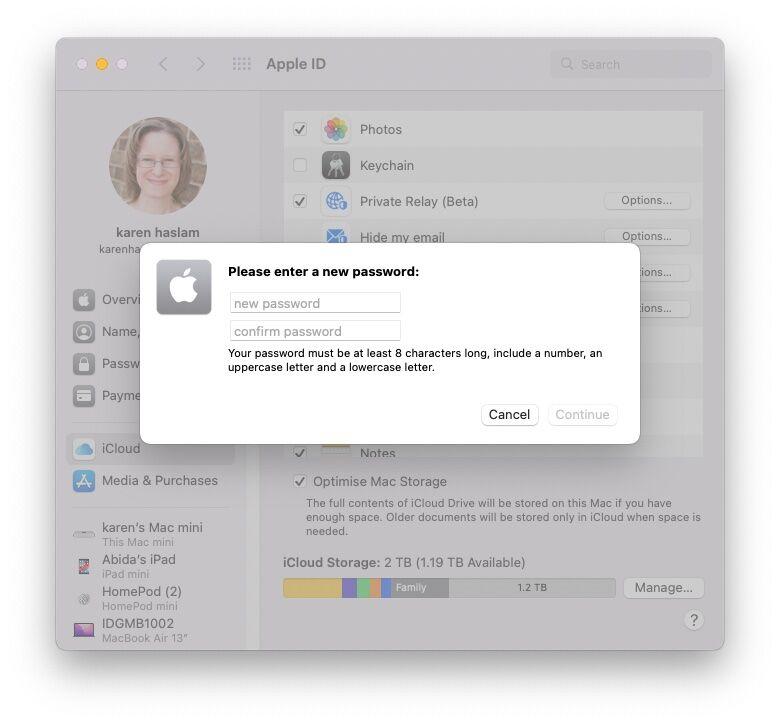
- Follow The Instructions: Follow the instructions provided on the screen to reset your password.
What If You’re Having Trouble?
If you’re having trouble accessing your account or resetting your password, don’t worry! There are other options available.
- Contact Apple Support: You can contact Apple support directly for assistance. They’ll be happy to help you resolve any issues.
- Visit an Apple Store: If you’re unable to access your account online, you can visit an Apple Store in person and speak with a representative who will assist you in resolving the issue.
How to Reactivate Your Apple ID on PC or Mac
If you want to reactivate your Apple ID on your computer, follow these steps:
- Visit The Apple Website: Go to the official Apple website.
- Enter Your Email Address: Type in the email address associated with your Apple ID.
- Follow The Instructions: Follow the instructions provided on the screen to reset your password.
How to Reactivate Your Apple ID on Ipad or Iphone
If you want to reactivate your Apple ID on your tablet or smartphone, follow these steps:
- Visit The Apple Website: Go to the official Apple website.
- Enter Your Email Address: Type in the email address associated with your Apple ID.
- Follow The Instructions: Follow the instructions provided on the screen to reset your password.
What If I’m Having Trouble?
If you’re having trouble accessing your account or resetting your password, don’t worry! There are other options available.
- Contact Apple Support: You can contact Apple support directly for assistance. They’ll be happy to help you resolve any issues.
- Visit an Apple Store: If you’re unable to access your account online, you can visit an Apple Store in person and speak with a representative who will assist you in resolving the issue.
Why Your Apple ID Might Be Disabled
Your Apple ID might be disabled if you’ve entered an incorrect password multiple times or if there are suspicious activities on your account. This is done as a security measure to protect your personal data and prevent unauthorized access.
How to Reactivate Your Apple ID
To reactivate your Apple ID, follow these steps:
- Visit The Apple Website: Go to the official Apple website.
- Enter Your Email Address: Type in the email address associated with your Apple ID.
- Follow The Instructions: Follow the instructions provided on the screen to reset your password.
What If You’re Having Trouble?
If you’re having trouble accessing your account or resetting your password, don’t worry! There are other options available.
- Contact Apple Support: You can contact Apple support directly for assistance. They’ll be happy to help you resolve any issues.
- Visit an Apple Store: If you’re unable to access your account online, you can visit an Apple Store in person and speak with a representative who will assist you in resolving the issue.


