
How to Synchronize TV Channels: A Step-by-step Guide
Are you tired of struggling to find your favorite channels on your television? Do you have a new TV and don’t know how to configure the channels for digital terrestrial broadcasting? Look no further! In this article, we will guide you through the process of synchronizing your TV channels, step by step.
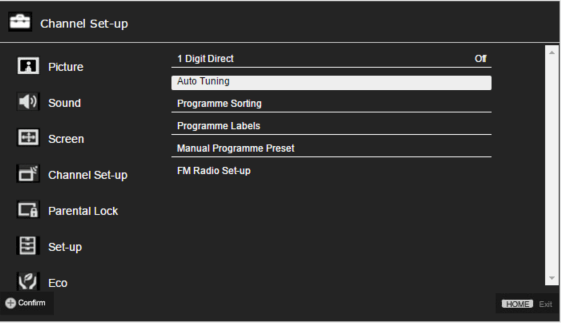
Understanding Your Television’s Configuration Menu
Before we begin, it’s essential to understand that each TV has its unique configuration menu. The steps outlined below may vary depending on your TV model and brand. However, the basic principles remain the same.
Preliminary Information
To start, you need to access your TV’s configuration menu. This can usually be done by pressing the “Menu” or “Home” button on your remote control. From there, navigate to the “Settings” or “Advanced” section. Look for the option that says “Channels” or “Channel Settings.”
Synchronizing Channels on Samsung Tvs
If you have a Samsung TV, follow these steps:
- Press the “Menu” button on your remote control.
- Select the “Settings” icon (usually represented by a cogwheel).
- Choose the “Transmission” option.
- Select “Automatic Channel Search.”
- Confirm that you want to perform an automatic scan.
- Wait for the process to complete.
Synchronizing Channels on LG Tvs
If you have an LG TV, follow these steps:
- Press the “Home” button on your remote control.
- Select the “Settings” icon (usually represented by a cogwheel).
- Choose the “All Settings” option.
- Select “Channel.”
- Choose the “Installation antenna/cable” option.
- Select “Enquiry channels.”
Synchronizing Channels on Sony Tvs
If you have a Sony TV, follow these steps:
- Press the “Menu” button on your remote control.
- Select the “Settings” icon (usually represented by a cogwheel).
- Choose the “Transmission” option.
- Select “Automatic Channel Search.”
- Confirm that you want to perform an automatic scan.
Synchronizing Channels on Philips Tvs
If you have a Philips TV, follow these steps:
- Press the “Menu” button on your remote control.
- Select the “Settings” icon (usually represented by a cogwheel).
- Choose the “All Settings” option.
- Select “Channel.”
- Choose the “Installation antenna/cable” option.
- Select “Enquiry channels.”
Synchronizing Channels on Sharp Tvs
If you have a Sharp TV, follow these steps:
- Press the “Menu” button on your remote control.
- Select the “Settings” icon (usually represented by a cogwheel).
- Choose the “Channel” option.
- Select “Automatic Update.”
- Confirm that you want to perform an automatic scan.
Synchronizing Channels on Tcl Tvs
If you have a TCL TV, follow these steps:
- Press the “Home” button on your remote control.
- Select the “Settings” icon (usually represented by a cogwheel).
- Choose the “Channel” option.
- Select “Automatic Update.”
- Confirm that you want to perform an automatic scan.
Troubleshooting Common Issues
If you’re experiencing problems synchronizing your channels, try the following:
- Check if there’s a problem with the signal strength or antenna orientation.
- Ensure that the TV is properly connected to the antenna or cable.
- Try restarting the TV and performing the synchronization process again.
Conclusion
Synchronizing your TV channels is a straightforward process that can be completed in just a few steps. By following the guidelines outlined above, you should be able to access all of your favorite channels on your television. Remember to troubleshoot any issues that may arise, and don’t hesitate to contact a professional if needed.
Frequently Asked Questions (FAQs)
- Q: How do I Know if my TV Has an Automatic Channel Search Feature?
A: Check your TV’s user manual or consult with the manufacturer for more information. - Q: Can I Manually Enter The Channels I Want to Watch?
A: Yes, most TVs have a manual channel entry option. Consult with your TV’s user manual for more information. - Q: What if my TV Doesn’t Support Digital Terrestrial Broadcasting?
A: Check if your TV has an analog broadcast option or consider upgrading to a newer model that supports digital broadcasting. - Q: Can I Use a Third-party App to Synchronize my Channels?
A: Some TVs may have compatible apps available for download. Consult with the manufacturer for more information. - Q: How Often Should I Perform Channel Synchronization?
A: Perform channel synchronization as needed, usually after moving or updating your TV’s software. - Q: What if I Encounter Any Issues During The Synchronization Process?
A: Troubleshoot common issues by checking signal strength, antenna orientation, and TV connections. - Q: Can I Synchronize Channels on Multiple Tvs Simultaneously?
A: Check with the manufacturer to see if this feature is available for your specific model. - Q: How do I Know Which Channels Are Available in my Area?
A: Consult with your local TV provider or check their website for more information.


