
Actuating Parental Control on Tiktok: A Step-by-step Guide
As a parent, it’s natural to want to protect your child from online risks and ensure their digital well-being. With the rise of social media platforms like TikTok, it’s essential to have control over what your child can access and share online. In this article, we’ll explore how to actuate parental control on TikTok for children and boys using the app’s built-in functionality.
Why Actuate Parental Control on Tiktok?
TikTok has become a popular platform among children and teenagers, with millions of users worldwide. While the app is entertaining and educational, it also poses risks such as cyberbullying, online predators, and exposure to mature content. By actuating parental control, you can limit your child’s access to these risks and ensure their safety online.
Requirements For Actuating Parental Control on Tiktok
To actuate parental control on TikTok, you’ll need two accounts: One for yourself (the parent) and another for the minor (your child). If you already have a TikTok account, initiate the app on your smartphone and access your account. If not, create a new account.
Actuating Parental Control on Tiktok
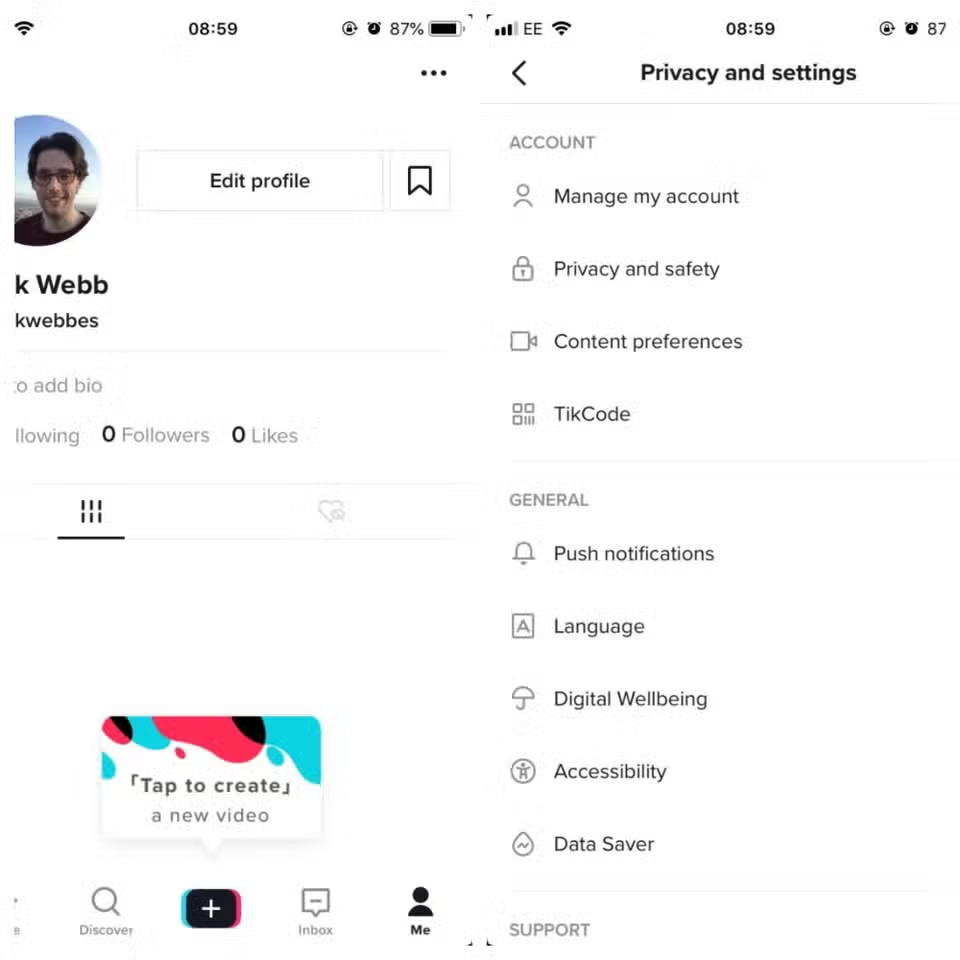
- Accessing Settings And Privacy: Go to your profile screen and tap on the menu icon in the top-right corner. Select “Settings and privacy” and then scroll down to the “Family Link” section.
- Associating Your Account With The Minor’s Account: Scan the QR code from the minor’s account using your smartphone. This will associate their account with yours, enabling parental control features.
- Enabling Parental Control Features: Tap on the “Genitore” (Parent) option and select the options you’d like to enable, such as limiting screen time, restricting content access, or disabling search functionality.
Additional Parental Control Options on Tiktok
Once you’ve enabled parental control features, you can further customize settings for your child’s account. These include:
- Setting up a Daily Limit: Set a daily time limit for your child to use TikTok.
- Restricting Content Access: Limit access to mature or sensitive content.
- Disabling Search Functionality: Prevent your child from searching for specific keywords or hashtags.
Alternative Solutions For Parental Control on Tiktok
While the built-in parental control features on TikTok are effective, you may also consider alternative solutions:
- Google’s Family Link: A free service that allows parents to monitor their child’s device activity and set time limits.
- Digital Welfare: An app that enables parents to track their child’s online activity and set safety controls.
- Operating System Parental Control Features: On Android, you can set up parental control features directly within the operating system. On iOS/iPadOS, use the built-in “Weather of Use” feature.
Parental Control Options on PC
While TikTok does not have a direct parental control feature for PC users, you can employ alternative solutions:
- Microsoft Family Safety: An instrument that enables parents to monitor their child’s device activity and set safety controls.
- Windows And Macos Parental Control Features: Built-in features that allow parents to track their child’s online activity and set safety controls.
Conclusion
Actuating parental control on TikTok is a crucial step in ensuring your child’s digital well-being. By following the steps outlined above, you can limit access to risks and ensure their safety online. Remember to also explore alternative solutions, such as Google’s Family Link or Digital Welfare, for added protection.
Other Solutions to Actuate Parental Control on Tiktok
- Google’s Family Link**:*A free service that allows parents to monitor their child’s device activity and set time limits.**
- Digital Welfare:**An app that enables parents to track their child’s online activity and set safety controls.**
- Operating System Parental Control Features: On Android, you can set up parental control features directly within the operating system. On iOS/iPadOS, use the built-in “Weather of Use” feature.
Parental Control Options on Pc
- Microsoft Family Safety: An instrument that enables parents to monitor their child’s device activity and set safety controls.
- Windows And Macos Parental Control Features: Built-in features that allow parents to track their child’s online activity and set safety controls.


