
How to Repeat Video on Youtube: A Step-by-step Guide
Are you tired of constantly searching for your favorite videos on YouTube? Do you wish there was a way to automatically repeat a video or playlist without having to manually re-play it every time? Look no further! In this article, we will guide you through the process of repeating video on YouTube using both computer and mobile devices.
Understanding Youtube’s Loop Function
Before we dive into the step-by-step guide, let’s understand how YouTube’s loop function works. The loop function allows you to automatically repeat a video or playlist without having to manually re-play it every time. This feature is available on both desktop and mobile devices, and can be accessed through the YouTube app.
Repeating Video on Computer
To repeat video on your computer, follow these steps:
- Access Youtube: Open a web browser and navigate to youtube.Com.
- Search For Video: Type in the title of the video you want to repeat in the search bar.
- Select Video: Click on the video title or image to open it in a new tab.
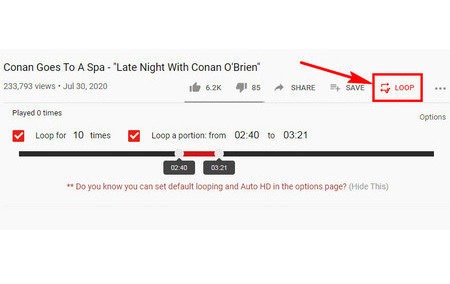
- Click Loop Icon: Click on the three dots next to the video title and select “Loop” from the dropdown menu.
Alternatively, you can also click on the loop icon located below the video player.
Repeating Playlist on Computer
To repeat a playlist on your computer, follow these steps:
- Access Youtube: Open a web browser and navigate to youtube.Com.
- Open Channel: Click on the channel where the playlist is located.
- Select Playlist: Click on the playlist title or image to open it in a new tab.
- Click Loop Icon: Click on the three dots next to the playlist title and select “Loop” from the dropdown menu.
Alternatively, you can also click on the loop icon located below the video player.
Repeating Video on Mobile Device
To repeat video on your mobile device, follow these steps:
- Access Youtube App: Open the YouTube app on your Android or iOS device.
- Search For Video: Type in the title of the video you want to repeat in the search bar.
- Select Video: Click on the video title or image to open it in a new tab.
- Tap Loop Icon: Tap on the three dots next to the video title and select “Loop” from the dropdown menu.
Alternatively, you can also tap on the loop icon located below the video player.
Repeating Playlist on Mobile Device
To repeat a playlist on your mobile device, follow these steps:
- Access Youtube App: Open the YouTube app on your Android or iOS device.
- Open Channel: Tap on the channel where the playlist is located.
- Select Playlist: Tap on the playlist title or image to open it in a new tab.
- Tap Loop Icon: Tap on the three dots next to the playlist title and select “Loop” from the dropdown menu.
Alternatively, you can also tap on the loop icon located below the video player.
Tips And Variations
- To repeat a single video, click or tap on the loop icon once.
- To repeat a playlist, click or tap on the loop icon twice.
- To stop repeating a video or playlist, click or tap on the loop icon again to toggle it off.
- You can also use the YouTube app’s built-in features, such as auto-repeat and continuous play, to create playlists and loops.
Conclusion
Repeating video on YouTube is a simple and convenient way to enjoy your favorite videos without having to manually re-play them every time. With these step-by-step guides, you can easily repeat video or playlist on both computer and mobile devices using the YouTube app.
Frequently Asked Questions (FAQs)
- How do I Access Youtube’s Loop Function?
To access YouTube’s loop function, click on the three dots next to the video title and select “Loop” from the dropdown menu.
- Can I Repeat a Playlist on Youtube?
Yes, you can repeat a playlist on YouTube by clicking or tapping on the loop icon twice.
- How do I Stop Repeating a Video or Playlist on Youtube?
To stop repeating a video or playlist on YouTube, click or tap on the loop icon again to toggle it off.
- Can I Use Youtube’s Auto-repeat Feature?
Yes, you can use YouTube’s auto-repeat feature by clicking or tapping on the loop icon once for a single video or twice for a playlist.
- How do I Create a New Playlist on Youtube?
To create a new playlist on YouTube, click or tap on the “New” button and follow the prompts to add videos to your playlist.
- Can I Use Youtube’s Continuous Play Feature?
Yes, you can use YouTube’s continuous play feature by clicking or tapping on the loop icon once for a single video or twice for a playlist.
- How do I Edit a Playlist on Youtube?
To edit a playlist on YouTube, click or tap on the three dots next to the playlist title and select “Edit” from the dropdown menu.
- Can I Use Youtube’s Mobile App to Repeat Videos?
Yes, you can use the YouTube mobile app to repeat videos by tapping on the loop icon once for a single video or twice for a playlist.


