
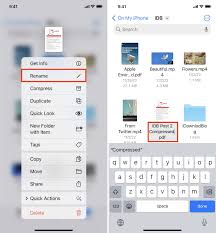
How to Rename Your Iphone: A Step-by-step Guide
Are you tired of having a generic name for your iPhone? Do you want to give it a personalized touch that reflects your personality or interests? Look no further! In this article, we’ll show you how to rename your iPhone in just a few simple steps.
Why Rename Your Iphone?
Renaming your iPhone can be a fun and creative way to personalize your device. It’s also a great opportunity to give your phone a name that reflects its purpose or your relationship with it. Whether you want to name it after a favorite celebrity, a sports team, or even a fictional character, the possibilities are endless!
Method 1: Renaming Your Iphone Directly From The Device
The first method is to rename your iPhone directly from the device itself. This method is quick and easy, and can be done in just a few taps.
Step-by-step Instructions
- Open Settings: Tap on the “Settings” icon on your iPhone’s home screen.
- General: Scroll down and tap on “General.”
- Info: Tap on “Info.”
- Rename Iphone: Select the current name of your iPhone from the top of the screen, and type in a new name using the keyboard.
- Save Changes: Tap on “Done” to save the changes.
That’s it! Your iPhone is now renamed, and you can easily switch back to its original name if needed.
Method 2: Renaming Your Iphone Using a Computer
If you prefer to rename your iPhone from a computer, this method is also available. You’ll need to connect your iPhone to your computer using a USB cable, and then use iTunes or Finder to rename the device.
Step-by-step Instructions
- Connect Iphone: Connect your iPhone to your computer using a USB cable.
- Open Itunes/finder: Open iTunes (on Windows) or Finder (on Mac).
- Select Iphone: Select your iPhone from the top navigation bar in iTunes or Finder.
- Rename Iphone: Double-click on the current name of your iPhone, and type in a new name using the keyboard.
- Save Changes: Click on “Apply” to save the changes.
Renaming Bluetooth And Hotspot
If you want to rename your iPhone’s Bluetooth or hotspot, the process is similar to renaming the device itself. Simply follow the same steps as above, and make sure to select the correct option in the Settings app.
How to Rename Bluetooth on Iphone
- Open Settings: Tap on the “Settings” icon on your iPhone’s home screen.
- General: Scroll down and tap on “General.”
- Info: Tap on “Info.”
- Rename Bluetooth: Select the current name of your iPhone from the top of the screen, and type in a new name using the keyboard.
How to Rename Hotspot on Iphone
- Open Settings: Tap on the “Settings” icon on your iPhone’s home screen.
- Wi-fi: Scroll down and tap on “Wi-Fi.”
- Network Name: Select the current name of your iPhone from the top of the screen, and type in a new name using the keyboard.
Conclusion
Renaming your iPhone is a simple process that can be done in just a few taps or clicks. Whether you want to give it a personalized name or simply change its name for fun, this guide has shown you how to do it. So go ahead, get creative, and give your iPhone a name that reflects its unique personality!


