
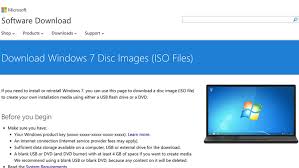
How to Download Windows 7: A Step-by-step Guide
Are you looking for a way to download Windows 7? Look no further! In this article, we will guide you through the process of downloading Windows 7 from Microsoft’s official website.
Why Download Windows 7?
Windows 7 is an older version of the Windows operating system, but it is still widely used today. If you’re looking for a way to get your hands on a legitimate copy of Windows without breaking the bank, then downloading Windows 7 might be the perfect solution for you.
What You Need to Know Before Downloading
Before we dive into the steps, there are a few things you need to know:
- Product Key: To download Windows 7, you will need a valid product key. If you don’t have one, you can purchase a copy of Windows 7 from Microsoft’s website.
- System Requirements: Make sure your computer meets the system requirements for Windows 7, which include at least 1 GB of RAM and a 1 GHz processor.
- Internet Connection: You will need a stable internet connection to download Windows 7.
Step 1: Download The Iso File
To start, you’ll need to download the ISO file from Microsoft’s official website. Here’s how:
- Go to the Microsoft Website and click on the “Download” button.
- Select your language and country/region from the drop-down menus.
- Click on the “Confirm” button to begin the download process.
- Wait for the ISO file to download completely.
Step 2: Create a Bootable Usb Drive or Dvd
Once you have downloaded the ISO file, you’ll need to create a bootable USB drive or DVD. Here’s how:
- Usb Method: If you want to use a USB drive, you can use a tool like Rufus to create a bootable USB drive.
- Dvd Method: If you prefer to use a DVD, you can burn the ISO file onto a blank DVD using software like ImgBurn.
Step 3: Boot From The Usb Drive or Dvd
Once you have created your bootable USB drive or DVD, it’s time to boot from it.
- Insert the USB drive or DVD into your computer.
- Restart your computer and enter the BIOS settings (usually by pressing F2, F12, or Del).
- Set the USB drive or DVD as the primary boot device.
- Save your changes and exit the BIOS settings.
Step 4: Install Windows 7
Once you have booted from the USB drive or DVD, it’s time to install Windows 7.
- Follow the on-screen instructions to select your language and country/region.
- Click on the “Next” button to begin the installation process.
- Wait for the installation to complete.
Step 5: Activate Your Product Key
Once you have installed Windows 7, it’s time to activate your product key.
- Open the “Activate Windows” window by clicking on the “Start” button and then selecting “Control Panel.”
- Click on the “Windows Activation” option.
- Enter your product key and follow the instructions to complete the activation process.
Tips And Variations
If you’re experiencing issues with the download or installation process, here are a few tips and variations:
- Use a Virtual Machine: If you don’t want to install Windows 7 on your actual computer, you can create a virtual machine using software like VirtualBox.
- Bypass Activation: Some users have reported that they were able to bypass activation by using a tool like the Windows Loader.
Conclusion
Downloading Windows 7 from Microsoft’s official website is a relatively straightforward process. By following these steps and tips, you should be able to successfully download and install Windows 7 on your computer.
However, please note that downloading and installing an older version of Windows may not provide you with access to the latest security patches and updates. As such, we recommend that you only use this method if you have a legitimate need for it, or if you’re looking for a way to get started with Windows without breaking the bank.
Common Questions
Here are some common questions about downloading Windows 7:
- What is The Difference Between Windows 7 And Windows 10?
- Windows 7 is an older version of Windows that was released in 2009. It has a more traditional interface and fewer features than Windows 10.
- Can I Download Windows 7 For Free?
- No, you will need to purchase a copy of Windows 7 from Microsoft’s official website or a authorized reseller.
- How Long Does it Take to Download Windows 7?
- The download time will depend on your internet connection speed and the size of the ISO file (approximately 2.5 GB).
We hope this guide has been helpful in answering any questions you may have had about downloading Windows 7! If you have any further questions or concerns, please don’t hesitate to ask.
About The Author
This article was written by [Author’s Name], a computer enthusiast and blogger who loves to share tips and tricks with fellow tech enthusiasts.


