
How to Type Special Characters on Your PC
Are you tired of not knowing how to type special characters on your computer? Do you find yourself struggling to insert symbols, emojis, or other special characters in your documents, messages, or social media posts? Well, you’re in luck because today we’ll show you how to type special characters on your PC, smartphone, and tablet.
The Importance of Special Characters
Special characters are an essential part of our digital lives. They add flavor and personality to our text messages, emails, and social media posts. Whether it’s a smiley face ???? or a copyright symbol ©, special characters can make all the difference in conveying tone and style.
How to Type Special Characters on Your PC
If you’re using a Windows computer, typing special characters is a breeze. Here are the steps:
- Press The Windows Key + R: This will open the Run dialog box.
- Type “charmap” And Press Enter: This will open the Character Map window.
- Select The Special Character: Click on the special character you want to insert from the list of available characters.
- Copy The Character: Click on the “Copy” button or press Ctrl+C.
- Paste The Character: Right-click in your text editor and select “Paste” or press Ctrl+V.
Alternatively, you can also use the keyboard shortcut Alt + [number] to insert special characters. For example, pressing Alt + 1 will insert a smiley face ????.
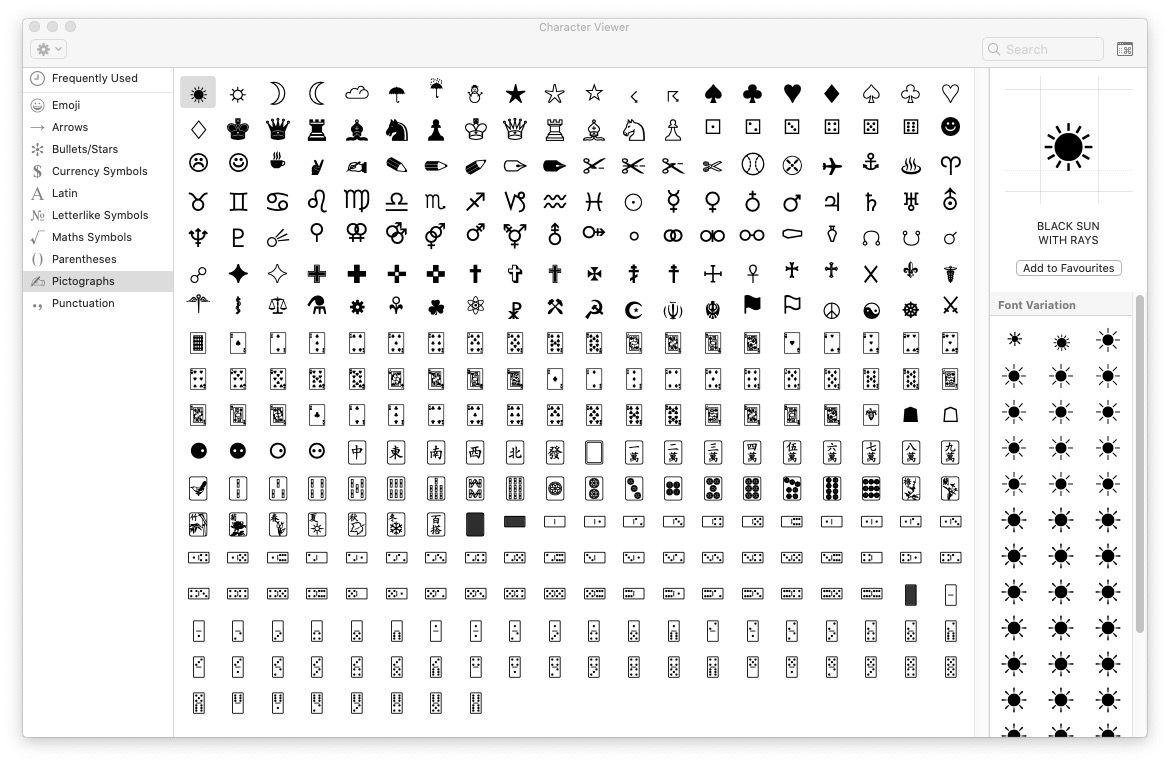
How to Type Special Characters on Mac
If you’re using a Mac computer, typing special characters is also easy. Here are the steps:
- Open The Character Viewer: Go to Edit > Emoji & Symbols or press Command + Control + Space.
- Select The Special Character: Click on the special character you want to insert from the list of available characters.
- Copy The Character: Click on the “Copy” button or press Command + C.
- Paste The Character: Right-click in your text editor and select “Paste” or press Command + V.
How to Type Special Characters on Smartphone
If you’re using a smartphone, typing special characters is also easy. Here are the steps:
- On Android:
- Tap on The Keyboard Icon: Tap on the keyboard icon in the bottom left corner of your screen.
- Tap on The Special Character Icon: Tap on the special character icon that looks like a globe.
- Select The Special Character: Select the special character you want to insert from the list of available characters.
- On iOS:
- Tap on The Keyboard Icon: Tap on the keyboard icon in the bottom left corner of your screen.
- Tap on The “123” Button: Tap on the “123” button to view the special characters.
- Select The Special Character: Select the special character you want to insert from the list of available characters.
How to Type Special Characters on Tablet
If you’re using a tablet, typing special characters is also easy. Here are the steps:
- On Android:
- Tap on The Keyboard Icon: Tap on the keyboard icon in the bottom left corner of your screen.
- Tap on The Special Character Icon: Tap on the special character icon that looks like a globe.
- Select The Special Character: Select the special character you want to insert from the list of available characters.
- On iOS:
- Tap on The Keyboard Icon: Tap on the keyboard icon in the bottom left corner of your screen.
- Tap on The “123” Button: Tap on the “123” button to view the special characters.
- Select The Special Character: Select the special character you want to insert from the list of available characters.
How to Type Special Characters on Social Media
If you’re using social media platforms like Instagram, Facebook, or WhatsApp, typing special characters is also easy. Here are some tips:
- Use the keyboard shortcut Alt + [number] to insert special characters.
- Use the character viewer in your device’s settings to select special characters.
- Download apps that allow you to type special characters directly on social media platforms.
Conclusion
Typing special characters on your PC, smartphone, or tablet is easy and straightforward. Whether it’s a smiley face ???? or a copyright symbol ©, special characters can add flavor and personality to our digital lives. With these tips, you’ll be able to type special characters in no time!
Frequently Asked Questions
- Q: How do I insert special characters on my PC?
A: You can use the keyboard shortcut Alt + [number] or open the Character Map window. - Q: How do I insert special characters on my Mac?
A: You can use the Character Viewer or press Command + Control + Space. - Q: How do I insert special characters on my smartphone?
A: You can tap on the keyboard icon, select the special character icon, and choose from the list of available characters. - Q: How do I insert special characters on social media platforms?
A: You can use the keyboard shortcut Alt + [number], download apps that allow you to type special characters directly, or use the character viewer in your device’s settings.
Additional Resources
For more information on typing special characters, check out these additional resources:
- Microsoft Support: Typing Special Characters
- Apple Support: Typing Special Characters
- Instagram Help Center: Typing Special Characters


