
The Ultimate Guide to Removing The Automatic Corrector on Iphone
Are you tired of the automatic corrector constantly interfering with your typing experience on your iPhone? Do you find yourself frustrated by the corrections it makes, even when they’re not necessary? Look no further! In this article, we’ll guide you through the process of removing or disabling the automatic corrector on your iPhone, as well as other features like predictive text and abbreviation replacement.
What is The Automatic Corrector on Iphone?
The automatic corrector on iPhone uses a dictionary to suggest corrections for words it thinks are misspelled. This feature can be helpful in catching errors, but it can also be intrusive when you’re typing and want to make your own decisions about how to spell words.
Why Would You Want to Remove The Automatic Corrector?
There are several reasons why you might want to remove or disable the automatic corrector on your iPhone. Perhaps you’re a writer or editor who needs precise control over spelling and grammar. Maybe you’re a student working on an assignment and don’t want the auto-correct feature interfering with your work. Whatever your reason, we’ve got you covered.
How to Remove The Automatic Corrector
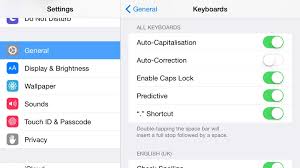
Removing the automatic corrector on iPhone is relatively straightforward. Here’s how:
- Go to Settings > General > Keyboard.
- Tap on “Automatic Correction” and toggle it off.
- You can also disable other features like automatic capitalization, spell checking, and punctuation correction.
How to Remove Predictive Text
Predictive text is another feature that suggests words or phrases based on what you’ve typed so far. If you don’t want this feature, here’s how to remove it:
- Go to Settings > General > Keyboard.
- Tap on “Suggestions” and toggle it off.
How to Remove Abbreviation Replacement
Abbreviation replacement is a feature that suggests replacing abbreviations with full phrases. If you don’t want this feature, here’s how to remove it:
- Go to Settings > General > Keyboard.
- Tap on “Replacement Text” and toggle it off.
Can I Disable The Automatic Corrector Only For Whatsapp?
Unfortunately, no. The automatic corrector is a system-wide feature that can’t be disabled just for one app like WhatsApp. If you want to disable it entirely, you’ll have to follow the steps above.
What Else Can I Do With The Keyboard Settings on Iphone?
In addition to removing or disabling the automatic corrector and other features, there are several other settings you can adjust in the keyboard section of your iPhone’s settings app. Here are a few:
- Adjust the autocorrect threshold: This setting determines how often the auto-correct feature will suggest corrections.
- Turn on or off word completion: This feature suggests words based on what you’ve typed so far.
- Change the keyboard layout: If you prefer a different keyboard layout, such as QWERTY or AZERTY, you can switch to it here.
Conclusion
Removing or disabling the automatic corrector on iPhone is a simple process that can greatly improve your typing experience. Whether you’re a writer, editor, student, or just someone who likes to type without interference, we’ve provided step-by-step instructions on how to do so. Remember, these settings are system-wide, so if you want to disable the auto-correct feature entirely, you’ll have to toggle it off in the keyboard section of your iPhone’s settings app.
Frequently Asked Questions (FAQs)
Here are some additional questions and answers related to this topic:
Q: What is the automatic corrector on iPhone?
A: The automatic corrector is a feature that suggests corrections for words it thinks are misspelled based on a dictionary.
Q: Why would I want to remove the automatic corrector?
A: There are several reasons, such as needing precise control over spelling and grammar, or wanting to type without interference from auto-correct suggestions.
Q: How do I remove the automatic corrector?
A: To remove the automatic corrector, go to Settings > General > Keyboard, tap on “Automatic Correction,” and toggle it off.
Q: Can I disable the automatic corrector only for WhatsApp?
A: No. The automatic corrector is a system-wide feature that can’t be disabled just for one app like WhatsApp.
Q: What else can I do with the keyboard settings on iPhone?
A: In addition to removing or disabling the automatic corrector and other features, you can adjust the autocorrect threshold, turn word completion on or off, change the keyboard layout, and more.


