
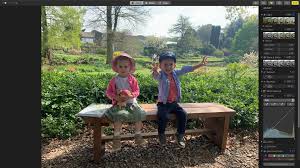
How to Modify a Photo Like a Pro: A Step-by-step Guide
Are you looking to take your photography skills to the next level by modifying photos like a pro? Look no further! In this comprehensive guide, we’ll walk you through the best programs and tools to use for editing photos on Windows, macOS, Android, iPhone, Instagram, and more.
The Best Programs For Photo Editing
Whether you’re a beginner or an experienced photographer, there are several excellent programs available for photo editing. Here are some of the top ones:
Gimp: The Free And Open-source Option
GIMP (GNU Image Manipulation Program) is a free and open-source image editing software that’s available for Windows, macOS, and Linux. It’s a powerful tool with a wide range of features, including selection tools, brushes, filters, and more.
Adobe Photoshop: The Industry Standard
Adobe Photoshop is the industry standard for photo editing, and for good reason. With its advanced features and intuitive interface, it’s the go-to choice for professional photographers. However, be prepared to pay a monthly subscription fee of $24.95.
Photopea: The Online Photo Editor
If you don’t have access to a powerful computer or prefer to edit photos online, Photopea is an excellent option. It’s free to use, with optional paid upgrades for ad-free browsing and other features.
Modifying Photos on Windows And Macos
Whether you’re using Windows 11 or macOS, the process of modifying a photo is relatively straightforward. Here’s how:
Using Photo on Windows And Macos
On both operating systems, open the Photos app and select the image you want to edit. From there, click on the “Edit” button and choose the desired editing options.
Using Gimp on Windows And Macos
To use GIMP on Windows or macOS, download and install the software from the official website. Then, follow these steps:
- Open GIMP and select the image you want to edit.
- Choose the editing tools from the left-hand menu, such as selection tools, brushes, filters, etc.
Modifying Photos on Android
If you’re using an Android device, there are several excellent photo editing apps available. Here’s how to modify a photo on your Android:
Using Snapseed
Snapseed is one of the most popular and user-friendly photo editing apps for Android. To use it, follow these steps:
- Download and install Snapseed from the Google Play Store.
- Open Snapseed and select the image you want to edit.
- Choose the desired editing options from the interface.
Modifying Photos on Iphone
If you’re using an iPhone or iPad, modifying a photo is also relatively straightforward. Here’s how:
Using Snapseed on Iphone
Snapseed is also available for iOS devices, and works similarly to the Android version. To use it, follow these steps:
- Download and install Snapseed from the App Store.
- Open Snapseed and select the image you want to edit.
- Choose the desired editing options from the interface.
Modifying Photos on Instagram
If you’re looking to quickly enhance a photo before posting it on Instagram, the platform offers several built-in editing options. Here’s how:
- Open the Instagram app and select the image you want to edit.
- Tap on the “Edit” button and choose from various filters and editing options.
Modifying Photos in Pdf
If you have a photo in PDF format and need to make some modifications, there are several software options available. Here’s how:
Using Adobe Acrobat Reader
Adobe Acrobat Reader is one of the most popular tools for editing PDF files. To use it, follow these steps:
- Open Adobe Acrobat Reader and select the PDF file containing the image.
- Choose the “Edit” button and select the desired editing options.
Modifying Photos in Cartoon Style
If you want to transform a photo into a cartoon style image, there are several software options available. Here’s how:
Using Adobe Photoshop or Gimp
To use either Adobe Photoshop or GIMP for transforming a photo into a cartoon style image, follow these steps:
- Open the software and select the image you want to edit.
- Choose the desired editing tools from the interface.
Conclusion
In conclusion, modifying photos is easier than ever with the various programs and apps available today. Whether you’re using Windows, macOS, Android, iPhone, or Instagram, there’s a tool that can help you enhance your images like a pro. Happy editing!
Faqs
- What Are Some of The Best Photo Editing Software Options?
-
GIMP, Adobe Photoshop, Photopea, and Snapseed are just a few examples.
-
Which Programs Offer The Most Advanced Features For Photo Editing?
-
Adobe Photoshop is generally considered the industry standard for professional photographers.
-
How do I Use Snapseed on Android or Ios Devices?
-
Download and install Snapseed from the Google Play Store or App Store, respectively.
-
Can I Modify a Photo Directly Within Instagram?
-
Yes! Instagram offers various built-in editing options that can be applied directly to your photos.
-
Which Program is Best For Transforming a Photo Into a Cartoon Style Image?
-
Either Adobe Photoshop or GIMP can be used, depending on personal preference and skill level.
-
Can I Edit Pdf Files Containing Images?
-
Yes! Adobe Acrobat Reader offers the option to edit images within PDF files.
-
What Are Some of The Most Common Photo Editing Tools Available in These Programs?
-
Selection tools, brushes, filters, and more can be found in various software options.
-
Can I Modify Photos on my Android or Ios Device Without Using a Separate App?
- While not ideal, it’s possible to make basic edits directly within the built-in gallery apps for most devices.


