
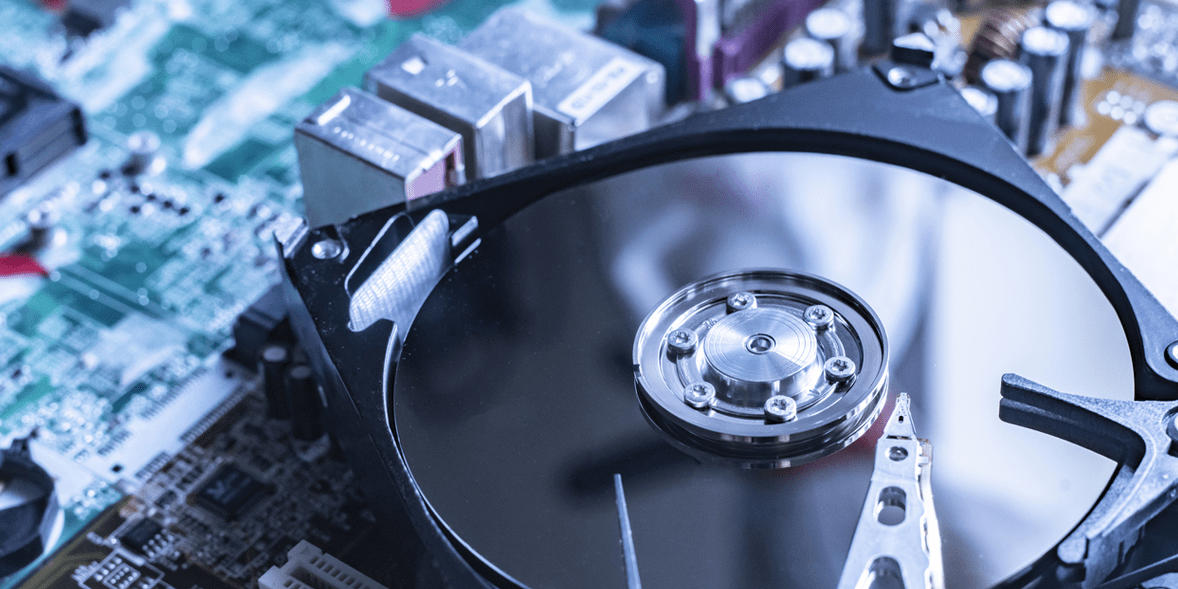
Repairing a Hard Disk: A Comprehensive Guide
Are you experiencing issues with your hard disk? Are you worried about losing important data? Don’t panic! In this article, we’ll walk you through the process of repairing a hard disk on Windows and Mac.
Understanding The Risks
A hard disk is one of the most delicate components of a computer. Mechanical disks are particularly prone to physical damage, while SSDs (Solid-State Drives) are more resistant but still susceptible to software-related problems. Crashes, error screens, and other system issues can arise from faulty hard disks.
Before You Begin
Before attempting to repair your hard disk, it’s essential to identify the cause of the problem. If you suspect that your hard disk is broken, don’t rush to replace it just yet. Instead, try to troubleshoot the issue using built-in tools and techniques.
Repairing a Hard Disk on Windows
If you’re running Windows 8 or later versions, you can use the built-in utility called “ScanDisk” to check and repair your hard disk. This tool is designed to identify and fix errors on your disk automatically.
- Open Scandisk
- Click on the Start button and select “Computer.”
- Right-click on the drive you want to examine (usually Local Disk C:) And select “Properties.”
- In the Properties window, click on the “Tools” tab.
- Click on the “Check” button under the “Error-checking” section.
- Run a Quick Scan
- Select the “Quick scan” option and follow the prompts to complete the scan.
- Repair Errors (If Necessary)
- If errors are detected, select the “Fix” option to repair them.
Using Chkdsk on Windows
Alternatively, you can use the Command Prompt to run CHKDSK (Check Disk), a powerful tool that checks and repairs disk errors.
- Open The Command Prompt as Administrator
- Press the Windows key + R to open the Run dialog box.
- Type “cmd” and press Enter.
- Right-click on the Command Prompt icon and select “Run as administrator.”
- Run Chkdsk
- Type
chkdsk C:(Assuming your hard disk is the C: Drive) and press Enter.
- Type
Repairing a Hard Disk on Mac
If you’re using a Mac, you can use the built-in utility called “Disk Utility” to check and repair your hard disk.
- Open Disk Utility
- Go to Applications > Utilities > Disk Utility.
- Select Your Hard Disk
- In the Disk Utility window, select your hard disk from the list on the left.
- Run a First Aid Scan
- Click on the “First Aid” tab and click on the “Run” button.
- Repair Errors (If Necessary)
- If errors are detected, click on the “Repair Disk” button to fix them.
When to Seek Professional Help
If you’ve tried troubleshooting and repairing your hard disk using the above methods but still experience issues, it may be time to seek professional help from a computer repair center. In some cases, physical damage may require a hardware replacement.
Conclusion
Repairing a hard disk is not always a straightforward process, but with the right tools and techniques, you can attempt to resolve common problems. Remember to back up your data regularly and consider upgrading to an SSD for improved performance and reliability.
Frequently Asked Questions (FAQs)
- What Causes a Hard Disk to Fail?
- Mechanical disks are prone to physical damage, while SSDs may experience software-related issues.
- Can I Use External Tools to Repair my Hard Disk?
- Yes, there are various third-party tools available for Windows and Mac that can help diagnose and repair hard disk problems.
- How Often Should I Back up my Data?
- It’s recommended to back up your data regularly, ideally daily or weekly, depending on your usage habits.
- Can I Use a Different Type of Storage Device Instead of a Hard Disk?
- Yes, consider using an SSD for improved performance and reliability.
- What if my Hard Disk is Physically Damaged?
- In this case, it’s usually best to seek professional help from a computer repair center.
- How Long Does a Hard Disk Repair Typically Take?
- The time required to repair a hard disk depends on the severity of the issue and the tools used.
- Can I Prevent Hard Disk Failures?
- Regular backups, proper maintenance, and upgrading to an SSD can help reduce the risk of hard disk failure.
- What if I Lose Important Data During The Repair Process?
- If you experience data loss, try using data recovery software or seeking professional help from a reputable data recovery service.


