
How to Disable Onedrive: A Step-by-step Guide
Are you tired of having your files and data synced with OneDrive, but don’t know how to disable it? Look no further! In this article, we’ll guide you through the process of disabling OneDrive on Windows 10, Windows 8.1, Mac, Android, and iOS devices.
Why Disable Onedrive?
Before we dive into the instructions, let’s quickly discuss why you might want to disable OneDrive. While it can be convenient to have your files synced across all your devices, some users may not need or want this feature. Perhaps you’re running low on storage space, or maybe you prefer to keep your files local rather than in the cloud.
Whatever your reason, disabling OneDrive is a straightforward process that we’ll walk you through below.
Disabling Onedrive on Windows 10
If you’re using Windows 10, here’s how to disable OneDrive:
- Disable Onedrive at Startup: Right-click on the Start button and select Task Manager. In the Task Manager, click on the “More details” button and then select the “Startup” tab. Find Microsoft OneDrive in the list and click on it, then click the “Disable” button.
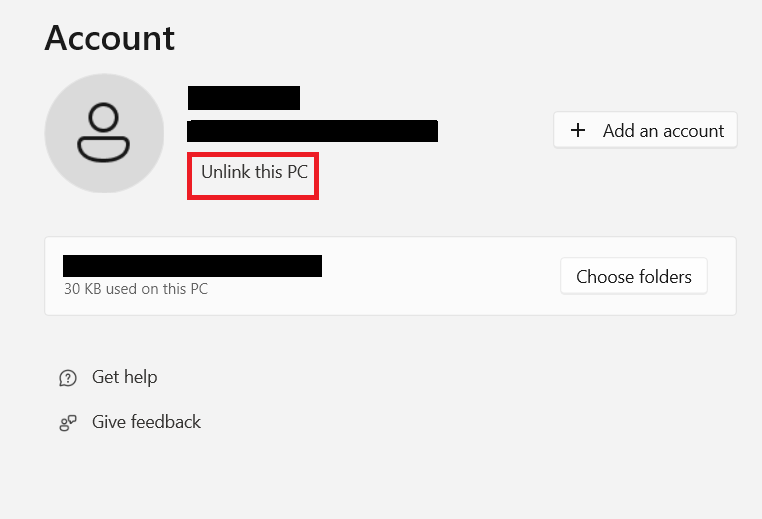
- Unlink Your PC From Onedrive: Go to Settings > System > Storage > OneDrive and click on the “Unlink this PC” button.
Disabling Onedrive on Windows 8.1
If you’re using Windows 8.1, Here’s how to disable OneDrive:
- Disable Onedrive at Startup: Press the Windows key + X and select Task Manager. In the Task Manager, click on the “More details” button and then select the “Startup” tab. Find Microsoft OneDrive in the list and click on it, then click the “Disable” button.
- Conceal Onedrive: Right-click on the Start button and select Settings > System > Storage > OneDrive and toggle off the switch next to “Save documents in OneDrive”.
- Unlink Your PC From Onedrive: Go to Settings > System > Storage > OneDrive and click on the “Unlink this PC” button.
Disabling Onedrive on Mac
If you’re using a Mac, here’s how to disable OneDrive:
- Disable Onedrive at Startup: Click on the Apple menu and select System Preferences. Click on the Users & Groups icon and then click on the Login Items tab. Find Microsoft OneDrive in the list and click on the minus (-) button.
- Unlink Your Mac From Onedrive: Go to Settings > iCloud and toggle off the switch next to “iCloud Drive”.
Disabling Onedrive on Android
If you’re using an Android device, here’s how to disable OneDrive:
- Open The Onedrive App: Tap on the OneDrive icon to open the app.
- Tap on The Settings Icon: Tap on the three horizontal lines (≡) in the top left corner of the screen and then tap on the gear icon.
- Toggle Off Sync: Toggle off the switch next to “Sync” to stop syncing your files with OneDrive.
Disabling Onedrive on Ios
If you’re using an iOS device, here’s how to disable OneDrive:
- Open The Onedrive App: Tap on the OneDrive icon to open the app.
- Tap on The Settings Icon: Tap on the gear icon in the top right corner of the screen.
- Toggle Off Sync: Toggle off the switch next to “Sync” to stop syncing your files with OneDrive.
Disabling Onedrive Account
If you want to disable OneDrive across all your devices, you’ll need to delete your OneDrive account. Here’s how:
- Sign in to Your Microsoft Account: Go to the Microsoft website and sign in to your account.
- Go to Account Settings: Click on your profile picture in the top right corner of the screen and select “Account settings”.
- Click on Delete Account: Click on the “Delete account” button.
Faqs
Here are some frequently asked questions about disabling OneDrive:
Q: Will I lose all my files if I disable OneDrive?
A: No, you won’t lose your files. They’ll still be stored locally on your device.
Q: Can I re-enable OneDrive later?
A: Yes, you can re-enable OneDrive at any time by signing in to your Microsoft account and following the same steps as above.
Q: Will disabling OneDrive affect other Microsoft services?
A: No, disabling OneDrive won’t affect other Microsoft services like Skype or Xbox Live.
Q: How do I delete my OneDrive account?
A: To delete your OneDrive account, go to the Microsoft website, sign in to your account, and follow the steps above.
Conclusion
Disabling OneDrive is a straightforward process that can be completed on Windows 10, Windows 8.1, Mac, Android, and iOS devices. We hope this guide has been helpful in walking you through the process. If you have any further questions or concerns, please don’t hesitate to reach out.
Frequently Asked Questions
Here are some frequently asked questions about disabling OneDrive:
Q: How do I disable OneDrive on my Windows 10 device?
A: To disable OneDrive on your Windows 10 device, go to Settings > System > Storage and toggle off the switch next to “Save documents in OneDrive”.
Q: Can I re-enable OneDrive later?
A: Yes, you can re-enable OneDrive at any time by signing in to your Microsoft account and following the same steps as above.
Q: Will disabling OneDrive affect other Microsoft services?
A: No, disabling OneDrive won’t affect other Microsoft services like Skype or Xbox Live.
Q: How do I delete my OneDrive account?
A: To delete your OneDrive account, go to the Microsoft website, sign in to your account, and follow the steps above.


