
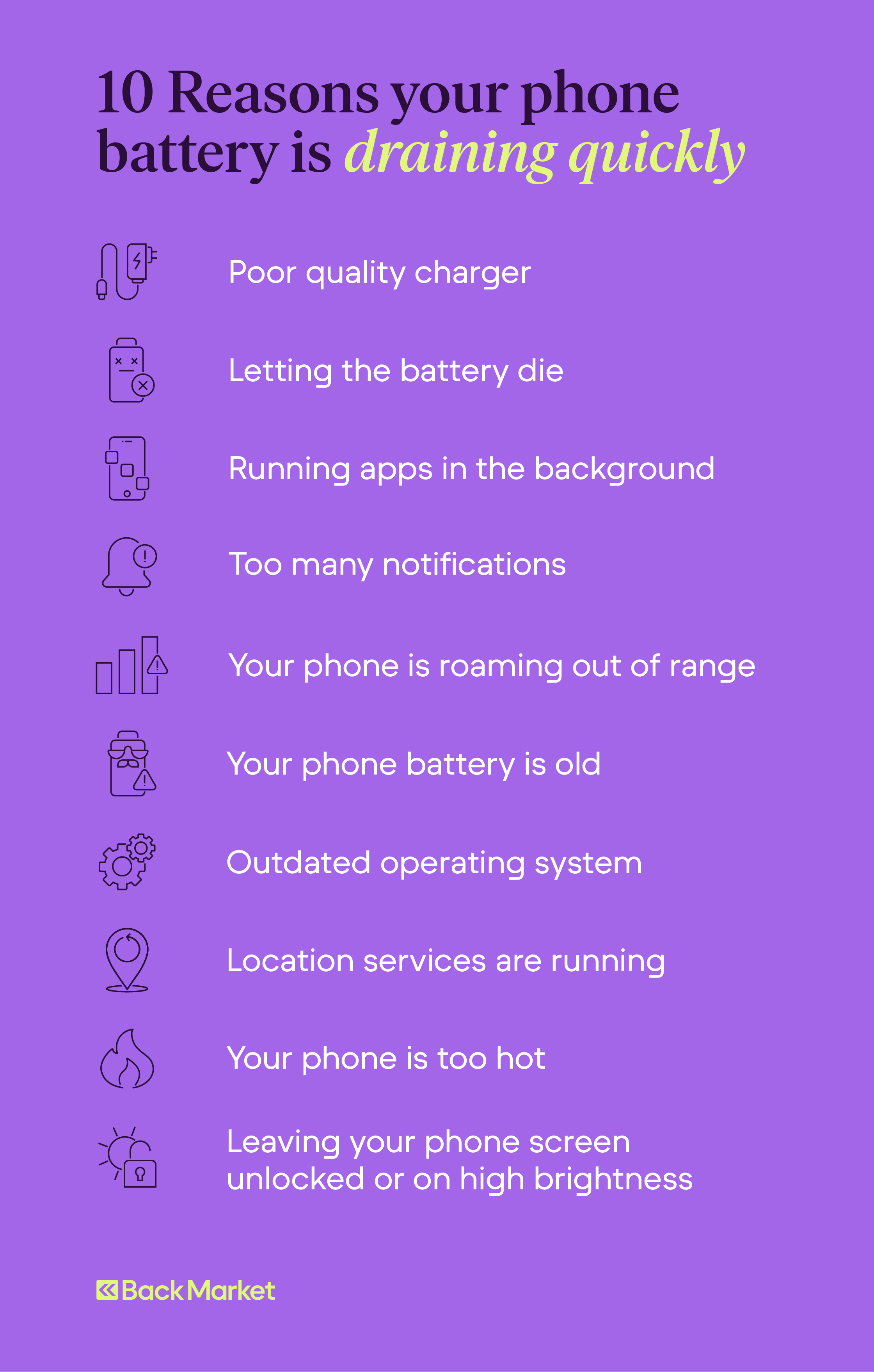
How to Download Your Phone’s Battery Quickly
Are you tired of your phone’s battery running out too quickly? Do you want to know how to download it without affecting its overall health? In this article, we will explore the various ways to download your phone’s battery quickly while ensuring that it doesn’t damage the device.
Understanding How Batteries Work
Before we dive into the methods, let’s understand how batteries work. A battery is a container filled with chemical energy that can be converted into electrical energy. When you charge your phone, the battery absorbs this energy and stores it in its cells. The more energy stored, the longer the battery will last.
Method 1: Disabling Power-saving Features
The first method to download your phone’s battery quickly is to disable power-saving features. These features are designed to conserve battery life by reducing screen brightness, turning off Bluetooth and Wi-Fi, and limiting app usage. However, these features can also slow down your phone.
To disable them:
- Go to Settings > Battery
- Look for the option “Power saving mode” or “Low Power Mode”
- Disable it
Method 2: Increasing Screen Brightness
Increasing screen brightness can help download your phone’s battery quickly. This is because a brighter screen requires more power to light up.
To increase screen brightness:
- Go to Settings > Display
- Look for the option “Screen brightness” or “Auto-brightness”
- Increase the brightness level
Method 3: Enabling Vibration
Enabling vibration can also help download your phone’s battery quickly. This is because vibrations require more power than regular notifications.
To enable vibration:
- Go to Settings > Sounds and vibration
- Look for the option “Vibrate on notification” or “Vibration on touch”
- Enable it
Method 4: Increasing Volume
Increasing volume can also help download your phone’s battery quickly. This is because louder sounds require more power than regular sounds.
To increase volume:
- Go to Settings > Sounds and vibration
- Look for the option “Volume” or “Sound level”
- Increase the volume level
Method 5: Enabling Gps
Enabling GPS can also help download your phone’s battery quickly. This is because GPS requires more power than regular location services.
To enable GPS:
- Go to Settings > Location
- Look for the option “Location services” or “GPS”
- Enable it
Method 6: Disabling Dark Mode
Disabling dark mode can also help download your phone’s battery quickly. This is because dark mode reduces screen brightness, which requires less power.
To disable dark mode:
- Go to Settings > Display
- Look for the option “Dark mode” or “Night mode”
- Disable it
Method 7: Using Stressful Apps
Using stressful apps can also help download your phone’s battery quickly. This is because these apps require more power than regular apps.
To use stressful apps:
- Go to Settings > Battery
- Look for the option “Battery usage” or “Power consumption”
- Choose an app that consumes high power
Method 8: Activating Torch
Activating torch can also help download your phone’s battery quickly. This is because the light requires more power than regular lights.
To activate torch:
- Go to Settings > Display
- Look for the option “Torch” or “Flashlight”
- Enable it
Conclusion
Downloading a phone’s battery quickly without affecting its overall health can be challenging. However, by disabling power-saving features, increasing screen brightness, enabling vibration, increasing volume, enabling GPS, disabling dark mode, using stressful apps, and activating torch, you can help download your phone’s battery quickly.
Frequently Asked Questions (FAQs)
Q: How often should I charge my phone?
A: You should charge your phone when the battery level falls to 20% or less.
Q: Can I use a power bank to charge my phone?
A: Yes, you can use a power bank to charge your phone.
Q: What is the ideal temperature for storing batteries?
A: The ideal temperature for storing batteries is between 0°C and 35°C.
Q: Can I replace my phone’s battery myself?
A: It depends on the type of phone and battery. Consult the manufacturer’s instructions before attempting to replace it yourself.
Q: How often should I update my phone’s software?
A: You should update your phone’s software regularly to ensure you have the latest security patches and features.
Q: Can I use a phone with a damaged battery?
A: No, you should not use a phone with a damaged battery as it can cause electrical shocks or other safety hazards.


