
How to Select All Emails on Gmail: A Step-by-step Guide
Are you tired of sifting through your inbox to select all emails at once? Look no further! In this article, we will guide you through the process of selecting all emails on Gmail using various methods.
Selecting All Emails on Gmail Using PC
Using a computer is one of the most straightforward ways to select all emails on Gmail. Here’s how:
Selezionare #All The Mail on Gmail Web
- Open your browser and go to the Gmail website.
- Log in to your account if you haven’t already.
- Click on the “More” tab on the left-hand side of the screen.
- Select the folder you want to select all emails from (e.G., Inbox, Spam, etc.).
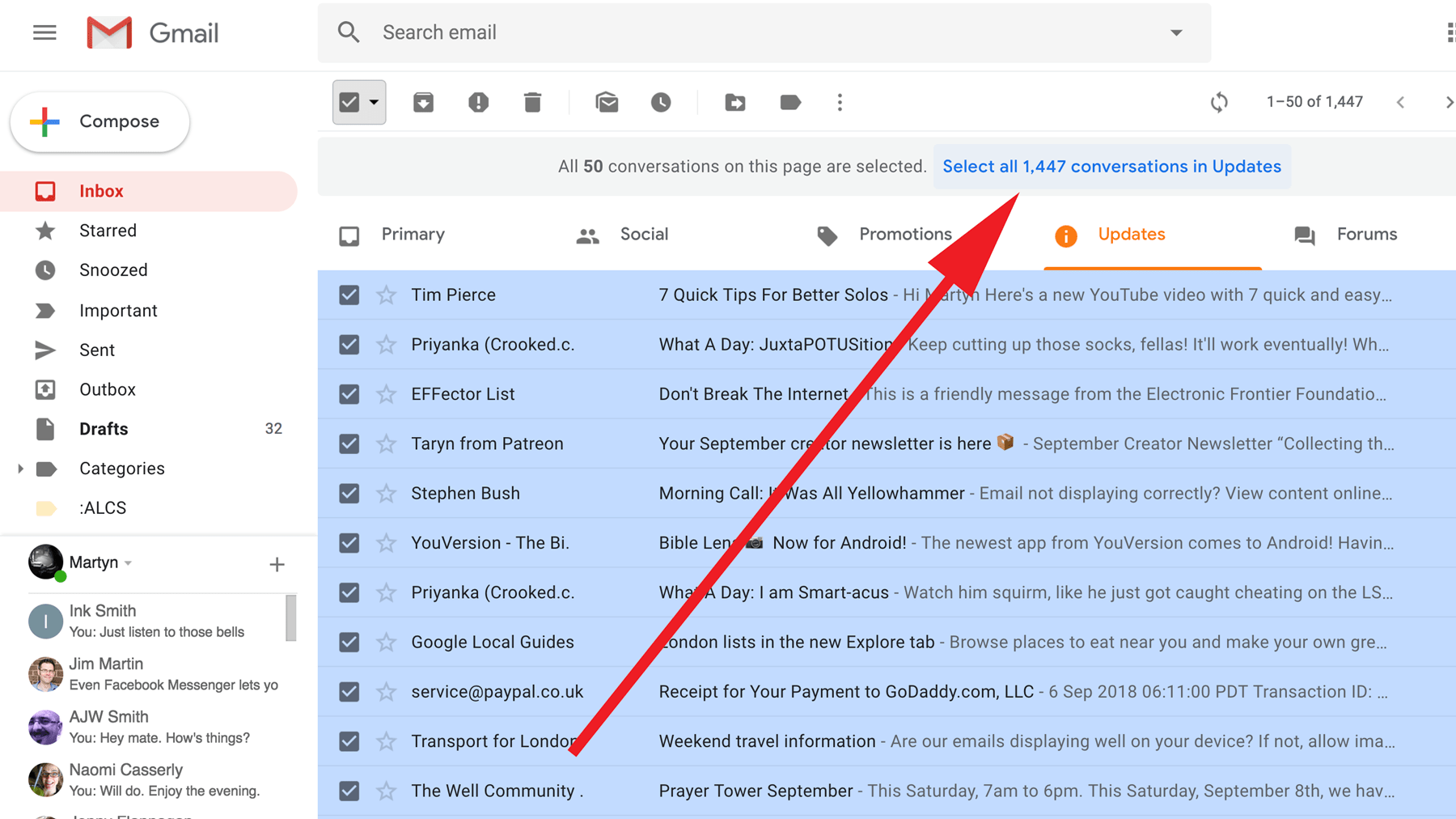
- Click on the checkbox at the top of the list to select all emails in that folder.
Selezionare #All The Mail on Gmail of client
- Open your email client software (e.G., Outlook, Thunderbird, etc.).
- Log in to your Gmail account.
- Select the folder you want to select all emails from.
- Click on the “Select” button and then click on the checkbox at the top of the list to select all emails.
Selecting All Emails on Gmail Using Mobile Apps
Selezionare #All The Mail Gmail Android
- Open the Gmail app on your Android device.
- Log in to your account if you haven’t already.
- Tap on the three horizontal lines at the top-left corner of the screen.
- Select the folder you want to select all emails from (e.G., Inbox, Spam, etc.).
- Swipe left on each email to mark them as selected.
Selezionare #All The Mail Gmail iPhone
- Open the Gmail app on your iPhone or iPad.
- Log in to your account if you haven’t already.
- Tap on the three horizontal lines at the top-left corner of the screen.
- Select the folder you want to select all emails from (e.G., Inbox, Spam, etc.).
- Swipe left on each email to mark them as selected.
Tips And Tricks
- To select all emails in a specific thread, click on the checkbox next to the first email and then press Ctrl+A (Windows) or Command+A (Mac).
- To deselect all emails, simply press Ctrl+Shift+A (Windows) or Command+Shift+A (Mac).
Why Select All Emails?
Selecting all emails can be useful in various situations:
- Bulk Deletion: If you want to delete a large number of emails at once.
- Folder Organization: When you need to move multiple emails from one folder to another.
- Labeling: To apply labels or filters to a group of emails.
Conclusion
Selecting all emails on Gmail can be done using various methods, including PC, mobile apps, and email clients. By following these steps, you’ll be able to quickly and easily select all emails in your inbox or specific folders.
Frequently Asked Questions (FAQs)
- Q: Can I Select All Emails on Gmail Without Opening The App?
A: No, you need to open the Gmail app to select all emails. - Q: How do I Deselect All Emails?
A: Press Ctrl+Shift+A (Windows) or Command+Shift+A (Mac) to deselect all emails. - Q: Can I Select All Emails in a Specific Thread?
A: Yes, click on the checkbox next to the first email and then press Ctrl+A (Windows) or Command+A (Mac). - Q: Why Can’t I See The “Select” Button on my Gmail App?
A: Make sure you’re logged in to your account and have selected the correct folder. - Q: Can I Select All Emails Using an Email Client Software?
A: Yes, follow the steps mentioned earlier for selecting all emails using an email client software.


