
The Ultimate Guide to Deleting Unused Data on Your Iphone
Are you tired of running out of space on your iPhone? Do you find yourself wondering what’s taking up all that storage space? Look no further! In this comprehensive guide, we’ll show you how to delete unused data on your iPhone and free up valuable storage space.
What is The “Other” Data Category on My Iphone?
When you check the storage space on your iPhone, you might notice a category called “Other.” This category includes all sorts of data that don’t fit into other categories, such as app data, system files, and more. But what exactly does this mean?
What Kinds of Data Are Stored in The “Other” Category?
The “Other” category on your iPhone stores a wide range of data, including:
- System files and updates
- App data and caches
- User settings and preferences
- Cache files for Safari and other apps
Why is My Iphone Running Out of Space?
There are several reasons why your iPhone might be running out of space. Some possible causes include:
- Downloading too many apps or large files
- Taking too many photos or videos
- Having too many messages or emails
- Allowing too much cache data to build up
How Can I Delete Unused Data on My Iphone?
Deleting unused data on your iPhone is a straightforward process. Here are the steps you can follow:
Step 1: Check Your Storage Space
First, go to Settings > General > Storage & iCloud Usage to check how much space is available on your iPhone.
Step 2: Identify The Problem Areas
Look for areas where data is accumulating and taking up too much space. This might include apps with large caches, photo libraries, or email accounts.
Step 3: Delete Unused Data
Once you’ve identified the problem areas, you can start deleting unused data. Here are some specific steps to take:
Delete Safari Cache
To delete the Safari cache on your iPhone, follow these steps:
- Go to Settings > Safari > Advanced
- Tap on “Website Data” and select “Clear Website Data”
- Confirm that you want to clear website data
Delete App Caches*
To delete app caches on your iPhone, follow these steps:
- Go to Settings > General > Storage & iCloud Usage
- Tap on “Manage Storage”
- Identify the apps with large cache sizes and tap on them
- Select “Offload” to remove the app’s data without uninstalling it
Delete System Files*
To delete system files on your iPhone, follow these steps:
- Go to Settings > General > Storage & iCloud Usage
- Tap on “Manage Storage”
- Identify the system file categories and tap on them
- Select “Delete Data” to remove the system files
Step 4: Consider Resetting Your Iphone
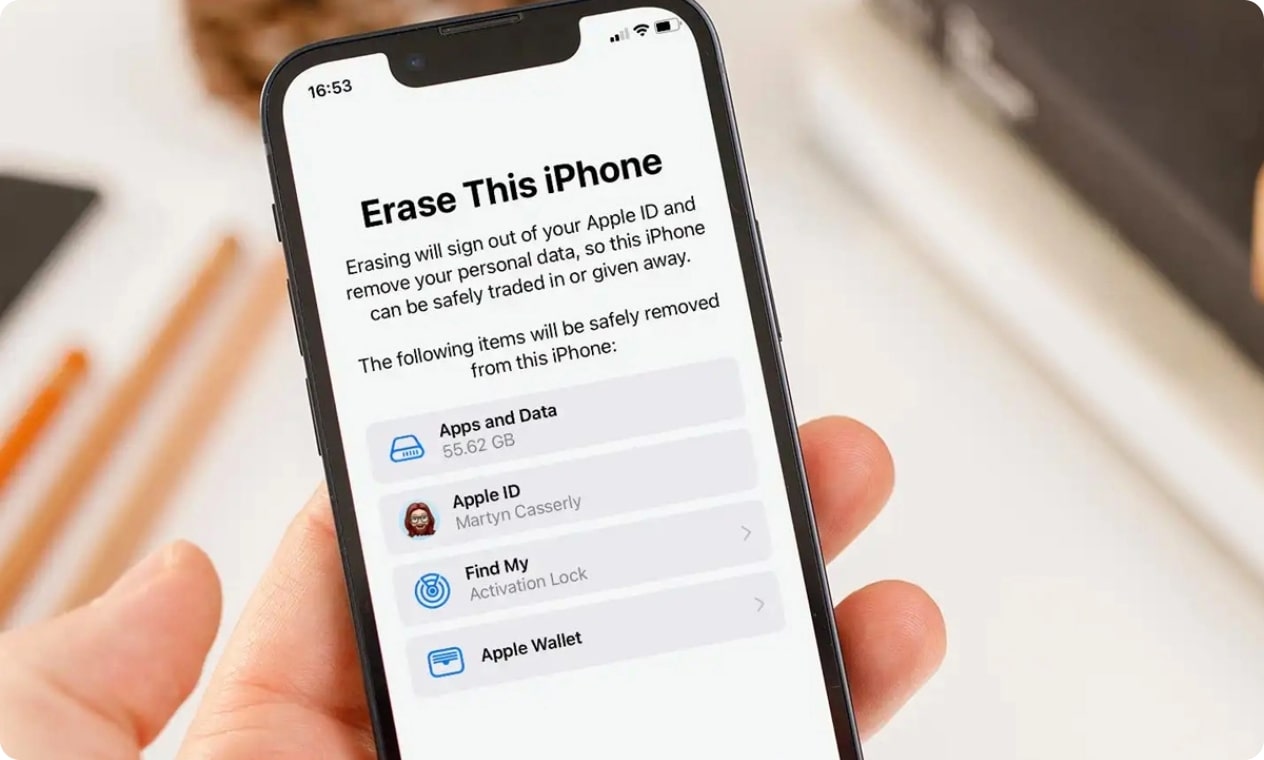
If you’ve tried deleting unused data but still need more space, it might be time to consider resetting your iPhone. This will wipe all of your data, so make sure you back up your device before proceeding.
Other Tips For Freeing Up Space on Your Iphone
In addition to deleting unused data, here are some other tips for freeing up space on your iPhone:
- Uninstall unused apps
- Delete unnecessary photos and videos
- Consider upgrading to a larger storage capacity
Conclusion
Deleting unused data on your iPhone is a simple process that can free up valuable storage space. By following the steps outlined in this guide, you can identify problem areas, delete unnecessary data, and consider resetting your device if necessary.
Frequently Asked Questions
Here are some frequently asked questions about deleting unused data on your iPhone:
- Q: What Happens When I Delete Unused Data?
A: When you delete unused data, it will be removed from your iPhone’s storage space. This can help free up space for new data and improve the performance of your device. - Q: Will Deleting Unused Data Affect my Apps or Functionality?
A: Deleting unused data should not affect your apps or functionality. However, if you delete system files or other critical data, it may impact the performance of your device. - Q: Can I Recover Deleted Data on my Iphone?
A: If you’ve accidentally deleted important data, it’s possible to recover some or all of it. However, this requires using specialized software and following specific procedures.
Additional Resources
If you need more information about deleting unused data on your iPhone, here are some additional resources:
- Apple Support Website: Check out the official Apple support website for guidance on managing storage space and deleting unused data.
- Online Forums: Join online forums and discussion groups to connect with other iPhone users and get advice on managing storage space and deleting unused data.


