
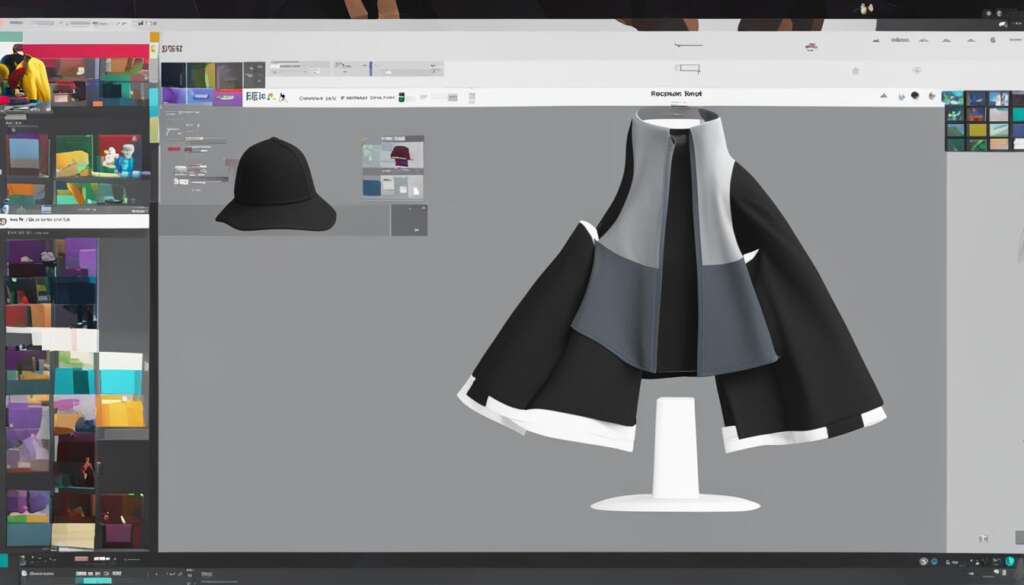
How to Create Objects on Roblox: A Step-by-step Guide
Are you ready to unleash your creativity and create amazing objects on Roblox? Look no further! In this article, we will guide you through the process of creating objects on Roblox using Roblox Studio.
What is Roblox Studio?
Roblox Studio is a free software that allows users to create 3D models for Roblox. It’s an essential tool for anyone who wants to create objects, avatars, and even entire games on the platform.
Downloading And Installing Roblox Studio
To start creating objects on Roblox, you need to download and install Roblox Studio. Here’s how:
- Visit the official Roblox website and click on “Start Creating”.
- Click on “Download Studio” and wait for the file to be downloaded.
- If you’re using Windows, run the .Exe file and follow the installation instructions.
- If you’re using macOS, open the .Dmg file and double-click on the Roblox Studio icon to install.
Creating an Object on Roblox Studio
Once you’ve installed Roblox Studio, it’s time to create your first object! Here’s a step-by-step guide:
- Open Roblox Studio and click on the “Model” tab.
- Select a shape from the menu (e.G., Block, Sphere, Wedge).
- Resize and position the shape as desired using the Scales and Move tools.
- Add more shapes to create your object by selecting them in the menu and clicking on Union or Merge.
- Use the Color tool to change the color of your object.
Saving Your Object
When you’re happy with your creation, it’s time to save it! Here’s how:
- Click on “Rows” and select “Save As”.
- Choose where you want to save your file (e.G., On your computer or online in Roblox).
- Name your object and add any relevant tags.
Creating an Avatar on Roblox Studio
Roblox Studio also allows you to create custom avatars! Here’s how:
- Open the “Avatar” tab.
- Select a template from the menu (e.G., Block Rig, Mesh Rig).
- Customize your avatar by selecting parts and adding accessories using the Tools menu.
Contacting Your Object in Sale on Roblox
Once you’ve created an object with Roblox Studio, you can issue it in the Creator Marketplace and make it visible to all users. Here’s how:
- Save your blueprint with the “Save To” option set to Roblox.
- Access the Toolbox panel and click on the icon with four squares.
- Click right on the image of the object you want to insert into the Creator Marketplace and select “Edit Asset”.
- Select the Distributed on Marketplace option and click Submit.
Conclusion
Creating objects on Roblox using Roblox Studio is a fun and creative process! With these step-by-step guides, you’ll be able to create amazing objects, avatars, and even entire games. Remember to save your creations and share them with the world!
Frequently Asked Questions (FAQs)
- What is Roblox Studio?
Roblox Studio is a free software that allows users to create 3D models for Roblox. - How do I Download And Install Roblox Studio?
Visit the official Roblox website, click on “Start Creating”, and follow the installation instructions. - Can I Create Objects Without Using Roblox Studio?
Yes, you can use a 2D graphics program like GIMP or Photoshop to create simple objects. - How do I Issue my Object in The Creator Marketplace?
Save your blueprint with the “Save To” option set to Roblox and follow the steps outlined above. - Can I Sell my Object on The Avatar Shop?
To sell accessories and objects, you need to be a creator on Roblox and have a portfolio of created assets. - How do I Become a Creator on Roblox?
Submit your application through the official Roblox website and follow their guidelines. - What is The Difference Between an Object And an Accessory?
An object is a standalone item, while an accessory is a wearable or attachable item that enhances another object or avatar.
Final Tips
- Experiment with different shapes and tools to create unique objects.
- Don’t be afraid to try new things and make mistakes – it’s all part of the learning process!
- Share your creations with the world and show off your skills on Roblox!
Remember, practice makes perfect! Keep creating and experimenting with Roblox Studio, and you’ll become a master object creator in no time!


