
How to Scan Documents on a Mac: A Step-by-step Guide
Are you tired of printing and scanning documents on your Mac? Do you want to make the process easier and more efficient? Look no further! In this article, we will guide you through the steps of scanning documents on a Mac using various methods.
Why Scan Documents on a Mac?
Scanning documents on a Mac is a convenient way to digitize papers, photos, and other materials. It saves space, reduces clutter, and allows for easy sharing and editing of files. With the rise of digitalization, scanning documents on a Mac has become an essential tool for both personal and professional use.
Preliminary Operations
Before you start scanning documents on your Mac, there are some preliminary operations to complete:
- Configure Your Scan or Printer: Ensure that your scan or printer is properly configured and connected to your Mac. This may involve installing the necessary drivers and software.
- Add Your Scanner to Your Mac: Add your scanner to your Mac’s list of available devices by going to System Preferences > Printers & Scanners.
- Light The Scan or Printer: Make sure the scan or printer is turned on and ready for use.
Method 1: Using Acquisition Image
Acquisition Image is a pre-installed application on macOS that allows you to digitize images and documents. Here’s how to use it:
- Open Acquisition Image: Click on the Launchpad icon in the Dock and select Acquisition Image from the folder “Another”.
- Select Your Scanner: Choose your scanner or printer from the list of available devices.
- Adjust Settings: Adjust the settings as needed, such as resolution, color mode, and format.
Method 2: Using Prizmo
Prizmo is a professional software that allows you to digitize documents, translate them into editable text, and export them in various formats. Here’s how to use it:
- Download And Install Prizmo: Download the free version of Prizmo from its official website.
- Launch Prizmo: Open Prizmo and select “New” > “Document”.
- Choose Your Scanner: Select your scanner or printer from the list of available devices.
Method 3: Using Other Solutions
Other solutions for scanning documents on a Mac include:
- Exactscan: A software that allows you to digitize, organize, and optimize scanned documents.
- Vuescan: A software that supports over 7,400 different scanners, allowing you to digitize documents and photos.
- Pdfscanner: An application that scans documents and saves them in PDF format.
Scanning Directly in Pdf
You can also scan directly into a PDF file using various methods:
- Acquisition Image: Select the “PDF” option from the menu bar when scanning with Acquisition Image.
- Prizmo: Save your scanned document as a PDF file using Prizmo’s export options.
Scanning Without a Scanner
If you don’t have a scanner, you can still scan documents on your Mac by using the Continuity feature between devices:
- Enable Continuity: Ensure that both your Mac and iPhone/iPad are updated to the latest software.
- Scan With Your Phone: Open the camera app on your iPhone or iPad and take a photo of the document.
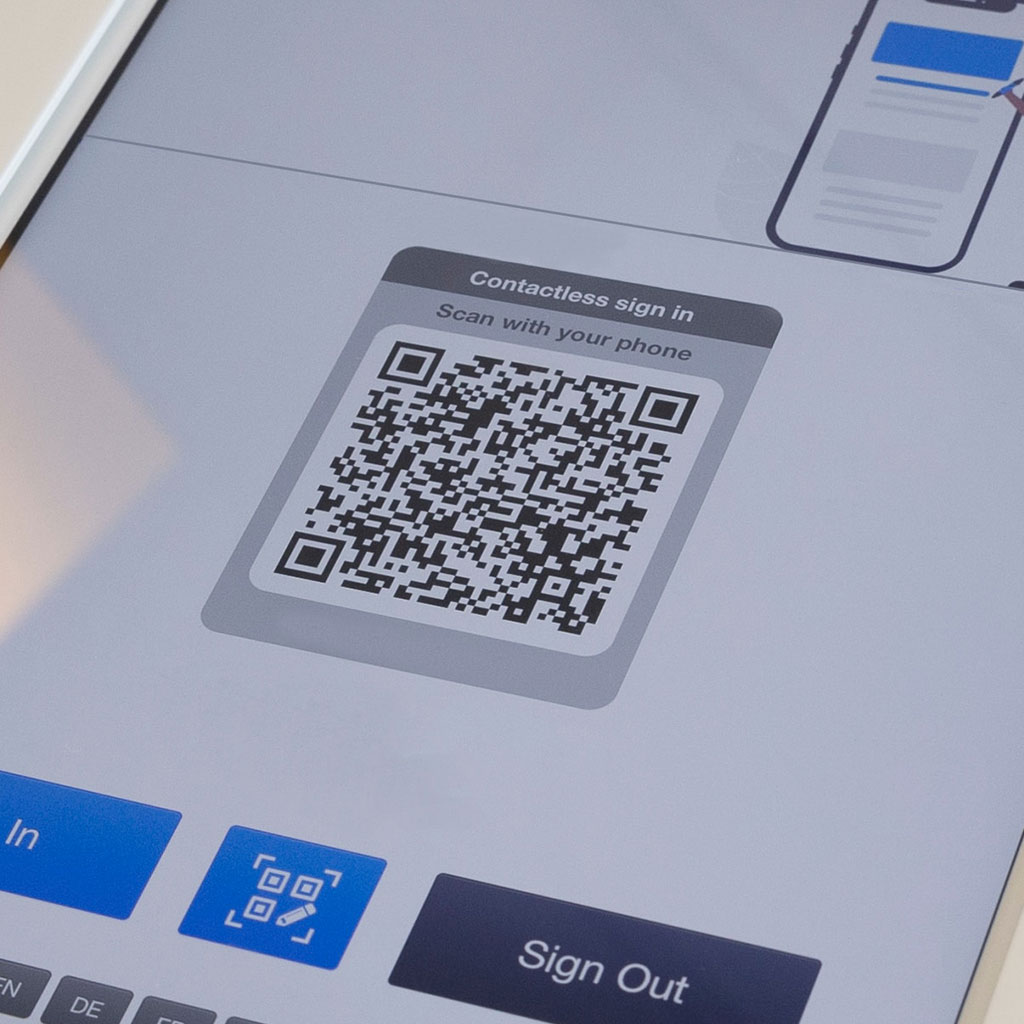
Scanning QR Codes
To scan QR codes on your Mac, you can use various software and services:
- Apple’s Camera App: Use the camera app to scan QR codes.
- QR Code Readers: Download and install QR code reader apps from the App Store.
Conclusion
Scanning documents on a Mac is a straightforward process that can be completed using various methods. Whether you choose Acquisition Image, Prizmo, or other solutions, you’ll be able to digitize your papers, photos, and other materials with ease. Remember to follow the preliminary operations and adjust settings as needed to ensure optimal results.
Faqs
- What is The Best Software For Scanning Documents on a Mac?
The best software for scanning documents on a Mac depends on your specific needs. Acquisition Image is a pre-installed app, while Prizmo offers advanced features like OCR and translation. - How do I Scan Directly in Pdf Format?
You can scan directly into a PDF file using Acquisition Image or Prizmo by selecting the “PDF” option from the menu bar. - Can I Scan Without a Scanner?
Yes, you can scan documents on your Mac without a scanner using the Continuity feature between devices. - How do I Scan QR Codes on my Mac?
You can scan QR codes on your Mac using Apple’s Camera App or by downloading and installing QR code reader apps from the App Store. - What is The Difference Between Acquisition Image And Prizmo?
Acquisition Image is a pre-installed app for digitizing images, while Prizmo offers advanced features like OCR, translation, and export options.


