
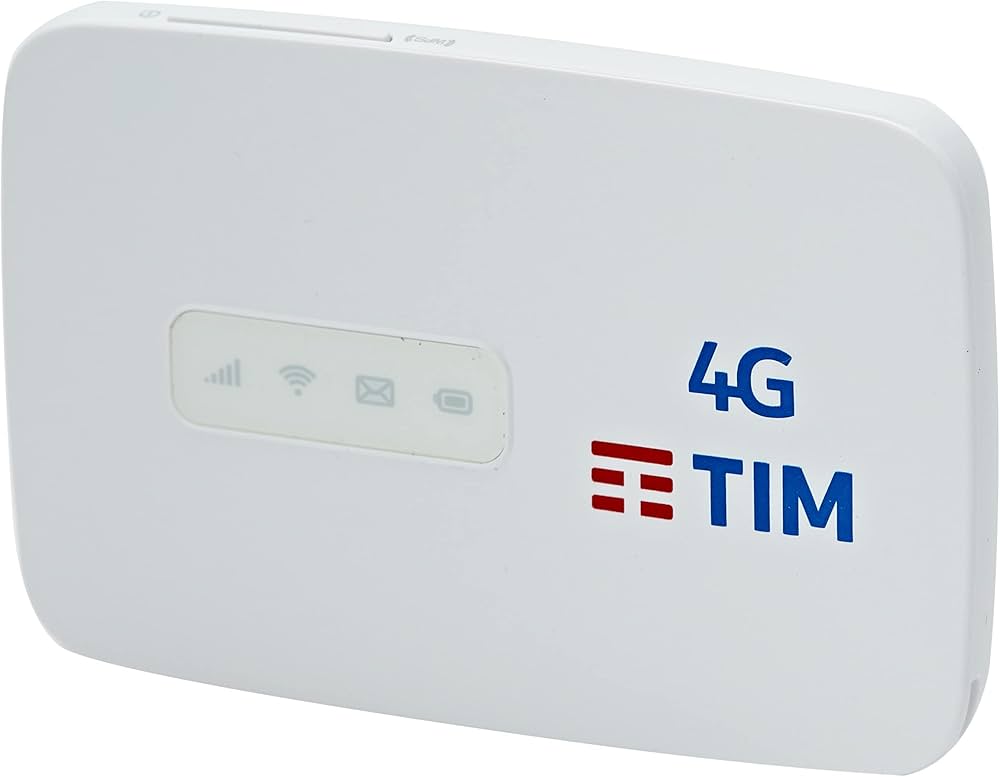
How to Access Your Tim Modem: A Step-by-step Guide
Are you having trouble accessing your TIM modem? Do not worry, this article is here to guide you through the process of configuring your modem in just a few simple steps.
Understanding Your Modem
Before we dive into the instructions, it’s essential to understand that your modem is essentially a bridge between your internet service provider (ISP) and your home network. It connects your devices to the internet, allowing you to access online services like email, social media, and streaming platforms.
Step 1: Find Your Modem
The first step is to locate your modem. This device is usually provided by your ISP and is typically found in a corner of your living room or office. It’s often labeled with the brand name (in this case, TIM) and has several lights on it that indicate its status.
Step 2: Access Your Modem’s Panel
To access your modem’s panel, you need to find its IP address. This can be done in a few ways:
- Using Wi-fi: You can use your browser to type the following address:
Http://Modemtelecom(if you’re using an optical fiber connection) orhttp://Alicegate(if you’re using an ADSL connection). Once you enter this URL, press Enter. - Using Ethernet: Connect your computer directly to the modem using an Ethernet cable. Open a web browser and type the address:
Http://Modemtelecom(for optical fiber) orhttp://Alicegate(for ADSL). - Find Your Modem’s IP Address: If you’re unable to find the modem’s panel, look for the IP address printed on its back or bottom. It should be listed as 192.168.1.1 Or 192.168.0.1.
Step 3: Log In
Once you’ve accessed your modem’s panel, you’ll need to log in with a password. This is usually set by default and can be found on the modem itself or in its manual. If you’re unable to find it, try using the pre-defined combinations admin/admin or admin/password.
Step 4: Configure Your Modem
After logging in, you’ll see various settings options for your modem. To configure it properly:
- Set a Personalized Password: Set up a strong password to secure your access.
- Configure Wi-fi Settings: Adjust your Wi-Fi settings as needed, such as changing the network name and password.
- Open Doors: Open doors for programs like uTorrent or other services you use.
Step 5: Save Changes
Once you’ve made these changes, click Apply to save them. The modifications will take effect immediately.
Accessing Your Modem on a Smartphone or Tablet
If you have a smartphone or tablet, you can access your modem using the TIM app. You’ll need to download and install it, then launch it and follow its instructions.
Troubleshooting Issues
If you’re still having trouble accessing your modem:
- Contact Tim’s Service Center: Reach out to their customer service team for assistance.
- Use Alternative Methods: Try alternative methods like Facebook or Twitter to contact them.
- Reset Your Modem: If all else fails, try resetting your modem by pressing the reset button with a pin.
I hope this article has provided you with clear instructions on how to access and configure your TIM modem.


