
Installing a Printer Without CD on Windows, Macos, And Linux
Are you struggling to install a printer without the CD? Don’t worry, this article is here to help! Installing a printer without the installation CD can be a bit tricky, but with the right guidance, it’s definitely possible. In this article, we’ll walk you through the steps of installing a printer on Windows, macOS, and Linux.
Why Can’t I Find My Printer in The List?
One common issue people face when trying to install a printer without CD is that they can’t find their printer in the list. This usually happens because the operating system can’t detect the printer. To resolve this issue, you’ll need to manually add your printer.
Installing a Printer on Windows
To install a printer on Windows, follow these steps:
- Download The Driver From Internet: The first step is to download the driver for your printer from the official website of the manufacturer. Make sure to select the correct operating system (Windows) and printer model.
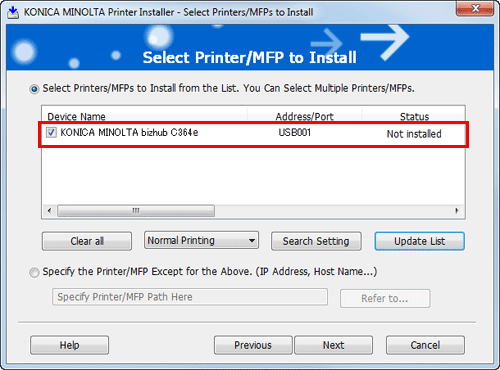
- Install The Driver: Once you’ve downloaded the driver, run the installation file and follow the prompts to install the driver.
- Add The Printer: After installing the driver, add your printer to Windows by going to Devices and Printers > Add a printer > Select a printer from a list (Windows 10) or Add a printer > Local printer (Windows 7).
Using Device Manager on Windows
If you’re having trouble finding your printer in the list, you can use Device Manager to manually add it. To do this:
- Open Device Manager: Press the Windows key + X and select Device Manager.
- Add a Printer: Go to Devices > Printers > Add a printer > Manually select the printer driver (Windows 10) or Local printer > Use a locally attached device (Windows 7).
Installing a Printer on Macos
To install a printer on macOS, follow these steps:
- Connect The Printer: Connect your printer to your Mac and turn it on.
- Download The Driver: Download the driver for your printer from the official website of the manufacturer.
- Install The Driver: Run the installation file and follow the prompts to install the driver.
- Add The Printer: Go to System Preferences > Printers & Scanners > Add a printer or scanner > Select your printer model.
Using Internet to Download Driver on Macos
If you’re unable to find your printer in the list, you can use Internet to download the driver:
- Open Safari: Open Safari and go to the official website of the manufacturer.
- Download The Driver: Download the driver for your printer model.
- Install The Driver: Run the installation file and follow the prompts to install the driver.
Installing a Printer on Linux
To install a printer on Linux, follow these steps:
- Connect The Printer: Connect your printer to your computer and turn it on.
- Open Settings: Open the settings panel and go to Devices > Printers > Add a printer.
- Select Your Printer: Select your printer model from the list.
Troubleshooting Tips
If you’re having trouble installing your printer, here are some troubleshooting tips:
- Make sure the printer is connected correctly.
- Check that the driver is installed correctly.
- Restart your computer to ensure that the changes take effect.
Conclusion
Installing a printer without CD can be a bit tricky, but with these steps and troubleshooting tips, you should be able to install your printer on Windows, macOS, and Linux. Remember to always download the correct driver for your printer model from the official website of the manufacturer.
Frequently Asked Questions (FAQs)
- Q: Why Can’t I Find my Printer in The List?
A: Make sure that the printer is connected correctly and the driver is installed correctly. - Q: How do I Add a Printer on Windows?
A: Go to Devices and Printers > Add a printer > Select a printer from a list (Windows 10) or Add a printer > Local printer (Windows 7). - Q: How do I Install a Driver on Macos?
A: Download the driver for your printer model, run the installation file, and follow the prompts to install the driver. - Q: Why is my Printer Not Detected by Windows?
A: Make sure that the printer is connected correctly and the driver is installed correctly. - Q: How do I Manually Add a Printer on Linux?
A: Go to Devices > Printers > Add a printer > Select your printer model. - Q: Can I Install a Printer Without The Cd?
A: Yes, you can install a printer without the CD by downloading the driver from the official website of the manufacturer. - Q: Why do I Need to Restart my Computer After Installing The Driver?
A: Restarting your computer ensures that the changes take effect and the printer is detected correctly. - Q: Can I Use a Different Version of Windows or Macos Than The One Recommended by The Manufacturer?
A: Yes, you can use a different version of Windows or macOS, but make sure to check the compatibility with the driver before installing it.
Note: This article provides general guidance and may not be applicable to all situations. The manufacturer’s instructions should always be followed for specific printer models.


