
Updating to Windows 11: A Step-by-step Guide
Are you ready to upgrade your PC to the latest operating system, Windows 11? However, you’ve encountered a problem – your TPM (Trusted Platform Module) 2.0 Is not activated. Don’t worry; we’ve got you covered! In this article, we’ll guide you through the process of qualifying TPM 2.0 On various PC brands, including Gigabyte, MSI, ASUS, and HP.
What is Tpm 2.0?
TPM 2.0 Is a microcontroller that provides a unique safety key to enhance the security of your PC’s internal components. It’s a requirement for installing Windows 11, as specified by Microsoft. If your PC doesn’t have TPM 2.0 Or it’s not activated, you won’t be able to update to Windows 11 using the standard method.
Why is Tpm 2.0 Essential?
TPM 2.0 Plays a crucial role in protecting your PC’s data from unauthorized access. It generates and stores keys based on the system in use, ensuring that only authorized users can access sensitive information. With TPM 2.0 Activated, you’ll have an additional layer of security to safeguard your personal data.
Qualifying Tpm 2.0: A Step-by-step Guide
Qualifying Tpm 2.0 in Your Pc
If you’re not sure if your PC has TPM 2.0 Or it’s not activated, follow these steps:
- Open Windows 10 and press the Windows key + R to open the Run dialog box.
- Type “tpm.Msc” and press Enter.
- In the Trusted Platform Module (TPM) Management Console, you’ll see the TPM version. If it says “2.0,” Then your PC has a compatible TPM 2.0.
Qualifying Tpm 2.0 in Gigabyte Pcs
If you have a Gigabyte PC with Windows 10, follow these steps:
- Restart your PC and enter the BIOS settings by pressing the F2 key (or Del on some systems).
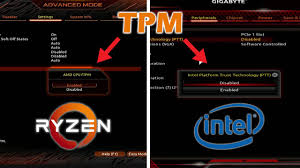
- Go to the Peripheral menu and select Trusted Computing 2.0.
- Ensure that Security Device Support is enabled. If not, enable it using the Forward arrow or directional keys.
- Save the changes and restart your PC.
Qualifying Tpm 2.0 in Msi Pcs
If you have an MSI PC with Windows 10, follow these steps:
- Restart your PC and enter the BIOS settings by pressing the F2 key (or Del on some systems).
- Go to the Settings menu and select Security.
- Look for Trusted Computing and enable it by selecting Enabled from the dropdown menu.
- Save the changes and restart your PC.
Qualifying Tpm 2.0 in Asus Pcs
If you have an ASUS PC with Windows 10, follow these steps:
- Restart your PC and enter the BIOS settings by pressing the F2 key (or Del on some systems).
- Go to the Advanced menu and select PCH-FW Configuration.
- Look for PTT (Platform Trust Technology) and enable it by selecting Enabled from the dropdown menu.
- Save the changes and restart your PC.
Qualifying Tpm 2.0 in HP Pcs
If you have an HP PC with Windows 10, follow these steps:
- Restart your PC and enter the BIOS settings by pressing the F1 or F10 key (or Del on some systems).
- Go to the Security menu and select Security Chip/TPM Device.
- Enable it by selecting Enabled from the dropdown menu.
- Save the changes and restart your PC.
Conclusion
Qualifying TPM 2.0 Is a relatively straightforward process, but it may vary depending on your PC’s brand and model. By following these step-by-step guides for Gigabyte, MSI, ASUS, and HP PCs, you’ll be able to activate TPM 2.0 And update to Windows 11 without any issues.
Frequently Asked Questions (FAQs)
- Q: What is Tpm 2.0?
A: TPM 2.0 Is a microcontroller that provides a unique safety key to enhance the security of your PC’s internal components. - Q: Why is Tpm 2.0 Essential For Windows 11 Installation?
A: TPM 2.0 Is required by Microsoft for Windows 11 installation, as it ensures an additional layer of security to protect your personal data. - Q: How do I Qualify Tpm 2.0 On my Pc?
A: You can follow the step-by-step guides provided in this article for specific PC brands (Gigabyte, MSI, ASUS, and HP). - Q: What if I’m Not Sure if my PC Has a Compatible Tpm 2.0?
A: Check your PC’s BIOS settings or consult with the manufacturer to determine if your PC has a compatible TPM 2.0. - Q: Can I Still Update to Windows 11 Without Qualifying Tpm 2.0?
A: No, you cannot update to Windows 11 using the standard method without activating TPM 2.0 First.
I hope this article has been helpful in guiding you through the process of qualifying TPM 2.0 On your PC. If you have any further questions or concerns, feel free to ask!


