
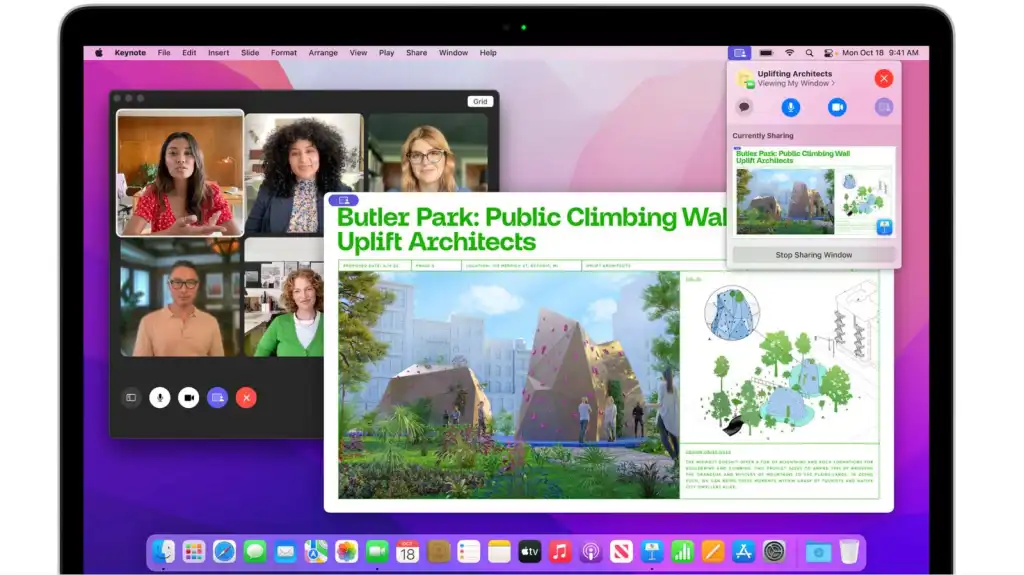
How to Share Your Monitor During a Videoconference
Are you tired of trying to explain something on your screen during a videoconference? Do you wish there was an easier way to share your monitor with the other participants? Look no further! In this article, we will guide you through the process of sharing your monitor during a videoconference using various platforms such as Skype, Zoom, Meet, Teams, and Discord.
Why Share Your Monitor?
Sharing your monitor can be helpful in many situations. For example, if you are trying to show someone a document or webpage, it can be more convenient to share your screen instead of typing out instructions. It’s also useful for presentations, training sessions, and other types of videoconferences where you need to demonstrate something on your screen.
Sharing Your Monitor With Skype
If you want to share your monitor with Skype, there are a few ways to do it. You can use the mobile app or the desktop client. Here’s how:
- On your smartphone or tablet, open the Skype app and start a video call. Tap on the three dots in the top right corner and select “Share” from the menu. Choose the monitor you want to share and tap “Start Sharing”.
- On your computer, open the Skype client and start a video call. Click on the “Share” button at the bottom of the screen and choose the monitor you want to share.
Sharing Your Monitor With Zoom
If you’re using Zoom for your videoconference, sharing your monitor is easy:
- On your smartphone or tablet, open the Zoom app and join a meeting or start a new one. Tap on the “Share” button at the bottom of the screen and select “Monitor”.
- On your computer, open the Zoom client and join a meeting or start a new one. Click on the “Share” button at the top of the screen and choose the monitor you want to share.
Sharing Your Monitor With Meet
If you’re using Google Meet for your videoconference, sharing your monitor is easy:
- On your smartphone or tablet, open the Meet app and join a meeting or start a new one. Tap on the three dots in the top right corner and select “Share” from the menu.
- On your computer, open the Meet client and join a meeting or start a new one. Click on the “Present now” button at the bottom of the screen.
Sharing Your Monitor With Teams
If you’re using Microsoft Teams for your videoconference, sharing your monitor is easy:
- On your smartphone or tablet, open the Teams app and join a meeting or start a new one. Tap on the three dots in the top right corner and select “Share” from the menu.
- On your computer, open the Teams client and join a meeting or start a new one. Click on the “Share” button at the bottom of the screen.
Sharing Your Monitor With Discord
If you’re using Discord for your videoconference, sharing your monitor is easy:
- On your smartphone or tablet, open the Discord app and join a voice channel or start a new conversation. Tap on the three dots in the top right corner and select “Share” from the menu.
- On your computer, open the Discord client and join a voice channel or start a new conversation. Click on the “Share” button at the bottom of the screen.
Sharing Your Monitor With Another PC
If you want to share your monitor with another PC, there are several ways to do it:
- You can use a native function in Windows 10 or 11 to share your screen wirelessly.
- You can use a third-party program like TeamViewer to remotely access and control the other computer.
Sharing Your Monitor on Whatsapp
Unfortunately, sharing your monitor on WhatsApp is not currently available. However, you can still share your screen with others by using one of the methods mentioned above.
Sharing Your Monitor on TV
If you want to share your monitor on a TV, there are several ways to do it:
- You can use an HDMI cable to connect your PC or smartphone directly to the TV.
- You can use a wireless streaming device like Chromecast or AirPlay to stream your screen to the TV.
Conclusion
Sharing your monitor during a videoconference is easy and convenient. With these steps, you can share your screen with others using various platforms such as Skype, Zoom, Meet, Teams, and Discord. Remember to always check the compatibility of the platform you’re using before attempting to share your monitor.
Faqs
- Q: How do I Share my Monitor on Skype?
A: To share your monitor on Skype, open the app or client and start a video call. Tap or click on the “Share” button and choose the monitor you want to share. - Q: Can I Share my Monitor With Multiple People at Once?
A: Yes, depending on the platform you’re using, you may be able to share your screen with multiple people at once. - Q: How do I Stop Sharing my Monitor?
A: To stop sharing your monitor, simply tap or click on the “Stop Sharing” button on the platform you’re using. - Q: Can I Use a Third-party Program to Share my Monitor?
A: Yes, there are several third-party programs available that allow you to share your screen with others. - Q: Is Sharing my Monitor Secure?
A: Generally, sharing your monitor is safe and secure as long as you’re using a reputable platform or program. However, it’s always a good idea to take precautions to protect your data. - Q: Can I Share my Monitor on Whatsapp?
A: Unfortunately, sharing your monitor on WhatsApp is not currently available. - Q: How do I Connect my PC to a TV Using Hdmi?
A: To connect your PC to a TV using an HDMI cable, simply plug the cable into both devices and select the correct input on the TV. - Q: Can I Use Airplay to Share my Monitor With Others?
A: Yes, you can use AirPlay to stream your screen to another device, such as a TV or computer.
I hope this helps! Let me know if you have any other questions.


