
How to Reinstall Mac Os: A Step-by-step Guide
Are you experiencing issues with your Mac operating system? Do you want to start fresh or recover from a problem? Reinstalling Mac OS can be a solution, but it can seem daunting if you’re not familiar with the process. In this article, we’ll walk you through the steps to reinstall Mac OS, including the necessary precautions and considerations.
Why Reinstall Mac Os?
Before we dive into the how-to section, let’s consider why you might want to reinstall Mac OS in the first place. Some common reasons include:
- Your Mac is experiencing issues or crashes
- You’ve installed software that’s causing problems
- You want to free up storage space
- You’re selling your Mac and want to start with a clean slate
Pre-requisites
Before you begin, make sure you have the following:
- A backup of your important files (we’ll cover this in more detail below)
- The latest version of macOS installed on your Mac
- A reliable internet connection
Step 1: Backup Your Files
It’s essential to back up your important files before reinstalling Mac OS. This will ensure that you don’t lose any critical data, such as documents, photos, or videos.
To create a backup:
- Click on the Apple menu and select “About This Mac”
- Click on the “Storage” tab
- Select “Backup” and follow the prompts to create a backup
Alternatively, you can use Time Machine to create a backup of your files.
Step 2: Prepare For Reinstallation
Before reinstalling Mac OS, make sure you’ve prepared your Mac for the process:
- Shut down your Mac
- Connect any external hard drives or storage devices
- Remove any unnecessary software or apps
Step 3: Restart Your Mac
Restart your Mac and hold down the power button until it shuts down completely. This will ensure that all system files are closed.
Step 4: Select The Reinstallation Option
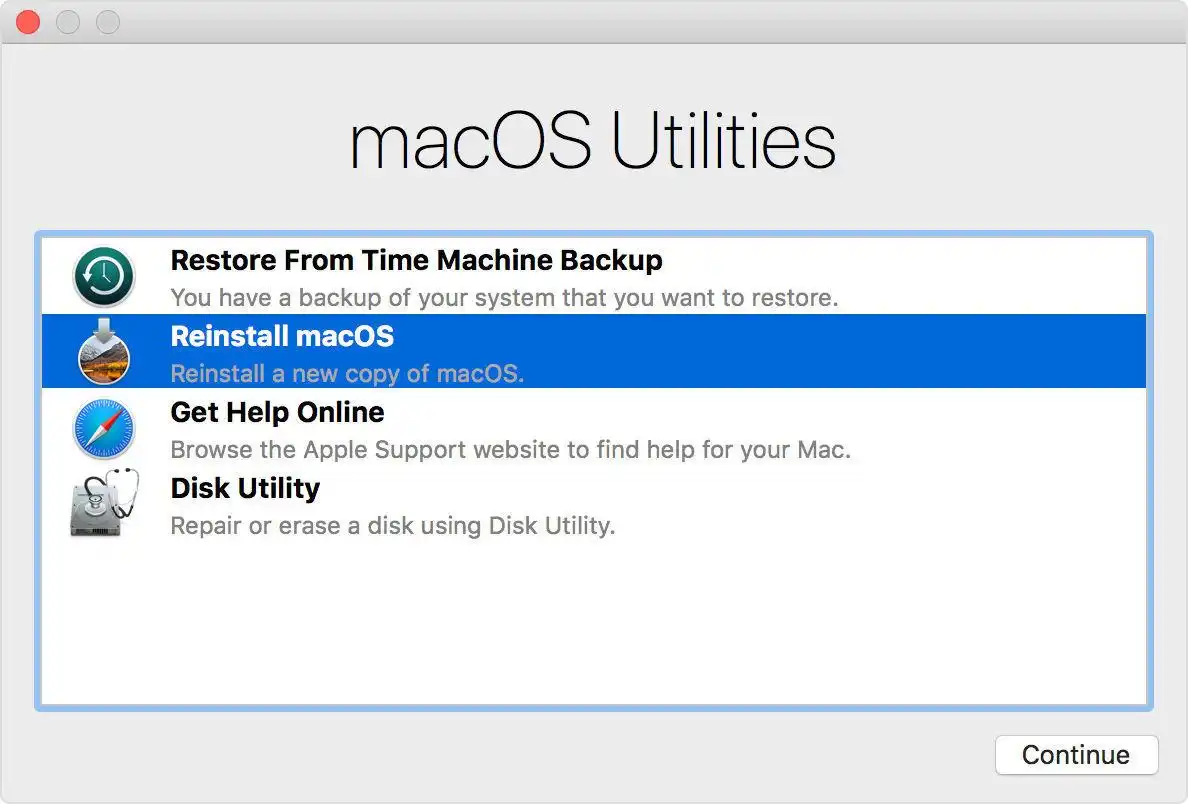
When your Mac restarts, select the “Reinstall macOS” option from the Utilities window.
Step 5: Follow The On-screen Instructions
Follow the on-screen instructions to complete the reinstallation process:
- Choose the language and keyboard layout
- Agree to the terms and conditions
- Select the disk you want to install macOS on
Step 6: Wait For The Installation to Complete
The installation process may take some time, depending on your internet connection speed and the size of the installer.
Reinstalling Mac OS Without Formattare
If you don’t want to format your hard drive during the reinstallation process, you can choose the “Reinstall macOS” option from the Utilities window. This will reinstall macOS without erasing any data.
Using a Usb Drive For Reinstallation
If you’re reinstalling macOS on a Mac that’s not connected to the internet, you can use a USB drive to download the installer and complete the reinstallation process.
To create a USB drive:
- Insert a USB drive with at least 8 GB of free space
- Download the macOS installer from Apple’s website
- Copy the installer to your USB drive
- Eject the USB drive and insert it into your Mac
- Restart your Mac and hold down the power button until it shuts down completely
- Select the “Reinstall macOS” option from the Utilities window
Conclusion
Reinstalling Mac OS can seem daunting, but with these steps, you’ll be able to complete the process with ease. Remember to back up your important files before reinstalling, and consider using a USB drive for reinstallation if you’re not connected to the internet.
Frequently Asked Questions (FAQs)
Here are some frequently asked questions about reinstalling Mac OS:
- Q: What’s the difference between reinstalling macOS and formatting my hard drive?
- A: Reinstalling macOS will remove all system files, but your data and settings will be preserved. Formatting your hard drive will erase all data, including your documents, photos, and videos.
- Q: Can I reinstall macOS on a Mac that’s not connected to the internet?
- A: Yes, you can use a USB drive to download the installer and complete the reinstallation process.
- Q: How do I create a backup of my files before reinstalling macOS?
- A: You can use Time Machine or manually copy your important files to an external hard drive or storage device.


