
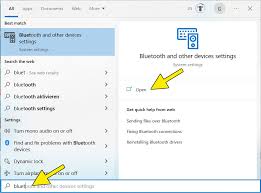
Actuating The Bluetooth on Your Pc: A Step-by-step Guide
Are you interested in learning how to actuate the Bluetooth on your PC? Look no further! In this article, we will guide you through the process of enabling and using Bluetooth on both Windows and Mac devices.
Understanding Bluetooth
Before we dive into the technical aspects, let’s take a moment to understand what Bluetooth is. Bluetooth is a wireless technology that allows devices to communicate with each other over short distances. It’s commonly used for transferring files between devices, streaming audio, and connecting peripherals like keyboards and mice.
Actuating Bluetooth on Windows Pcs
If you’re using a Windows PC, actuating the Bluetooth is relatively straightforward. Here’s how:
- Windows 10: Go to the system tray (usually located in the bottom right corner of the screen) and click on the Bluetooth icon. If it’s not already enabled, click on the toggle switch to turn it on.
- Windows 7: Click on the Start button and select Control Panel. Then, go to Devices and Printers and look for the Bluetooth option. Click on it and select Add a device to enable Bluetooth.
Actuating Bluetooth on Macs
If you’re using a Mac, actuating the Bluetooth is just as easy:
- Click on The Apple Logo in the top left corner of the screen.
- Select System Preferences
- Click on Bluetooth
- Tick The Box Next to ‘Show Bluetooth in Menu Bar’
Now that you’ve enabled Bluetooth on your device, you can proceed with pairing it with other devices.
Pairing Devices
To pair a device with your PC or Mac:
- Make sure both devices are within range of each other.
- On your PC or Mac, go to the Bluetooth settings (as described above).
- Look for the “Add a device” option and select it.
- Wait for your device to detect the nearby Bluetooth device.
- Once detected, you’ll be prompted to enter a passcode. Use the default code ‘0000’ or consult your device’s manual if necessary.
- Confirm the pairing process, and your devices should now be connected.
Troubleshooting Common Issues
If you encounter any issues during the Bluetooth pairing process:
- Ensure that both devices are turned on and in range of each other.
- Restart your PC or Mac to clear any software glitches.
- Check for firmware updates on your device’s manufacturer website.
- If you’re using an adapter, try removing it and re-pairing the device.
Additional Tips
To get the most out of Bluetooth functionality:
- Keep Your Devices Updated: Regularly check for firmware updates to ensure optimal performance.
- Use a Reliable Adapter: If you need extra connectivity range, consider investing in a high-quality Bluetooth adapter.
- Explore Advanced Settings: Dive into your device’s preferences menu to discover additional features and customization options.
Now that you’ve mastered the art of actuating and pairing devices using Bluetooth, you’re ready to unlock new possibilities for connectivity and file transfer. Happy sharing!


