
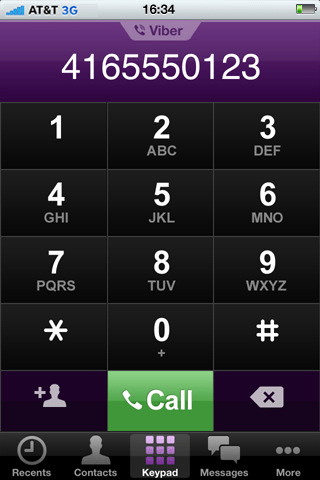
How to Call With Viber: A Step-by-step Guide
Are you looking to call your friends and family without incurring any costs? Look no further than Viber, a popular messaging app that allows you to make voice and video calls for free. In this article, we will guide you through the process of installing Viber on your smartphone or computer, creating an account, and making calls using the app.
Understanding Viber
Before we dive into the nitty-gritty of using Viber, let’s take a brief look at what the service has to offer. Viber is a free messaging app that allows you to communicate with friends and family through voice and video calls, text messages, and group chats. The app is available on both mobile devices (smartphones and tablets) and desktop computers.
Installing Viber
To get started with Viber, you will need to install the app on your smartphone or computer. Here’s how:
Installing Viber on Android Devices
If you’re using an Android device, make sure that it has at least version 4.1 Of the operating system installed. Once you’ve verified this, follow these steps:
- Open the Google Play Store and search for “Viber.”
- Select the app from the search results and click on the “Install” button.
- Wait for the installation to complete.
- Launch the app and create an account by entering your phone number.
Installing Viber on Ios Devices
If you’re using an iOS device, ensure that it has at least version 10 of the operating system installed. Once you’ve verified this, follow these steps:
- Open the App Store and search for “Viber.”
- Select the app from the search results and click on the “Get” button.
- Wait for the installation to complete.
- Launch the app and create an account by entering your phone number.
Installing Viber on Desktop Computers
If you’re using a desktop computer, follow these steps:
- Open the official website of Viber and click on the “Download” button for Windows or Mac.
- Wait for the file to download.
- Launch the installer and follow the prompts to install the app.
Creating an Account
Once you’ve installed Viber on your device, it’s time to create an account. Here’s how:
- Open the Viber app and select “Create Account” from the main menu.
- Enter your phone number and confirm it by entering a code sent via SMS.
- Create a password and username for your account.
Making Calls With Viber
Now that you’ve created an account, let’s take a look at how to make calls using the app.
Making Calls on Android Devices
To make a call on an Android device, follow these steps:
- Open the Viber app and select “Contacts” from the main menu.
- Select a contact from your list of friends or search for someone new.
- Click on the phone icon next to their name to initiate a voice call.
- If you want to make a video call, click on the camera icon instead.
Making Calls on Ios Devices
To make a call on an iOS device, follow these steps:
- Open the Viber app and select “Contacts” from the main menu.
- Select a contact from your list of friends or search for someone new.
- Click on the phone icon next to their name to initiate a voice call.
- If you want to make a video call, click on the camera icon instead.
Making Calls on Desktop Computers
To make a call on a desktop computer, follow these steps:
- Open the Viber app and select “Contacts” from the main menu.
- Select a contact from your list of friends or search for someone new.
- Click on the phone icon next to their name to initiate a voice call.
- If you want to make a video call, click on the camera icon instead.
Viber Out
While Viber is free to use with contacts who have also installed the app, there are times when you might need to call someone outside of your network. That’s where Viber Out comes in – a paid feature that allows you to call numbers on traditional phone networks at competitive rates. Here’s how it works:
- Open the Viber app and select “Viber Out” from the main menu.
- Choose a plan or purchase credits for making calls.
- Dial the number you want to reach.
Conclusion
In this article, we’ve shown you how to install Viber on your smartphone or computer, create an account, and make calls using the app. Whether you’re looking for a free way to communicate with friends and family or need to make international calls at competitive rates, Viber has got you covered.
Frequently Asked Questions
Here are some answers to frequently asked questions about Viber:
- What is Viber?
Viber is a free messaging app that allows you to make voice and video calls, send text messages, and share media with friends and family. - How do I Install Viber on my Device?
To install Viber on your smartphone or computer, visit the Google Play Store (for Android devices) or App Store (for iOS devices), or download it from the official website for desktop computers. - Can I Use Viber For Free?
Yes! Viber is free to use with contacts who have also installed the app. However, you can make calls to numbers outside of your network using Viber Out at competitive rates. - What do I Need to Create a Viber Account?
To create a Viber account, you’ll need to enter your phone number and confirm it by entering a code sent via SMS. - Can I Make Video Calls With Viber?
Yes! Viber allows you to make video calls with friends and family who have also installed the app.
We hope this article has been helpful in guiding you through the process of using Viber to call your loved ones for free or at competitive rates. If you have any further questions, please don’t hesitate to ask!


