
How to Uninstall Telegram: A Step-by-step Guide
Are you tired of using Telegram but don’t know how to uninstall it from your device? Look no further! In this article, we will guide you through the process of uninstalling Telegram on various devices, including smartphones, tablets, and computers.
Why Uninstall Telegram?
Before we dive into the uninstallation process, let’s briefly discuss why you might want to uninstall Telegram. Perhaps you’ve found a better messaging app or are no longer interested in using the service. Whatever your reason, we’re here to help.
Uninstalling Telegram on Android Devices
If you have an Android device and want to uninstall Telegram, follow these steps:
- Find The Telegram Icon: Go to your home screen or drawer and find the Telegram icon.
- Hold Down The Icon: Long press on the Telegram icon until it starts to shake.
- Select “Uninstall”: A menu will appear with options like “Uninstall” or “Delete.” Choose the one that says “Uninstall.”
- Confirm Uninstallation: You’ll be prompted to confirm the uninstallation. Tap “OK” or “Yes” to proceed.
Alternatively, you can also uninstall Telegram from the Settings app:
- Go to Settings: Open the Settings app on your Android device.
- Select “Applications”: Scroll down and select “Applications” or “Apps.”
- Find Telegram: Look for the Telegram app in the list of installed apps.
- Uninstall Telegram: Tap the “Uninstall” button next to Telegram.
Uninstalling Telegram on Iphone And Ipad
If you have an iPhone or iPad, follow these steps to uninstall Telegram:
- Find The Telegram Icon: Go to your home screen and find the Telegram icon.
- Hold Down The Icon: Long press on the Telegram icon until a menu appears.
- Select “Delete App”: Choose the option that says “Delete App.”
- Confirm Uninstallation: You’ll be prompted to confirm the uninstallation. Tap “OK” or “Yes” to proceed.
Alternatively, you can also uninstall Telegram from the Settings app:
- Go to Settings: Open the Settings app on your iPhone or iPad.
- Select “General”: Scroll down and select “General.”
- Find Telegram: Look for the Telegram app in the list of installed apps.
- Uninstall Telegram: Tap the “Delete App” button next to Telegram.
Uninstalling Telegram on Windows PC
If you have a Windows PC and want to uninstall Telegram, follow these steps:
- Open Start Menu: Click on the Start menu icon (usually located at the bottom left corner of your screen).
- Right-click on Telegram: Right-click on the Telegram icon in the Start menu.
- Select “Uninstall”: Choose the option that says “Uninstall.”
- Confirm Uninstallation: You’ll be prompted to confirm the uninstallation. Click “OK” or “Yes” to proceed.
Alternatively, you can also uninstall Telegram from the Settings app:
- Go to Settings: Open the Settings app on your Windows PC.
- Select “Apps”: Scroll down and select “Apps.”
- Find Telegram: Look for the Telegram app in the list of installed apps.
- Uninstall Telegram: Click the “Uninstall” button next to Telegram.
Uninstalling Telegram on Macos
If you have a Mac and want to uninstall Telegram, follow these steps:
- Open Launchpad: Click on the Launchpad icon (usually located at the bottom left corner of your screen).
- Find Telegram: Look for the Telegram icon in the Launchpad.
- Hold Down The Icon: Long press on the Telegram icon until it starts to shake.
- Select “Delete”: A menu will appear with options like “Delete.” Choose the one that says “Delete.”
- Confirm Uninstallation: You’ll be prompted to confirm the uninstallation. Click “OK” or “Yes” to proceed.
Alternatively, you can also uninstall Telegram from the Applications folder:
- Open Finder: Click on the Finder icon (usually located at the bottom left corner of your screen).
- Select “Applications”: Look for the Applications folder in the sidebar.
- Find Telegram: Look for the Telegram app in the list of installed apps.
- Drag to Trash: Drag the Telegram app to the Trash icon.
- Empty Trash: Right-click on the Trash icon and select “Empty.”
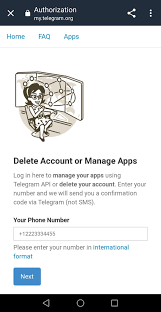
How to Delete a Telegram Account
If you want to delete your Telegram account, follow these steps:
- Go to Account Settings: Open the Telegram app and go to your account settings.
- Select “Delete My Account”: Look for the option that says “Delete My Account.”
- Confirm Deletion: You’ll be prompted to confirm the deletion. Tap “OK” or “Yes” to proceed.
Note: If you have not used Telegram for a while, your account will automatically delete after 6 months of inactivity. However, you can modify this setting within the app to choose an arch of minimum activity between 1 month and 1 year.
Conclusion
Uninstalling Telegram from your device is a straightforward process that can be completed in a few steps. Whether you’re switching to a different messaging app or simply want to free up space on your device, we hope this guide has been helpful. Remember to also delete your Telegram account if you no longer want to use the service.
Frequently Asked Questions
- What Happens When I Uninstall Telegram?: When you uninstall Telegram, the app will be removed from your device, and all its data will be deleted.
- Can I Reinstall Telegram After Uninstalling It?: Yes, you can reinstall Telegram at any time by downloading the app from the App Store or Google Play Store.
- Will Deleting my Telegram Account Delete All my Messages?: No, deleting your Telegram account will not delete all your messages. However, if you’re using a device that’s no longer connected to the internet, your messages may be deleted after 6 months of inactivity.
Additional Resources
For more information on uninstalling Telegram or deleting your Telegram account, check out these resources:
- Uninstalling Telegram from Android devices
- Uninstalling Telegram from iPhone and iPad
- Deleting a Telegram account
Table of Contents


