
Mastering The Art of Dictation: A Comprehensive Guide to Using Android’s Vocal Dettatura
As a tech-savvy individual, you’re likely no stranger to the convenience of using voice-to-text features on your Android device. However, have you ever struggled with dictating punctuation marks or special symbols? Look no further! In this article, we’ll delve into the world of Android’s vocal dettatura, exploring its capabilities and limitations.
Understanding The Basics
Before we dive into the nitty-gritty details, let’s establish a solid foundation. The vocal dettatura feature on Android allows you to dictate text using your voice, eliminating the need for manual typing. This functionality is typically accessed through the Google Keyboard (Gboard) app, which comes pre-installed on most Android devices.
Setting Up Your Device
To get started, ensure that Gboard is installed and configured correctly on your device. If it’s not already installed, head to the Play Store and download the app. Once installed, follow these steps:
- Access the Settings menu on your device.
- Tap on “System” and then select “Language & input.”
- Choose the “Virtual keyboard” option and tap on Gboard.
- Ensure that the Italian voice (or your preferred language) is selected as the default.
Enabling Offline Recognition
If you’re interested in using the dettatura feature without an internet connection, you’ll need to enable offline recognition. To do this:
- Open the Google Keyboard app and tap on the three-dot menu icon.
- Select “Settings” and then choose “Language & input.”
- Tap on “Gboard settings” and select “Offline voice typing.”
Dictating Punctuation Marks
Now that you’ve set up your device, it’s time to explore the world of punctuation marks! Using Gboard, you can dictate various symbols, including:
- Dot (.)
- Comma (,)
- Two dots (:)
- Punctured and comma (;)
- Punctured interrogative/punctured of demand (?)
- Punctured exclamativo (!)
- Points (…)
- New line and new paragraph
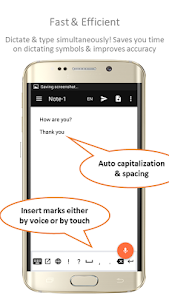
To dictate punctuation marks, simply tap on the microphone icon in the Gboard keyboard and speak your desired text. The system will attempt to recognize the symbols and display them correctly.
Tips And Tricks
Keep in mind that the dettatura feature may not always accurately recognize punctuation marks or special symbols. To improve accuracy:
- Speak clearly and at a moderate pace.
- Avoid using consecutive punctuation marks, as this can cause errors.
- Use proper pronunciation for each symbol.
- Ensure that your device is connected to the internet for optimal results.
Conclusion
Mastering the art of dictation on Android requires some patience and practice. By following the steps outlined in this guide, you’ll be well on your way to becoming a pro at using vocal dettatura. Remember to speak clearly, use proper pronunciation, and avoid consecutive punctuation marks to ensure accurate recognition. Happy dictating!


