
How to Open a Usb Drive on Windows 10: A Step-by-step Guide
Are you struggling to open your USB drive on Windows 10? Don’t worry, this guide is here to help! In this article, we will walk you through the process of opening a USB drive on Windows 10 using three different methods. We’ll also provide some troubleshooting tips in case you encounter any issues.
Method 1: Using Automatic Play
One of the easiest ways to open a USB drive on Windows 10 is by using the automatic play feature. This feature allows Windows to automatically recognize and open your USB drive, making it easy to access its contents.
To use this method, follow these steps:
- Connect Your Usb Drive: Connect your USB drive to your computer.
- Wait For The Notification: Wait for a notification icon to appear in the lower right corner of your screen.
- Click on The Icon: Click on the notification icon to open the context menu.
- Choose an Option: Choose an option from the context menu, such as “Open folder to view files” or “Play audio”.
Method 2: Using File Explorer
Another way to open a USB drive on Windows 10 is by using File Explorer. This method allows you to manually browse through your USB drive’s contents.
To use this method, follow these steps:
- Connect Your Usb Drive: Connect your USB drive to your computer.
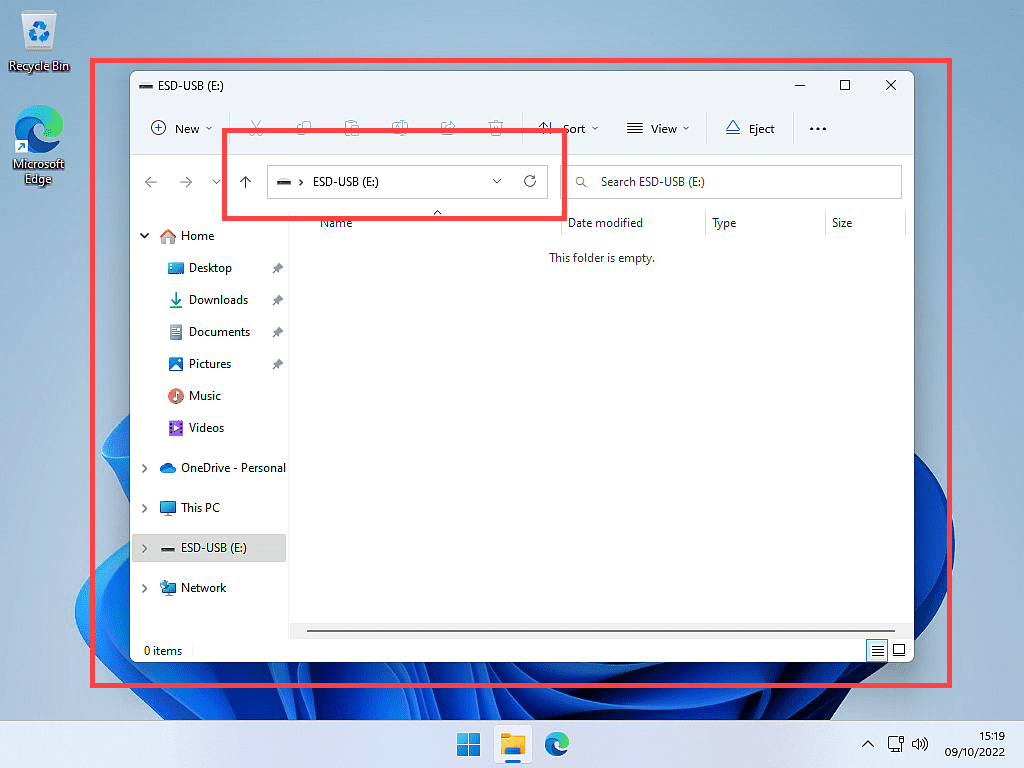
- Open File Explorer: Open File Explorer by clicking on the File Explorer icon in the taskbar or by searching for it in the search bar.
- Click on This PC: Click on “This PC” in the left-hand menu.
- Select Your Usb Drive: Select your USB drive from the list of available drives.
Method 3: Using Disk Management
If you’re having trouble accessing your USB drive using the above methods, you can try using the Disk Management utility to open it.
To use this method, follow these steps:
- Connect Your Usb Drive: Connect your USB drive to your computer.
- Open Disk Management: Open Disk Management by searching for it in the search bar or by typing “diskmgmt.Msc” in the Run dialog box (Windows key + R).
- Select Your Usb Drive: Select your USB drive from the list of available drives.
- Assign a Drive Letter: Assign a drive letter to your USB drive by clicking on the “Add” button.
Troubleshooting Tips
If you’re still having trouble opening your USB drive, try these troubleshooting tips:
- Check For Formatting Issues: Check if your USB drive is properly formatted and recognized by Windows.
- Disable Autoplay: Disable AutoPlay to prevent any conflicts with other applications.
- Update Drivers: Update your USB drive’s drivers to the latest version.
- Restart Your Computer: Restart your computer to see if it resolves the issue.
Conclusion
Opening a USB drive on Windows 10 is a straightforward process that can be accomplished using one of three methods: Automatic play, File Explorer, or Disk Management. If you encounter any issues, try the troubleshooting tips provided above. We hope this guide has been helpful in resolving your problem!
Frequently Asked Questions (FAQs)
- Q: How do I Disable Autoplay on Windows 10?
A: To disable AutoPlay, go to Settings > Devices > AutoPlay and select “Disable” for all devices. - Q: What Should I do if my Usb Drive is Not Recognized by Windows 10?
A: Try reformatting your USB drive or updating its drivers to resolve the issue. - Q: How Can I Assign a Drive Letter to my Usb Drive in Disk Management?
A: To assign a drive letter, go to Disk Management > Select your USB drive > Right-click on it and select “Add” > Assign a drive letter. - Q: Can I Use a Usb Drive on Multiple Computers?
A: Yes, you can use a USB drive on multiple computers as long as they are running the same version of Windows 10. - Q: What Should I do if my Usb Drive is Not Showing up in File Explorer?
A: Try restarting your computer or updating the drivers for your USB drive to resolve the issue. - Q: How Can I Format a Usb Drive on Windows 10?
A: To format a USB drive, go to Disk Management > Select your USB drive > Right-click on it and select “Format”. - Q: What is The Maximum Capacity of a Usb Drive That Can be Used on Windows 10?
A: The maximum capacity of a USB drive that can be used on Windows 10 varies depending on the version of Windows 10 installed. - Q: Can I Use a Usb Drive on Windows 10 to Transfer Files Between Computers?
A: Yes, you can use a USB drive on Windows 10 to transfer files between computers.
I hope this helps! Let me know if you have any other questions.


