
How to Delete Your Linkedin Account Permanently
Are you tired of having a LinkedIn account but don’t know how to delete it permanently? Look no further! In this article, we will guide you through the step-by-step process of deleting your LinkedIn account from both smartphones and computers.
Why Delete Your Linkedin Account?
Before we dive into the deletion process, let’s discuss why you might want to delete your LinkedIn account. Perhaps you’ve outgrown the platform or no longer see its value in your professional life. Maybe you’re concerned about data privacy or have had issues with the service.
Whatever your reason, deleting your LinkedIn account is a straightforward process that can be completed in just a few minutes. Let’s get started!
How to Delete Your Linkedin Account From Smartphone
To delete your LinkedIn account from your smartphone, follow these steps:
- Open the LinkedIn app and log in to your account.
- Tap on the three horizontal lines (Menu) in the top left corner of the screen.
- Scroll down and select “Settings.”
- Choose “Account” from the menu options.
- Select “Close Account.”
- Enter a reason for closing your account and tap “Continue.”
- Confirm that you want to delete your account by tapping “Done.”
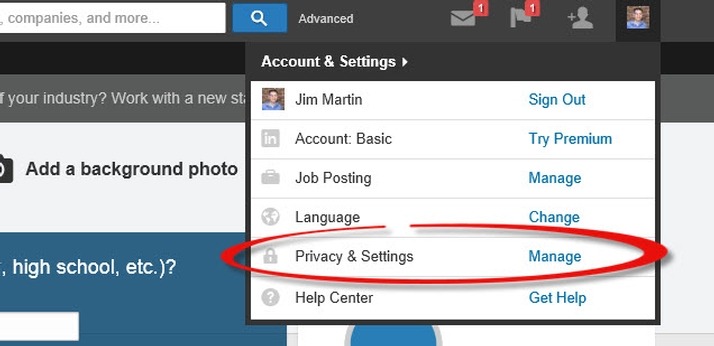
How to Delete Your Linkedin Account From Computer
To delete your LinkedIn account from your computer, follow these steps:
- Log in to your LinkedIn account on the official website.
- Click on the dropdown arrow next to your profile picture and select “Settings.”
- Choose “Account” from the menu options.
- Select “Close Account.”
- Enter a reason for closing your account and click “Continue.”
- Confirm that you want to delete your account by clicking “Done.”
How to Cancel Your Linkedin Premium Subscription
If you’re looking to cancel your LinkedIn Premium subscription, follow these steps:
- Log in to your LinkedIn account on the official website.
- Click on the dropdown arrow next to your profile picture and select “Settings.”
- Choose “My Premium” from the menu options.
- Select “Cancel subscription.”
- Confirm that you want to cancel your subscription by clicking “Continue.”
How to Suspend Your Linkedin Account
If you’re not ready to delete your LinkedIn account permanently, you can suspend it temporarily. To do this:
- Log in to your LinkedIn account on the official website.
- Click on the dropdown arrow next to your profile picture and select “Settings.”
- Choose “Account” from the menu options.
- Select “Suspend Account.”
- Confirm that you want to suspend your account by clicking “Continue.”
What Happens When You Delete Your Linkedin Account?
When you delete your LinkedIn account, all of your data will be permanently deleted, including:
- Profile information
- Connections and messages
- Posts and comments
However, keep in mind that some data may still be retained for up to 14 days. If you change your mind and want to recover your account within this time frame, follow the steps outlined above.
Tips And Tricks
Before deleting your LinkedIn account, consider the following:
- Make sure you’ve downloaded any necessary files or saved important information.
- Review your settings and preferences to ensure everything is set up as desired.
- Take a moment to review any notifications or messages you may have missed.
By following these steps and tips, you can delete your LinkedIn account with confidence. Remember, it’s always a good idea to take your time and double-check any decisions before finalizing them.
Frequently Asked Questions
Here are some frequently asked questions about deleting your LinkedIn account:
- Q: Can I Recover my Deleted Account?
A: Yes, if you delete your account within 14 days of the cancellation date, you can reactivate it. - Q: Will Anyone Know That I’ve Deleted my Account?
A: No, only the account owner will be notified of the deletion. - Q: Can I Change my Mind After Deleting my Account?
A: Yes, if you’ve suspended your account, you can reactivate it at any time. - Q: What Happens to my Linkedin Premium Subscription When I Delete my Account?
A: Your premium subscription will be canceled and refunded according to the terms of service.
We hope this article has been helpful in guiding you through the process of deleting your LinkedIn account. If you have any further questions or concerns, feel free to reach out!


