
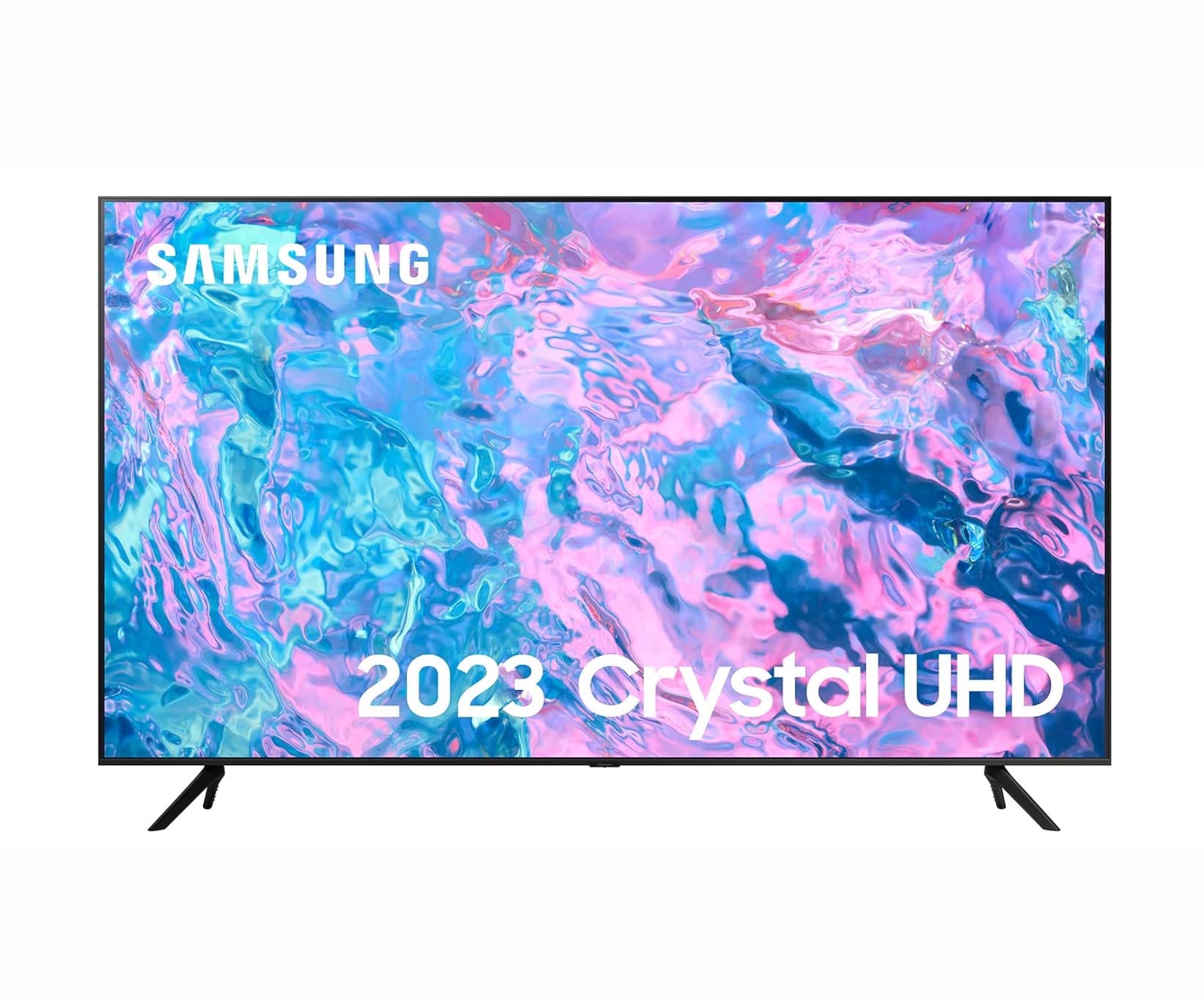
Smart TV Samsung: A Comprehensive Guide
Are you excited to unbox your new Smart TV Samsung but not sure where to start? Don’t worry, we’ve got you covered! In this article, we’ll take you through a step-by-step guide on how to configure and utilize your Smart TV Samsung to its full potential.
Introduction
Smart TVs have revolutionized the way we consume entertainment. With their sleek designs, stunning displays, and cutting-edge features, they offer an unparalleled viewing experience. However, setting them up can be daunting for some users. That’s why we’ve created this guide, packed with useful information and practical tips to get you started.
Types of Smart TV Samsung
Before we dive into the configuration process, let’s briefly discuss the different types of Smart TV Samsung available in the market. The most recent models are equipped with the Tizen OS operating system, while older ones run on a proprietary system (Samsung Smart TV or Orsay OS). Don’t worry if you’re not tech-savvy; our guide will cover both types.
Step 1: Initial Configuration
Once you’ve unboxed your Smart TV Samsung, follow these steps to complete the initial configuration:
- Connect your TV to the internet using Wi-Fi or an Ethernet cable.
- Select your preferred language from the Tongue menu.
- Choose your country from the list (usually set to Italy by default).
- Create a PIN code for future access to programming and other features.
Step 2: Channel Synchronization
After connecting to the internet, you’ll need to synchronize your TV channels. Follow these steps:
- Select Antenna as the channel source.
- Choose the type of antenna connected to your TV (usually digital).
- Allow the TV to automatically organize the channels for you.
- If necessary, use the Search function to find any missing channels.
Step 3: Installing Apps
One of the most exciting features of Smart TVs is the ability to install apps. Here’s how:
- Press the Smart Hub button on your remote control.
- Select the App Store icon.
- Browse through the available apps and select the ones you want to download.
- Follow the on-screen instructions to complete the installation process.
Step 4: Connecting Your Smartphone
Want to stream music, photos, or videos from your smartphone to your TV? Here’s how:
- Make sure your smartphone is running on Android (if it’s an iPhone, you can use AirPlay).
- Download and install the Samsung Smart View app.
- Connect your phone to the same Wi-Fi network as your TV.
- Launch the app on your phone and follow the instructions to connect to your TV.
Troubleshooting Common Issues
Don’t panic if you encounter any problems with your Smart TV Samsung. Here are some common issues and their solutions:
- Resetting Your TV: If your TV is malfunctioning or experiencing software issues, try resetting it to factory settings.
- Recovering Lost Apps: If an update has removed your apps, follow the steps outlined in our recovery guide.
Conclusion
Congratulations! You’ve now successfully configured and utilized your Smart TV Samsung. With this comprehensive guide, you’ll be able to enjoy all the features and benefits of your new device.
Faqs
- Q: What is Tizen Os?
A: Tizen OS is a Linux-based operating system used by many modern Smart TVs. - Q: Can I Change my Tv’s Language?
A: Yes, you can select from various languages available on the Tongue menu. - Q: How do I Update my Tv’s Software?
A: Regularly check for updates in the Settings section of your TV. - Q: Why is my TV Not Connecting to Wi-fi?
A: Try restarting your TV or resetting your router. - Q: Can I Use my Smartphone as a Remote Control?
A: Yes, you can download and install the Samsung Smart View app on your phone. - Q: How do I Reset my Tv’s Pin Code?
A: Follow our step-by-step guide to reset your TV’s factory settings. - Q: What Happens if I Lose my Apps After an Update?
A: Use our recovery guide to restore your lost apps. - Q: Can I Stream Content From my Phone to my Tv?
A: Yes, you can use the Samsung Smart View app to share content between devices.
Hope this comprehensive guide has helped you get started with your new Smart TV Samsung!


