
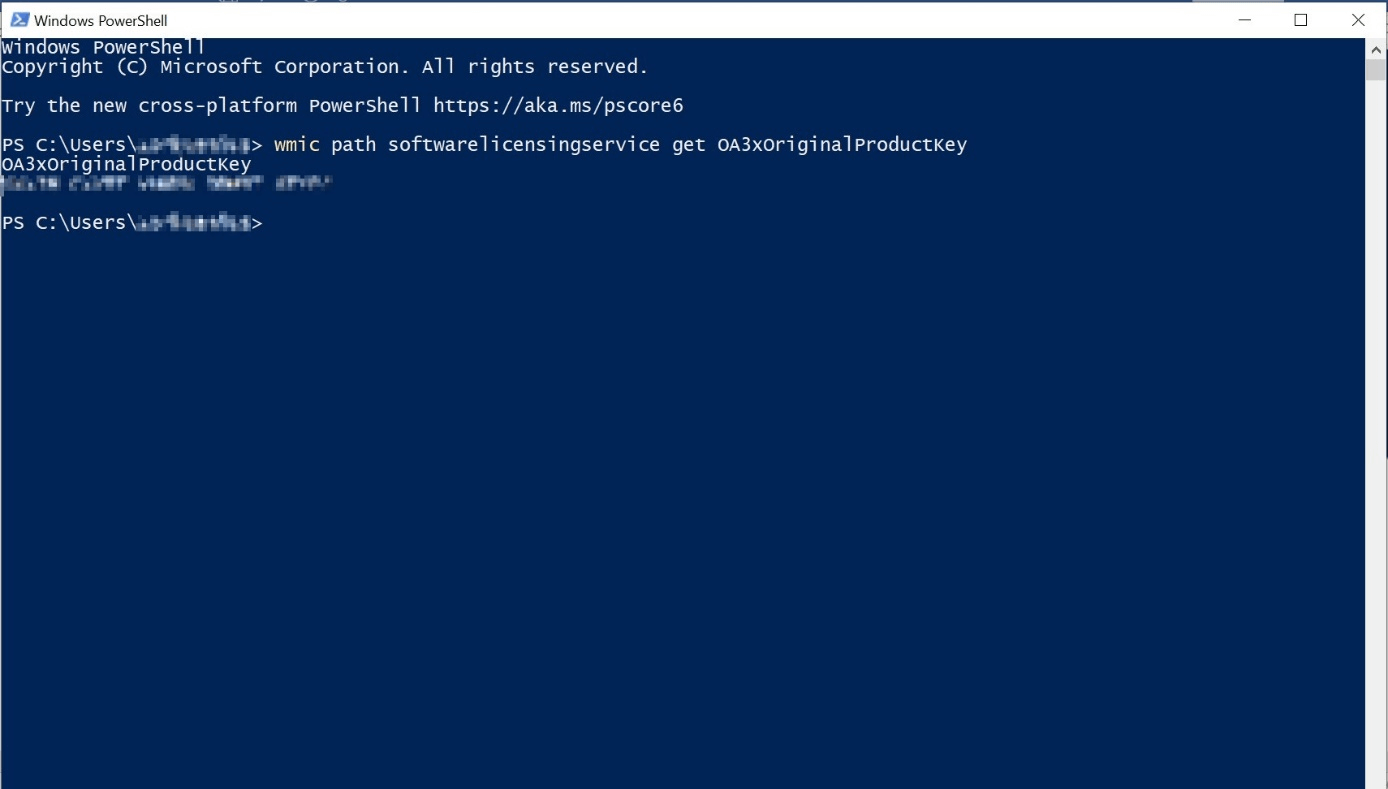
Finding Product Key Windows 8.1: A Step-by-step Guide
Are you tired of searching for your product key for Windows 8.1? Look no further! In this article, we will guide you through the process of finding your product key using various methods.
Method 1: Using Lazesoft Windows Key Finder
Lazesoft Windows Key Finder is a free application that can help you find your product key for Windows 8.1. Here’s how to use it:
- Download And Install: Click here to download the software from its official website.
- Open The Software: Double-click on the file WindowsKeyFinder.Exe and wait for the software to open.
- Find Your Product Key: Under the “Windows 8.1” Section, you will see your product key displayed.
- Save or Print: You can either save the product key in a text file by clicking on the “Save As…” Button or print it directly from the software.
Method 2: Using Nirsoft Produkey
NirSoft ProduKey is another popular tool that can help you find your product key for Windows 8.1. Here’s how to use it:
- Download And Install: Click here to download the software from its official website.
- Open The Software: Double-click on the file produkey.Zip, extract the content in a folder, and run the executable file ProduKey.Exe.
- Find Your Product Key: Under the “Windows 8.1” Section, you will see your product key displayed beside the voice “Product Key”.
- Save or Print: You can either save the product key in a text file by selecting it with Ctrl+C and then pasting it into a new Notepad document (Ctrl+V), or print it directly from the software.
Method 3: Using Magical Jelly Bean Keyfinder
Magical Jelly Bean Keyfinder is a free program that allows you to recover your product key for Windows 8.1 Without any hassle. Here’s how to use it:
- Download And Install: Click here to download the software from its official website.
- Open The Software: Double-click on the file KeyFinderInstaller.Exe, follow the installation process, and run the executable file KeyFinder.Exe.
- Find Your Product Key: Under the “Windows 8.1” Section, you will see your product key displayed beside the voice “CD Key”.
- Save or Print: You can either save the product key in a text file by clicking on the “Save As…” Button or print it directly from the software.
Finding The Number of Series
If you’re interested in finding the number of series instead of the product key, here’s how to do it:
- Access The System Section: Click on the Start button, type “Panel of control” in the search bar, and click on the result.
- Open The System Section: In the window that opens, click on “System and safety”, then click on “System”.
- Find The Number of Series: Scroll down to the section labeled “Activation of Windows” and look for the phrase “Number of series:” Followed by a set of numbers and letters.
Conclusion
Finding your product key or number of series for Windows 8.1 Can be a hassle, but with these methods, you should be able to find it easily. Remember to save or print your product key or number of series for future reference. If you have any further questions or concerns, feel free to ask.
Frequently Asked Questions (FAQs)
Q: What is the difference between a product key and a number of series?
A: A product key is a unique combination of numbers and letters that was used during the installation of Windows 8.1 To “unblock” or open the product, while a number of series is a set of numbers generated after the operating system has been correctly installed.
Q: Can I find my product key using any other methods?
A: Yes, there are other methods available online that can help you find your product key for Windows 8.1. However, we recommend trying the methods mentioned above first as they are more reliable and easy to use.
Q: Is it safe to download software from unknown sources?
A: We recommend being cautious when downloading software from unknown sources. Stick to reputable websites and software providers to avoid any potential risks or malware infections.
Q: Can I find my product key on the Windows 8.1 Installation media?
A: Unfortunately, the product key is not stored on the Windows 8.1 Installation media. You will need to use one of the methods mentioned above to retrieve it.


