
How to Video Call With Ipad: A Comprehensive Guide
Are you looking for ways to video call with your iPad? You’re in luck! With the rise of technology, it’s now possible to make video calls using various apps on your iPad. In this article, we’ll explore the different options available and provide a step-by-step guide on how to use them.
Why Video Call With Ipad?
Video calling has become an essential tool for staying in touch with loved ones, colleagues, and friends who are far away. With the iPad’s advanced camera technology and intuitive interface, it’s now easier than ever to make video calls using various apps.
Facetime: The Perfect Solution
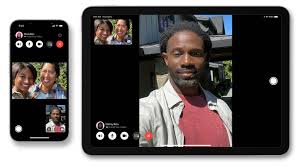
FaceTime is a popular video calling app that comes pre-installed on all Apple devices, including the iPad. It’s easy to use and offers high-quality video and audio. To start a FaceTime call, follow these steps:
- Tap on the FaceTime icon on your home screen.
- Select the contact you want to call from your contacts list.
- Tap on the “Video” button to initiate the call.
Skype: Another Great Option
Skype is another popular video calling app that’s available for iPad users. It allows you to make voice and video calls to anyone with a Skype account, anywhere in the world. To use Skype on your iPad:
- Download the Skype app from the App Store.
- Sign in with your Skype account credentials.
- Select the contact you want to call from your contacts list.
Facebook Messenger: A Convenient Option
Facebook Messenger is another popular app that allows video calling, as well as messaging and file sharing. To use Facebook Messenger on your iPad:
- Download the Facebook Messenger app from the App Store.
- Sign in with your Facebook account credentials.
- Select the contact you want to call from your contacts list.
Whatsapp: A Popular Choice
Although WhatsApp doesn’t have a native app for iPad, you can still make video calls using WhatsApp Web on your browser. To use WhatsApp Web:
- Open Safari or any other web browser on your iPad.
- Go to web.Whatsapp.Com and sign in with your WhatsApp account credentials.
- Select the contact you want to call from your contacts list.
Other Apps For Video Calling
There are several other apps available that offer video calling capabilities, including:
- Telegram: A popular messaging app that also allows video calling.
- Viber: A messaging app that offers voice and video calls.
- Google Duo: A simple video calling app that’s free to use.
- Discord: A communication platform for gamers that also offers video calling.
Conclusion
In conclusion, there are several options available for making video calls with your iPad. Whether you choose FaceTime, Skype, Facebook Messenger, WhatsApp Web, or one of the other apps mentioned above, you’ll be able to stay in touch with loved ones and colleagues who are far away.
Faqs
Q: What is the best app for video calling on iPad?
A: The best app for video calling on iPad depends on your personal preferences and needs. FaceTime, Skype, and Facebook Messenger are popular options that offer high-quality video and audio.
Q: Can I make video calls with my iPad without a SIM card?
A: Yes, you can make video calls using apps like FaceTime and Skype without a SIM card.
Q: How do I know if someone has a video calling app on their device?
A: You can check if the person has a video calling app by asking them or checking their device’s capabilities.
Q: Can I use my iPad to make video calls with Android users?
A: Yes, you can use your iPad to make video calls with Android users using apps like Skype and Facebook Messenger.
Q: How do I troubleshoot issues with video calling on my iPad?
A: If you’re experiencing issues with video calling on your iPad, try restarting the app or checking for software updates.


