
How to Join Cells in Excel: A Step-by-step Guide
Are you tired of manually copying and pasting data from one cell to another? Do you want to save time and increase productivity in your work or personal projects? Look no further! In this article, we will show you how to join cells in Excel, a simple yet powerful feature that can make a huge difference in your workflow.
Why Join Cells in Excel?
Joining cells in Excel allows you to combine multiple cells into one, eliminating the need for manual copying and pasting. This feature is especially useful when working with large datasets or when you need to perform calculations across multiple columns or rows.
How to Join Cells in Excel on PC And Mac
Whether you’re using a Windows PC or a Mac, joining cells in Excel is a straightforward process. Here’s how to do it:
- Open Your Excel Document: First, open the Excel file that contains the cells you want to join.
- Select The Cells: Click on the first cell that you want to join. Then, hold down the Shift key and select the other cells that you want to include in the joined cell.
- Go to The Home Tab: Click on the Home tab in the Excel ribbon.
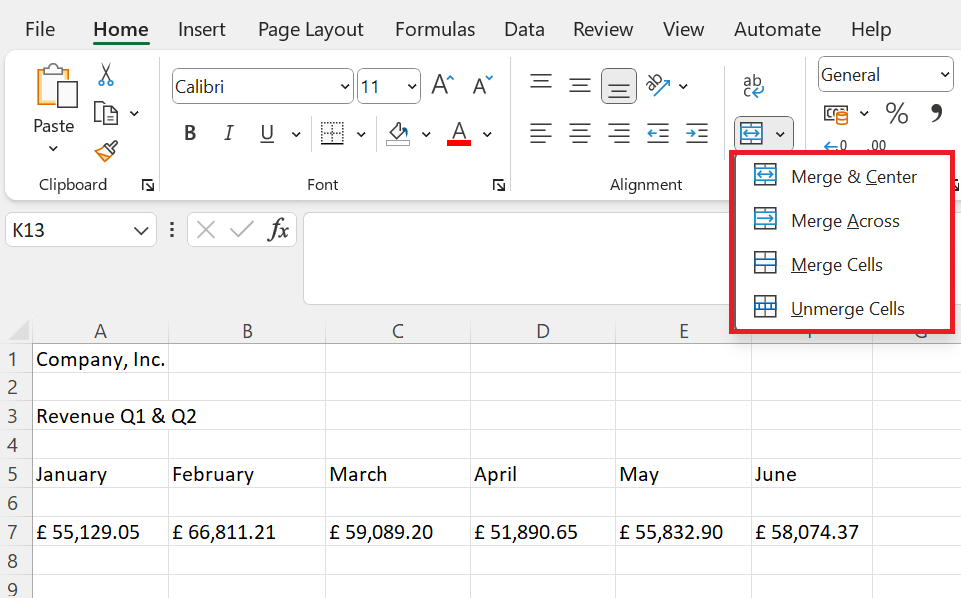
- Click on The “Merge & Center” Button: In the Alignment group, click on the “Merge & Center” button.
- Choose How You Want to Merge The Cells: Select whether you want to merge the cells horizontally or vertically.
That’s it! By following these simple steps, you can join multiple cells in Excel and save time and effort in your work or personal projects.
How to Join Cells With Text
If you have cells that contain text and you want to join them, the process is slightly different. Here’s how to do it:
- Select The Cells: Click on the first cell that you want to join. Then, hold down the Shift key and select the other cells that you want to include in the joined cell.
- Go to The Home Tab: Click on the Home tab in the Excel ribbon.
- Click on The “Merge & Center” Button: In the Alignment group, click on the “Merge & Center” button.
- Choose How You Want to Merge The Cells: Select whether you want to merge the cells horizontally or vertically.
How to Join Rows in Excel
Joining rows in Excel is similar to joining cells, but with a few differences. Here’s how to do it:
- Select The Rows: Click on the first row that you want to join. Then, hold down the Shift key and select the other rows that you want to include in the joined row.
- Go to The Home Tab: Click on the Home tab in the Excel ribbon.
- Click on The “Merge & Center” Button: In the Alignment group, click on the “Merge & Center” button.
- Choose How You Want to Merge The Rows: Select whether you want to merge the rows horizontally or vertically.
How to Join Cells With a Picture
If you have a picture in Excel and you want to join cells around it, the process is slightly different. Here’s how to do it:
- Select The Picture: Click on the picture that you want to surround with joined cells.
- Go to The Home Tab: Click on the Home tab in the Excel ribbon.
- Click on The “Merge & Center” Button: In the Alignment group, click on the “Merge & Center” button.
- Choose How You Want to Merge The Cells: Select whether you want to merge the cells horizontally or vertically.
How to Join Cells Keeping Content
If you have cells that contain important data and you want to join them without losing any information, there is a way to do it. Here’s how:
- Select The Cells: Click on the first cell that you want to join. Then, hold down the Shift key and select the other cells that you want to include in the joined cell.
- Go to The Home Tab: Click on the Home tab in the Excel ribbon.
- Click on The “Merge & Center” Button: In the Alignment group, click on the “Merge & Center” button.
- Choose How You Want to Merge The Cells: Select whether you want to merge the cells horizontally or vertically.
How to Join Cells Online
If you don’t have Excel installed on your computer but still need to join cells in a spreadsheet, there is an online version of Excel that can help you. Here’s how:
- Go to The Excel Online Website: Visit the Excel Online website and sign in with your Microsoft account.
- Create a New Spreadsheet or Open an Existing One: Click on the “New” button to create a new spreadsheet or click on the “Open” button to open an existing one.
- Select The Cells: Click on the first cell that you want to join. Then, hold down the Shift key and select the other cells that you want to include in the joined cell.
- Go to The Home Tab: Click on the Home tab in the Excel Online ribbon.
- Click on The “Merge & Center” Button: In the Alignment group, click on the “Merge & Center” button.
How to Join Cells on Smartphone And Tablet
If you need to join cells in a spreadsheet while working on-the-go, there is an app for that! Here’s how:
- Download The Excel App: Download the Excel app from the App Store (for iOS devices) or Google Play Store (for Android devices).
- Sign in With Your Microsoft Account: Sign in with your Microsoft account to access your spreadsheets.
- Create a New Spreadsheet or Open an Existing One: Click on the “New” button to create a new spreadsheet or click on the “Open” button to open an existing one.
- Select The Cells: Click on the first cell that you want to join. Then, hold down the Shift key and select the other cells that you want to include in the joined cell.
- Go to The Home Tab: Click on the Home tab in the Excel app ribbon.
- Click on The “Merge & Center” Button: In the Alignment group, click on the “Merge & Center” button.
Conclusion
Joining cells in Excel is a simple yet powerful feature that can save you time and increase productivity in your work or personal projects. Whether you’re using a PC, Mac, smartphone, or tablet, joining cells is a straightforward process that can be completed with just a few clicks. By following the steps outlined in this article, you can join multiple cells in Excel and achieve your goals more efficiently.
Frequently Asked Questions
- Q: How do I Merge Cells in Excel?
A: To merge cells in Excel, select the cells you want to join, go to the Home tab, click on the “Merge & Center” button, and choose how you want to merge the cells. - Q: Can I Merge Rows in Excel?
A: Yes, you can merge rows in Excel by selecting the rows you want to join, going to the Home tab, clicking on the “Merge & Center” button, and choosing how you want to merge the rows. - Q: How do I Merge Cells With a Picture in Excel?
A: To merge cells with a picture in Excel, select the picture, go to the Home tab, click on the “Merge & Center” button, and choose how you want to merge the cells. - Q: Can I Join Cells Online?
A: Yes, you can join cells online by using the Excel Online website or mobile app. - Q: How do I Join Cells on a Smartphone or Tablet?
A: To join cells on a smartphone or tablet, download the Excel app, sign in with your Microsoft account, create a new spreadsheet or open an existing one, select the cells you want to join, and go to the Home tab, click on the “Merge & Center” button.


