
How to Print From Iphone: A Step-by-step Guide
Are you tired of not being able to print from your iPhone? Do you want to know the secrets behind printing photos, documents, or emails directly from your device? Look no further! In this article, we will guide you through the process of printing from your iPhone using various methods.
Table 1: Printing Methods
| Method | Description |
|---|---|
| Airprint | Printing using Apple’s AirPrint technology |
| Non-airprint | Printing without AirPrint using third-party apps |
How to Print With Airprint
Before we dive into the process, let’s first check if your printer is compatible with AirPrint. You can do this by visiting Apple’s website and checking the list of compatible printers.
If your printer is compatible, here are the steps to follow:
- Connect Your Printer: Ensure that your printer is connected to the same Wi-Fi network as your iPhone.
- Open The Document: Open the document you want to print from the Notes app or any other app that supports printing.
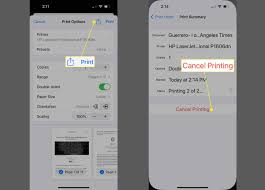
- Tap on Share: Tap on the “Share” icon and select “Print” from the menu.
- Select Your Printer: Select your printer from the list of available printers.
- Configure Print Settings: Configure your print settings, such as paper size and number of copies.
How to Print Without Airprint
If your printer is not compatible with AirPrint, don’t worry! You can still print using third-party apps.
Here are some popular printing apps for iPhone:
- HP Smart: HP’s official printing app that allows you to print photos, documents, and emails.
- Epson Iprint: Epson’s printing app that allows you to print photos, documents, and emails directly from your iPhone.
How to Print With HP Smart
To use HP Smart, follow these steps:
- Download And Install: Download and install the HP Smart app from the App Store.
- Create an Account: Create a new account using the HP Smart app.
- Connect Your Printer: Connect your printer to the same Wi-Fi network as your iPhone.
- Open The App: Open the HP Smart app and select your printer from the list of available printers.
- Configure Print Settings: Configure your print settings, such as paper size and number of copies.
How to Print With Epson Iprint
To use Epson iPrint, follow these steps:
- Download And Install: Download and install the Epson iPrint app from the App Store.
- Connect Your Printer: Connect your printer to the same Wi-Fi network as your iPhone.
- Open The App: Open the Epson iPrint app and select your printer from the list of available printers.
- Configure Print Settings: Configure your print settings, such as paper size and number of copies.
How to Print Without a Router: Using Wi-fi Direct
If you don’t have a router or are unable to connect to one, you can still print using Wi-Fi Direct.
Here’s how:
- Enable Wi-fi Direct on Your Printer: Enable Wi-Fi Direct on your printer.
- Connect to The Printer: Connect your iPhone to the printer using Wi-Fi Direct.
- Open The Document: Open the document you want to print from the Notes app or any other app that supports printing.
- Tap on Share: Tap on the “Share” icon and select “Print” from the menu.
Conclusion
Printing from your iPhone is a breeze once you know the right methods to use. Whether you’re using AirPrint, HP Smart, Epson iPrint, or Wi-Fi Direct, we hope this article has helped you achieve your printing goals.
Frequently Asked Questions (FAQs)
- Q: What is Airprint?
A: AirPrint is a technology developed by Apple that allows you to print wirelessly from your iPhone. - Q: How do I Know if my Printer is Compatible With Airprint?
A: Check the list of compatible printers on Apple’s website or check the packaging and manual of your printer. - Q: Can I Use a Third-party App to Print Without Airprint?
A: Yes, there are many printing apps available for iPhone that allow you to print without using AirPrint. - Q: How do I Connect my Printer to Wi-fi Direct?
A: Enable Wi-Fi Direct on your printer and then connect your iPhone to the printer using the same technology. - Q: What is The Difference Between HP Smart And Epson Iprint?
A: Both apps allow you to print wirelessly from your iPhone, but they have different features and capabilities.
Bonus Tips
- Make sure your printer is connected to the same Wi-Fi network as your iPhone before attempting to print.
- Check the compatibility of your printer with AirPrint or third-party printing apps.
- Use a reliable printing app that supports the type of document you want to print.
I hope this article has been helpful in answering your questions about how to print from iPhone. If you have any further queries, please don’t hesitate to ask!


