
How to Save Whatsapp Audio Files
Are you tired of losing valuable audio messages on WhatsApp? Do you want to save them locally on your device or computer for future reference? Look no further! This article will guide you through the process of saving WhatsApp audio files on Android, iOS, and PC.
Why Save Whatsapp Audio Files?
Saving WhatsApp audio files is essential if you want to preserve valuable information, such as meetings, interviews, or important conversations. Losing these files can be frustrating, especially when you need them for future reference. By saving them locally, you’ll have a backup of your precious audio messages.
Saving Whatsapp Audio Files on Android
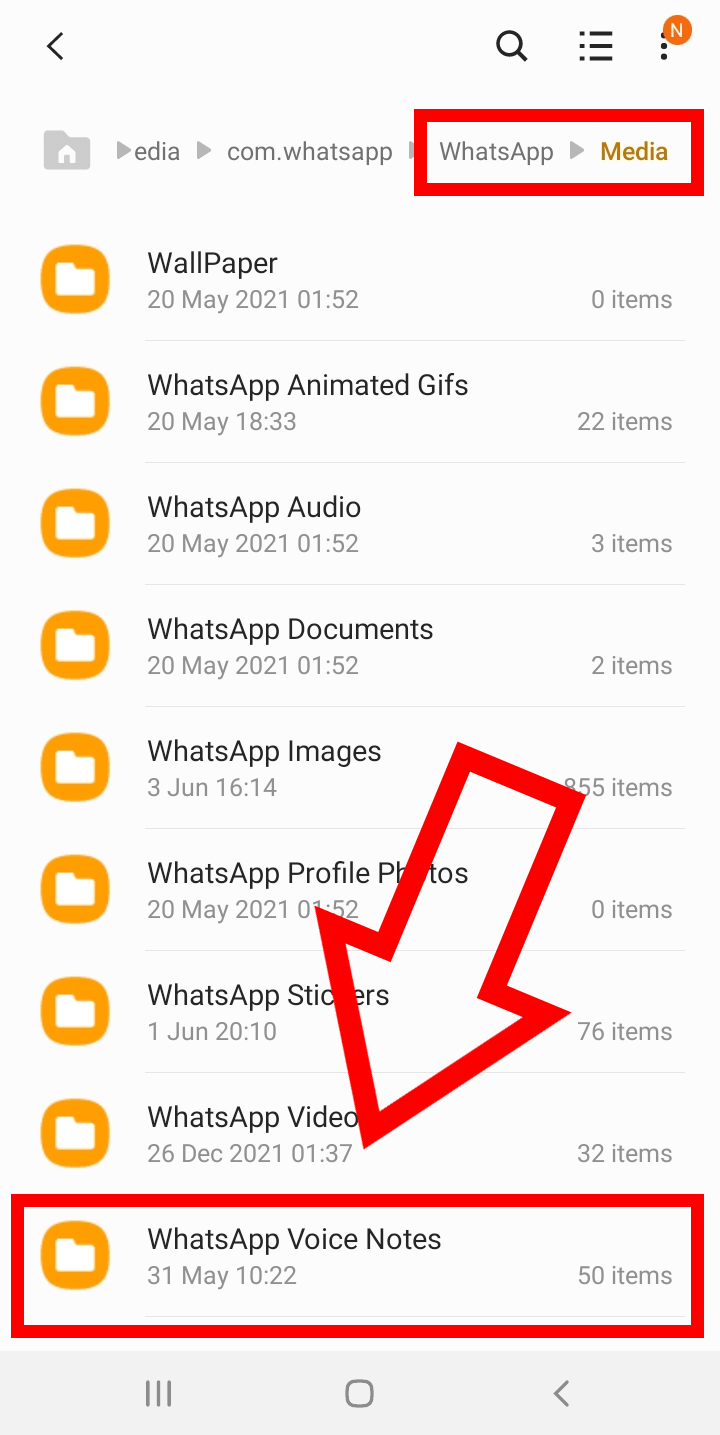
If you’re using an Android device, saving WhatsApp audio files is relatively easy. Here’s how:
- Open the WhatsApp app and go to the conversation containing the audio message.
- Tap on the “Media” tab and select the audio file you want to save.
- Tap on the three dots in the top-right corner and select “Share”.
- Choose the app you want to use to save the file, such as Google Drive or Dropbox.
Saving Whatsapp Audio Files on Ios
If you’re using an iPhone, saving WhatsApp audio files requires a few more steps:
- Open the WhatsApp app and go to the conversation containing the audio message.
- Swipe left on the chat screen and tap on “Export Chat”.
- Select the option to include media in the export process.
- Choose a location to save the exported chat, including the audio file.
- Open the saved file using an app like VLC or QuickTime.
Saving Whatsapp Audio Files on PC
If you’re using WhatsApp Web or the desktop client, saving audio files is also possible:
- Open WhatsApp Web or the desktop client and go to the conversation containing the audio message.
- Click on the three dots next to the audio file and select “Save As”.
- Choose a location to save the file and give it a name.
Troubleshooting Tips
If you’re experiencing issues saving WhatsApp audio files, try these troubleshooting tips:
- Check if your device has enough storage space.
- Make sure you have the necessary permissions to save files on your device.
- Try using a different app or method to save the file.
Conclusion
Saving WhatsApp audio files is an essential step in preserving valuable information. Whether you’re using Android, iOS, or PC, following these steps will ensure that your precious audio messages are saved for future reference. Remember to always check your device’s storage space and permissions before saving files.
Frequently Asked Questions (FAQs)
- Why Can’t I Save Whatsapp Audio Files on my Iphone?
- On iOS devices, the audio file is not saved automatically. However, you can export the entire chat, including media, to a cloud service like iCloud or Google Drive.
- How do I Recover Deleted Whatsapp Audio Files?
- Unfortunately, deleted WhatsApp audio files cannot be recovered. Make sure to save them locally on your device before deleting them.
- Can I Share Saved Whatsapp Audio Files With Others?
- Yes! Saved WhatsApp audio files can be shared with others using various apps and cloud services.
- How do I Protect Saved Whatsapp Audio Files From Unauthorized Access?
- Make sure to save your files locally on a secure device, and consider using encryption or password protection for added security.
Conclusion
Saving WhatsApp audio files is a straightforward process that can be done on various platforms. Remember to always check your device’s storage space and permissions before saving files. With these tips, you’ll be able to preserve valuable information and avoid losing precious audio messages.


