
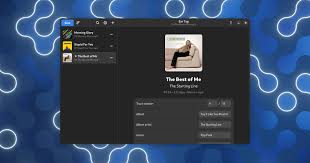
How to Edit Mp3 Tags on Windows, Mac, Android, And Ios
Are you tired of having incorrect song titles or artist names in your music library? Do you want to organize your MP3 files with ease? Look no further! In this comprehensive guide, we will walk you through the steps to edit MP3 tags on various platforms, including Windows, Mac, Android, and iOS.
Why Edit Mp3 Tags?
Editing MP3 tags is essential for maintaining an accurate and organized music library. With incorrect or missing information, it can be frustrating to find specific songs or artists. By editing MP3 tags, you can:
- Correct song titles, artist names, and album information
- Add cover art and descriptions
- Organize your music library with ease
- Share your playlists and music collections with others
Windows 10: How to Edit Mp3 Tags
To edit MP3 tags on Windows 10, follow these steps:
- Open Windows Media Player: Find the Windows Media Player icon on your desktop or in the Start menu.
- Access The Music Library: Click on the “Music” tab and navigate to the section where you want to edit the MP3 tag.
- Right-click on a Song: Select “Properties” from the context menu.
- Edit The Mp3 Tag: In the Properties window, click on the “Details” tab and edit the relevant information (e.G., Title, artist, album).
- Save Changes: Click “OK” to save the updated MP3 tag.
Windows Media Player: An Alternative Solution
If you’re using Windows Media Player as your default music player, you can also use it to edit MP3 tags:
- Right-click on a Song: Select “Properties” from the context menu.
- Edit The Mp3 Tag: In the Properties window, click on the “Details” tab and edit the relevant information (e.G., Title, artist, album).
- Save Changes: Click “OK” to save the updated MP3 tag.
Other Solutions For Windows
If you’re looking for alternative solutions to edit MP3 tags on Windows, consider using:
- VLC Media Player: A free media player that allows you to edit MP3 tags and more.
- TigoTago: A program that can batch-edit MP3 tags and supports various audio formats.
- D3 Tag Editor: A free application that enables you to edit MP3 tags and add metadata.
Mac: How to Edit Mp3 Tags
To edit MP3 tags on Mac, follow these steps:
- Open Music: Click on the Music app icon in your Dock or Launchpad.
- Access The Music Library: Navigate to the section where you want to edit the MP3 tag.
- Right-click on a Song: Select “Get Info” from the context menu.
- Edit The Mp3 Tag: In the Get Info window, click on the “Summary” tab and edit the relevant information (e.G., Title, artist, album).
- Save Changes: Click “OK” to save the updated MP3 tag.
Itunes: An Alternative Solution
If you’re using iTunes as your default music player on Mac, you can also use it to edit MP3 tags:
- Right-click on a Song: Select “Get Info” from the context menu.
- Edit The Mp3 Tag: In the Get Info window, click on the “Summary” tab and edit the relevant information (e.G., Title, artist, album).
- Save Changes: Click “OK” to save the updated MP3 tag.
Other Solutions For Mac
If you’re looking for alternative solutions to edit MP3 tags on Mac, consider using:
- MusicBrainz Picard: A free software that can automatically update MP3 tags and supports various audio formats.
- Mp3tag: A program that allows manual editing of MP3 tags and supports multiple audio formats.
Online Solutions
If you prefer not to download any software or apps, there are online solutions available:
- Tagmp3: A web-based tool that enables you to edit MP3 tags with ease.
- MP3 ID3 Tag Editor: An online service that allows you to add, modify, and edit MP3 tags.
- Converter Audio by 123apps: A tool that not only converts audio files but also edits MP3 tags.
Android: How to Edit Mp3 Tags
To edit MP3 tags on Android, follow these steps:
- Install Automatic Tag Editor: Download the app from the Google Play Store and install it.
- Open The App: Launch the app and select the song you want to edit.
- Edit The Mp3 Tag: In the app window, click on the relevant information (e.G., Title, artist, album) and edit accordingly.
- Save Changes: Click “OK” to save the updated MP3 tag.
Other Solutions For Android
If you’re looking for alternative solutions to edit MP3 tags on Android, consider using:
- Music Tag Editor: An app that allows manual editing of MP3 tags and supports multiple audio formats.
- AutoTagger: A free application that enables you to update MP3 tags in batches and supports various audio formats.
- Zortam Mp3 Tag Editor: An app that can edit individual elements or batch-edit multiple songs.
Ios: How to Edit Mp3 Tags
To edit MP3 tags on iOS, follow these steps:
- Install Mp3tag: Download the app from the App Store and install it.
- Open The App: Launch the app and select the song you want to edit.
- Edit The Mp3 Tag: In the app window, click on the relevant information (e.G., Title, artist, album) and edit accordingly.
- Save Changes: Click “OK” to save the updated MP3 tag.
Other Solutions For Ios
If you’re looking for alternative solutions to edit MP3 tags on iOS, consider using:
- Cloud Music Player: A free app that not only plays music but also allows editing of MP3 tags and supports various audio formats.
- Evermusic: An all-in-one app for music management, including tag editing.
Conclusion
Editing MP3 tags is a crucial step in maintaining an organized and accurate music library. Whether you’re using Windows, Mac, Android, or iOS, there are plenty of solutions available to help you edit MP3 tags with ease. By following the steps outlined in this guide, you can ensure that your music collection is up-to-date and easily accessible.
Frequently Asked Questions (FAQs)
Q: What is an MP3 tag?
A: An MP3 tag refers to the metadata associated with a digital audio file, including information like song title, artist name, album name, etc.
Q: Why edit MP3 tags?
A: Editing MP3 tags ensures that your music library remains accurate and organized, making it easier to find specific songs or artists.
Q: Can I edit MP3 tags on multiple platforms?
A: Yes! You can edit MP3 tags on Windows, Mac, Android, and iOS using various software and apps.
Q: Are there any online solutions available?
A: Yes! There are web-based tools like Tagmp3 and others that allow you to edit MP3 tags directly from your browser.
Q: Can I batch-edit multiple songs at once?
A: Some software and apps, like TigoTago and AutoTagger, enable you to batch-edit multiple songs simultaneously.
Q: Are there any free solutions available?
A: Yes! Many of the software and apps mentioned in this guide are free or offer a free trial version.


