
How to Add a Signature on Pdf: A Comprehensive Guide
Are you tired of manually signing documents on your computer or mobile device? Do you want to add a professional touch to your digital communications? Look no further! In this article, we will guide you through the process of adding a signature on PDF using various methods and tools.
Types of Signatures
Before we dive into the procedures, let’s clarify the types of signatures that can be affixed on a PDF:
- Electronic Signature: This is the most common type of signature that can be added to a PDF. It does not have intrinsic legal value, as it cannot be verified by any means.
- Advanced Electronic Signature: This type of signature is created using specific devices that allow for the demonstration of integrity and validity. However, its legal value is limited.
- Qualified Electronic Signature (Digital Signature): This is the most advanced type of electronic signature, which uses qualified instruments to ensure authenticity and integrity.
Adding a Signature on Pdf: Windows
If you’re using a Windows operating system, follow these steps to add a signature on PDF:
Step 1: Choose Your Signature Type
Before proceeding, choose the type of signature you want to add:
- Electronic Signature
- Advanced Electronic Signature
- Qualified Electronic Signature (Digital Signature)
Step 2: Open Adobe Reader or Acrobat
Open Adobe Reader or Acrobat, depending on your PDF viewer. If you don’t have it installed, download and install it from the official website.
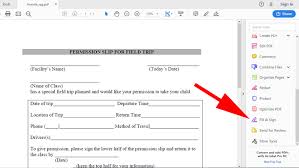
Step 3: Select The “Fill & Sign” Tool
In Adobe Reader or Acrobat, select the “Fill & Sign” tool from the top menu bar.
Step 4: Add Your Signature
Choose your signature type (electronic, advanced electronic, or qualified electronic) and follow the prompts to add your signature. You can use a digital pen, mouse, or keyboard to input your signature.
Step 5: Save The Pdf
Save the signed PDF document to your desired location.
Adding a Signature on Pdf: Mac
If you’re using a Mac operating system, follow these steps to add a signature on PDF:
Step 1: Choose Your Signature Type
Before proceeding, choose the type of signature you want to add:
- Electronic Signature
- Advanced Electronic Signature
- Qualified Electronic Signature (Digital Signature)
Step 2: Open Adobe Reader or Acrobat
Open Adobe Reader or Acrobat, depending on your PDF viewer. If you don’t have it installed, download and install it from the official website.
Step 3: Select The “Fill & Sign” Tool
In Adobe Reader or Acrobat, select the “Fill & Sign” tool from the top menu bar.
Step 4: Add Your Signature
Choose your signature type (electronic, advanced electronic, or qualified electronic) and follow the prompts to add your signature. You can use a digital pen, trackpad, or webcam to input your signature.
Step 5: Save The Pdf
Save the signed PDF document to your desired location.
Adding a Signature on Pdf Online
If you prefer not to install any software on your computer, consider using online services like Sejda. This service allows you to sign your PDF documents directly from their website, without installing any additional software.
- Go to the Sejda website and upload your PDF document.
- Choose the type of signature you want to add (electronic).
- Follow the prompts to input your signature using a digital pen or keyboard.
- Save the signed PDF document to your desired location.
Using Apps to Add Signature on Pdf
There are various apps available for both Android and iOS devices that allow you to add signatures to PDF documents. Some popular options include:
- Adobe Fill & Sign (available for both Android and iOS)
- Sejda (available for both Android and iOS)
Follow the instructions provided by each app to add your signature to your PDF document.
Conclusion
Adding a signature on PDF can be a straightforward process, whether you’re using Windows, Mac, or an online service. By choosing the right type of signature and following the necessary steps, you can ensure that your digital communications are professional and secure.
Frequently Asked Questions (FAQs)
- Q: What Types of Signatures Can I Add to a Pdf?
A: You can add electronic, advanced electronic, or qualified electronic signatures to a PDF. - Q: How do I Add an Electronic Signature on Windows?
A: Open Adobe Reader or Acrobat and select the “Fill & Sign” tool from the top menu bar. Choose your signature type (electronic) and follow the prompts to input your signature using a digital pen, mouse, or keyboard. - Q: How do I Add an Electronic Signature on Mac?
A: Open Adobe Reader or Acrobat and select the “Fill & Sign” tool from the top menu bar. Choose your signature type (electronic) and follow the prompts to input your signature using a digital pen, trackpad, or webcam. - Q: What is an Advanced Electronic Signature?
A: An advanced electronic signature uses specific devices that allow for the demonstration of integrity and validity. However, its legal value is limited. - Q: How do I Add a Qualified Electronic Signature (digital Signature) to a Pdf?
A: You can use services like Aruba or InfoCert to obtain a qualified electronic signature. Follow their instructions to add your digital signature to your PDF document.
We hope this article has been helpful in guiding you through the process of adding signatures on PDF using various methods and tools!


