
Creating a Stunning Presentation: A Step-by-step Guide
Are you tired of creating presentations that are dull and unengaging? Look no further! In this article, we will guide you through the process of creating a stunning presentation using Microsoft PowerPoint.
Why Create a Beautiful Presentation?
Before we dive into the nitty-gritty details, let’s talk about why creating a beautiful presentation is essential. A well-crafted presentation can make all the difference in conveying your message effectively, engaging your audience, and leaving a lasting impression.
Choosing a Template
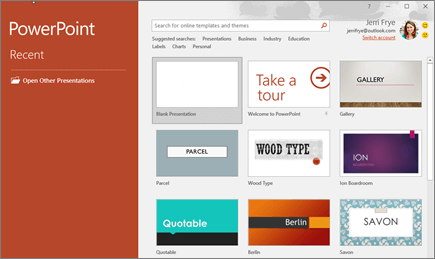
When it comes to creating a presentation, choosing the right template is crucial. Microsoft PowerPoint offers a wide range of templates that you can use as a starting point. To choose a template, follow these steps:
- Open Microsoft PowerPoint on your PC or Mac.
- Click on “File” and select “New.”
- Browse through the available templates and select one that resonates with your presentation’s theme.
- Customize the template to fit your needs by adding text, images, and other elements.
Inserting Clear And Concise Information
When inserting information into your presentation, keep it clear and concise. Avoid cluttering your slides with too much text or graphics. Instead, use bullet points, short paragraphs, and visual aids to convey your message effectively.
Formatting Text Correctly
Proper formatting of text is essential for creating a visually appealing presentation. Here are some tips:
- Use headings and subheadings to break up large blocks of text.
- Choose a clear and consistent font throughout the presentation.
- Use bold and italic text to emphasize important points.
Adding Animations And Transitions
Animations and transitions can add an extra layer of depth and engagement to your presentation. Here are some tips:
- Use animations sparingly to avoid overwhelming your audience.
- Choose transitions that complement your presentation’s theme and style.
- Experiment with different animation effects to find the one that works best for you.
Inserting Clipart And Images
Clipart and images can add a touch of creativity and visual interest to your presentation. Here are some tips:
- Use high-quality images that are relevant to your presentation’s theme.
- Avoid using too many images or graphics, as this can clutter the slide.
- Experiment with different image styles and effects to find the one that works best for you.
Adding Music And Videos
Music and videos can add a personal touch and create a memorable experience for your audience. Here are some tips:
- Choose music that complements your presentation’s theme and style.
- Use high-quality videos that are relevant to your presentation’s topic.
- Experiment with different video styles and effects to find the one that works best for you.
Creating a Consistent Style
Consistency is key when it comes to creating a stunning presentation. Here are some tips:
- Choose a consistent color scheme throughout the presentation.
- Use a clear and consistent font throughout the presentation.
- Experiment with different design elements, such as shapes and graphics, to find the one that works best for you.
Presenting on Smartphones And Tablets
With the rise of mobile devices, it’s essential to create presentations that can be easily viewed on smartphones and tablets. Here are some tips:
- Use a responsive design that adapts to different screen sizes.
- Choose images and graphics that are optimized for mobile devices.
- Experiment with different layout styles to find the one that works best for you.
Presenting Online
With the rise of online presentations, it’s essential to create content that can be easily shared and accessed by a global audience. Here are some tips:
- Use cloud-based services, such as PowerPoint Online or Google Slides, to create and share your presentation.
- Choose a consistent style and design throughout the presentation.
- Experiment with different features, such as animations and transitions, to find the one that works best for you.
Alternatives to Powerpoint
While Microsoft PowerPoint is the industry standard for creating presentations, there are alternative software options available. Here are some tips:
- Use LibreOffice Impress or Keynote for Mac to create stunning presentations.
- Experiment with different design elements and effects to find the one that works best for you.
- Consider using cloud-based services, such as PowerPoint Online or Google Slides, to create and share your presentation.
Conclusion
Creating a stunning presentation is all about planning, creativity, and attention to detail. By following these tips and experimenting with different design elements and effects, you can create a presentation that engages and inspires your audience.
Faqs
- What Are The Benefits of Creating a Beautiful Presentation?
A beautiful presentation can engage your audience, convey your message effectively, and leave a lasting impression. - How do I Choose a Template For my Presentation?
Choose a template that resonates with your presentation’s theme and customize it to fit your needs. - What Are The Benefits of Using Animations And Transitions in my Presentation?
Animations and transitions can add an extra layer of depth and engagement to your presentation. - How do I Insert Clipart And Images Into my Presentation?
Use high-quality images that are relevant to your presentation’s theme and avoid cluttering the slide with too many images or graphics. - What Are The Benefits of Adding Music And Videos to my Presentation?
Music and videos can add a personal touch and create a memorable experience for your audience. - How do I Create a Consistent Style Throughout my Presentation?
Choose a consistent color scheme, font, and design elements throughout the presentation. - Can I Present on Smartphones And Tablets?
Yes, use a responsive design that adapts to different screen sizes and choose images and graphics optimized for mobile devices. - What Are Some Alternative Software Options to Powerpoint?
Use LibreOffice Impress or Keynote for Mac to create stunning presentations.
I hope this article has provided you with the guidance and inspiration you need to create stunning presentations!


